
Learn Lesson 1
A tour of the studio
Fledgetone is a whole music studio in a browser tab. In ten minutes you'll open a finished song, play it, take it apart and put it back together, and know where everything lives. Open the studio in another tab or window and follow along.
Open a song
The quickest way to learn a studio is to open something that already sounds good. Fledgetone comes with starters: short songs, ready to play and change.
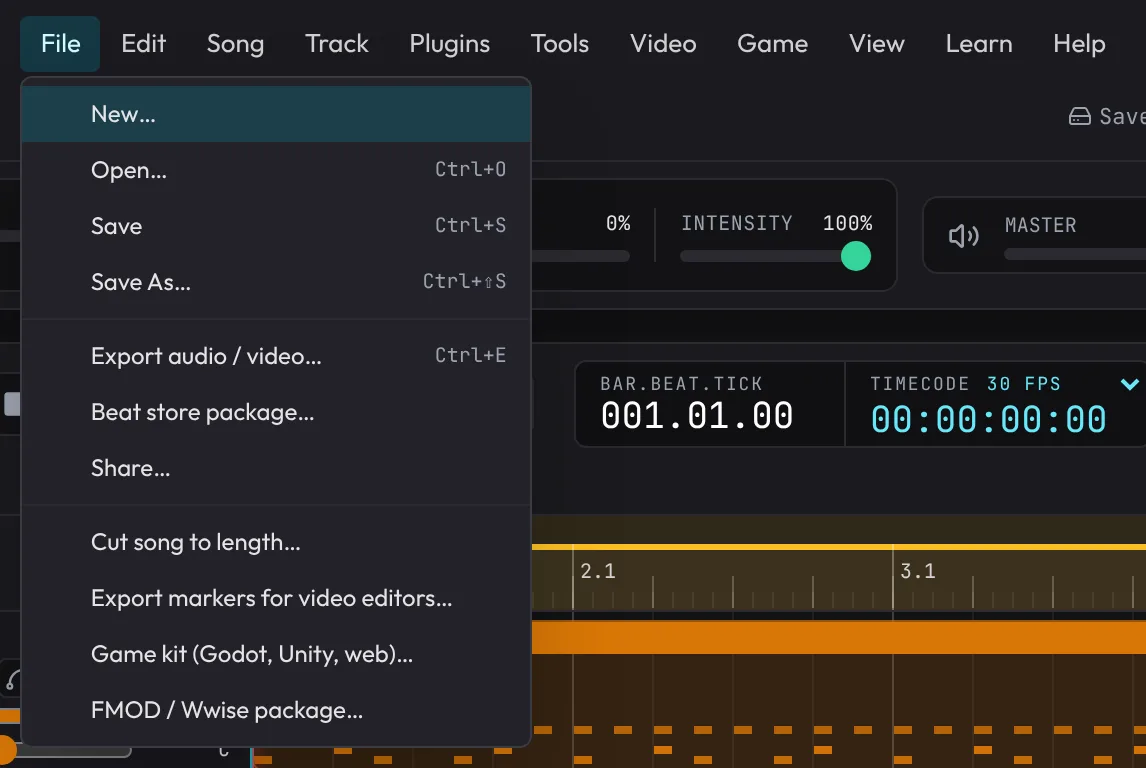
- Open the File menu at the top left and choose New….
- Click Plaza, a Latin groove on percussion, nylon guitar, upright bass and trumpet.
- Press Space to play. Press it again to pause.
The timeline
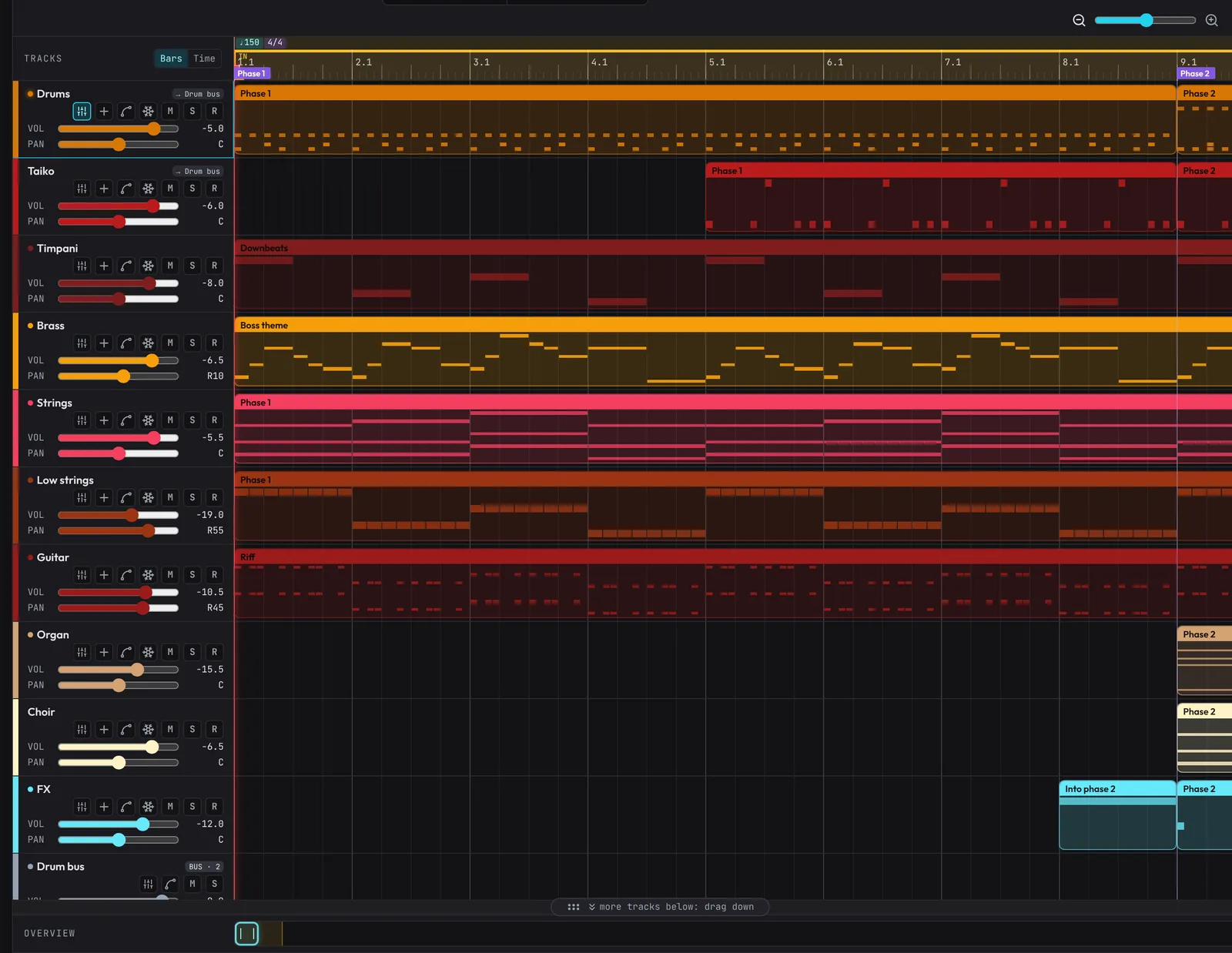
The big area in the middle is the timeline: the song from left to right, one track per row. Each track plays one instrument, and the coloured blocks on it are clips, short pieces of music the instrument plays. The red line is the playhead, where the song is now.
Try these while the song plays:
- Click M on a track's header to mute it, and S to solo it (hear it alone). Click again to undo.
- Click anywhere on the ruler (the bar numbers along the top) to jump there.
- Drag the VOL slider on a track's header to make it louder or quieter.
Look inside a clip
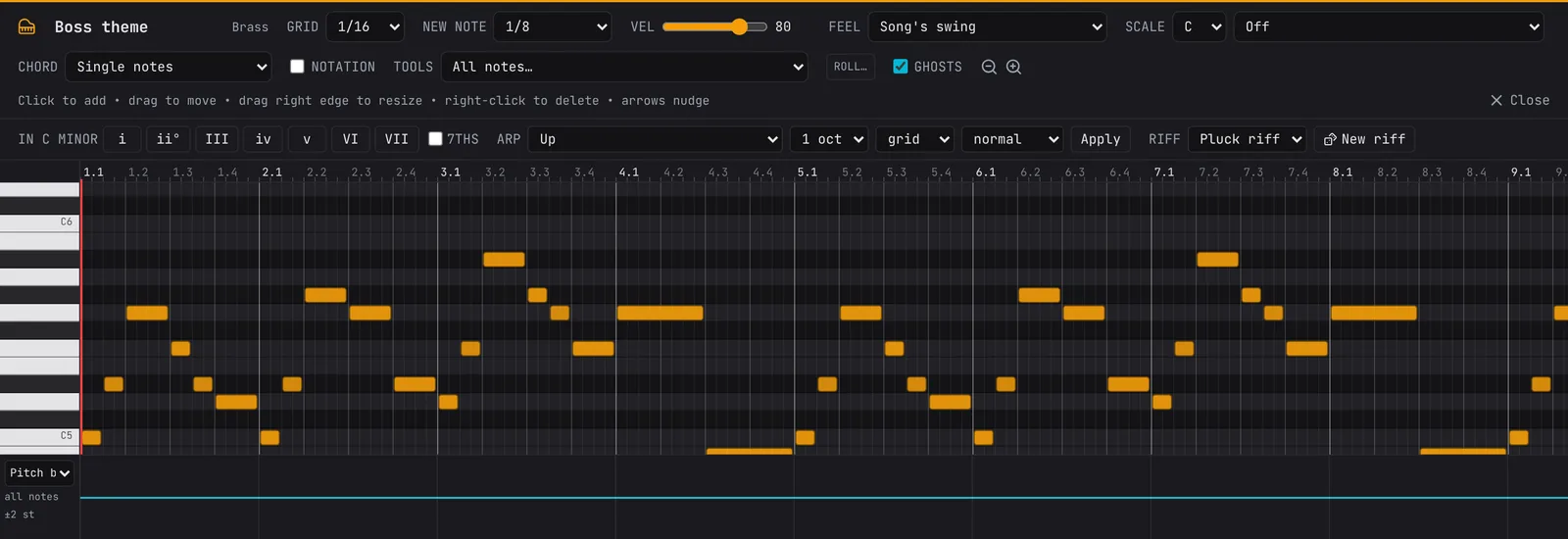
Double-click any clip. Its notes open in the piano roll under the timeline: time goes left to right, pitch goes up the keyboard on the left. Every coloured bar is a note. Drag one up or down and press Space to hear the change.
The bottom panel
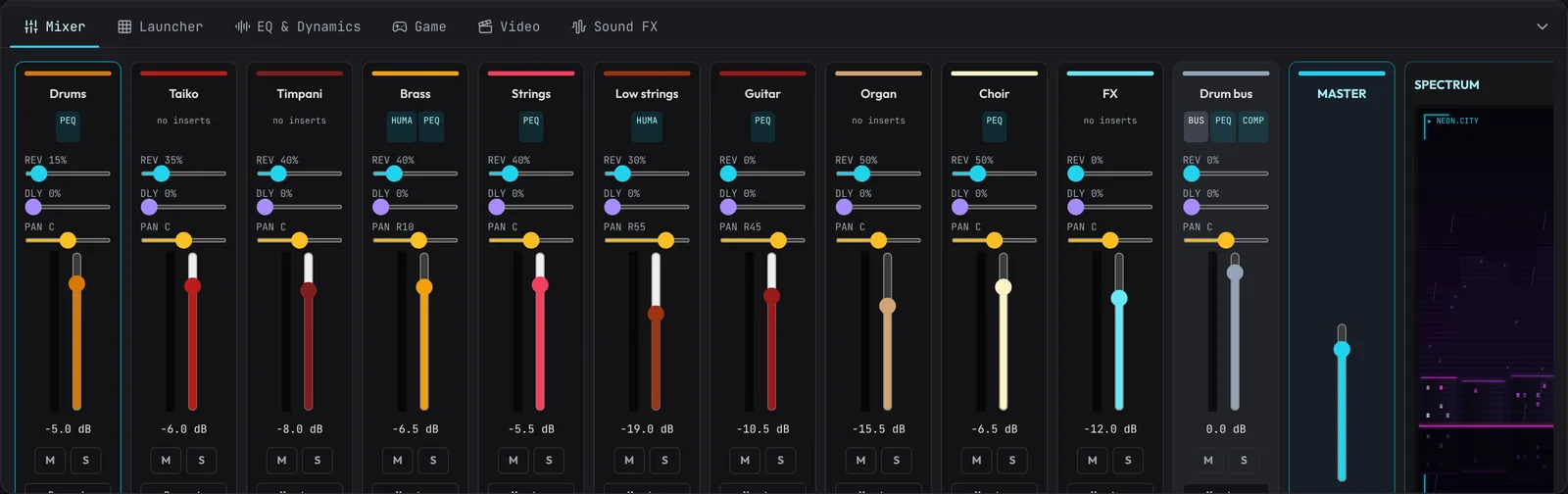
Under the timeline is the bottom panel, with tabs for the Mixer, the Launcher, EQ & Dynamics, Game, Video and Sound FX. Click Mixer: every track has a channel strip with its fader, and the master on the right sets the level of the whole song.
The menus and search
Every tool lives in one of the menus along the top, laid out like a desktop studio: File to open, save and export, Edit for undo, copy and paste, Song for arranging, Track for the selected track, Plugins, Tools, Video, Game, View, Learn and Help.
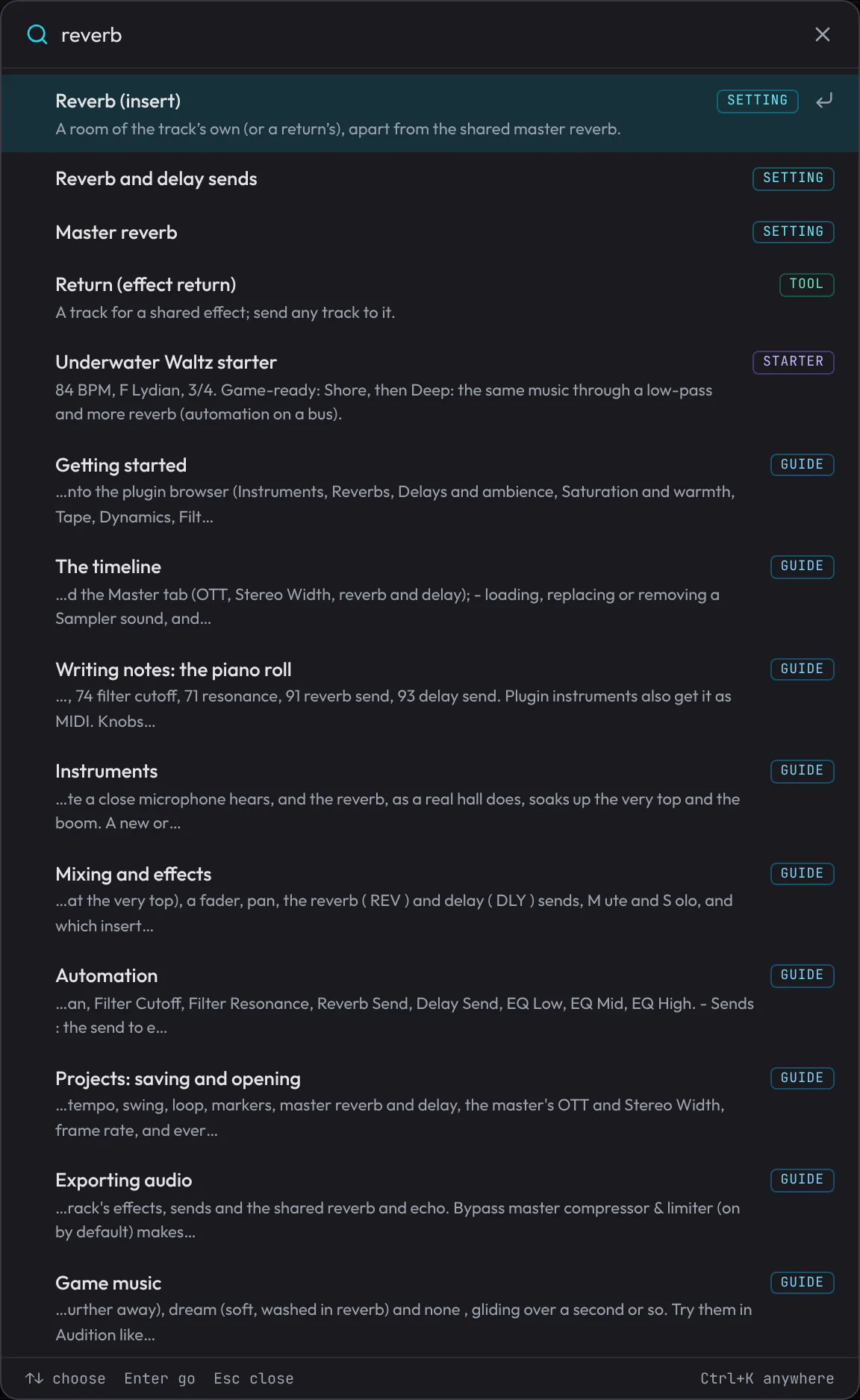
You don't have to know where anything is, though. Press Ctrl+K (Cmd+K) and type what you're after: reverb, export, violin, metronome. Search finds tools, settings, instruments, starters and the guide.
Your work saves itself
Fledgetone saves the song in your browser as you work. Close the tab and come back, and a banner offers to Restore it. To keep a song for good, or move it to another computer, use File › Save: it's a small file you can open again with File › Open.
What's next
You've played a song, muted and soloed tracks, edited notes and found the mixer. Next, make something of your own: Make your first beat.