
Learn Lesson 11
Export, share and finish
A song isn't finished until it's out of the studio. In this lesson you'll save a song as a file, see how the app keeps your work between visits, export it for streaming and for a game, share a link that opens it, make a showcase video of the notes playing, and cut a 30-second version for a social clip. Open the studio in another tab and follow along with your own song, or with a starter.
Name your song
- If you don't have a song open, choose File › New… and click Lo-Fi.
- Click the project name at the right of the menu bar (Lo-Fi starter), type Night drive and press Enter.
The name is used for every file you save and export: Night drive.wav, Night drive.mp4.

Save it as a file
- Click Save (or press Ctrl+S, Cmd+S on a Mac).
- The first time, pick a folder and click Save. The file is called Night drive.fledgetone.json.
After that, Save writes straight back to the same file, as a desktop studio does. To keep a copy or a new version (Night drive v2), use File › Save As… (Ctrl+Shift+S); from then on, Save writes there.
To open a song again, choose File › Open… (Ctrl+O) and pick the file, or drop the file anywhere on the page. The file holds everything: tracks, clips, the mix, markers and any sounds you recorded or loaded.
Autosave and Restore
You can't lose much by accident. The app saves your work in this browser half a second after every change, and the menu bar shows Saved in this browser with the time.
Close the tab, come back tomorrow, and a banner under the header offers your last session. Click Restore to bring it back, or Dismiss to forget it.

Autosave lives in this browser only, and private windows don't keep it. It's a safety net, not a place to keep songs: Save anything you care about.
Export a mixdown
A mixdown is one stereo file of the whole song, as you hear it. Click Export at the right of the menu bar (or press Ctrl+E).
- Range: Whole song.
- Export: Mixdown.
- Tick Match a loudness target and set For to Streaming (-14 LUFS).
- Ending: Ring out, so the reverb and echo tails die away naturally.
- Format: WAV, 44.1 kHz, 24-bit.
- Click Export.
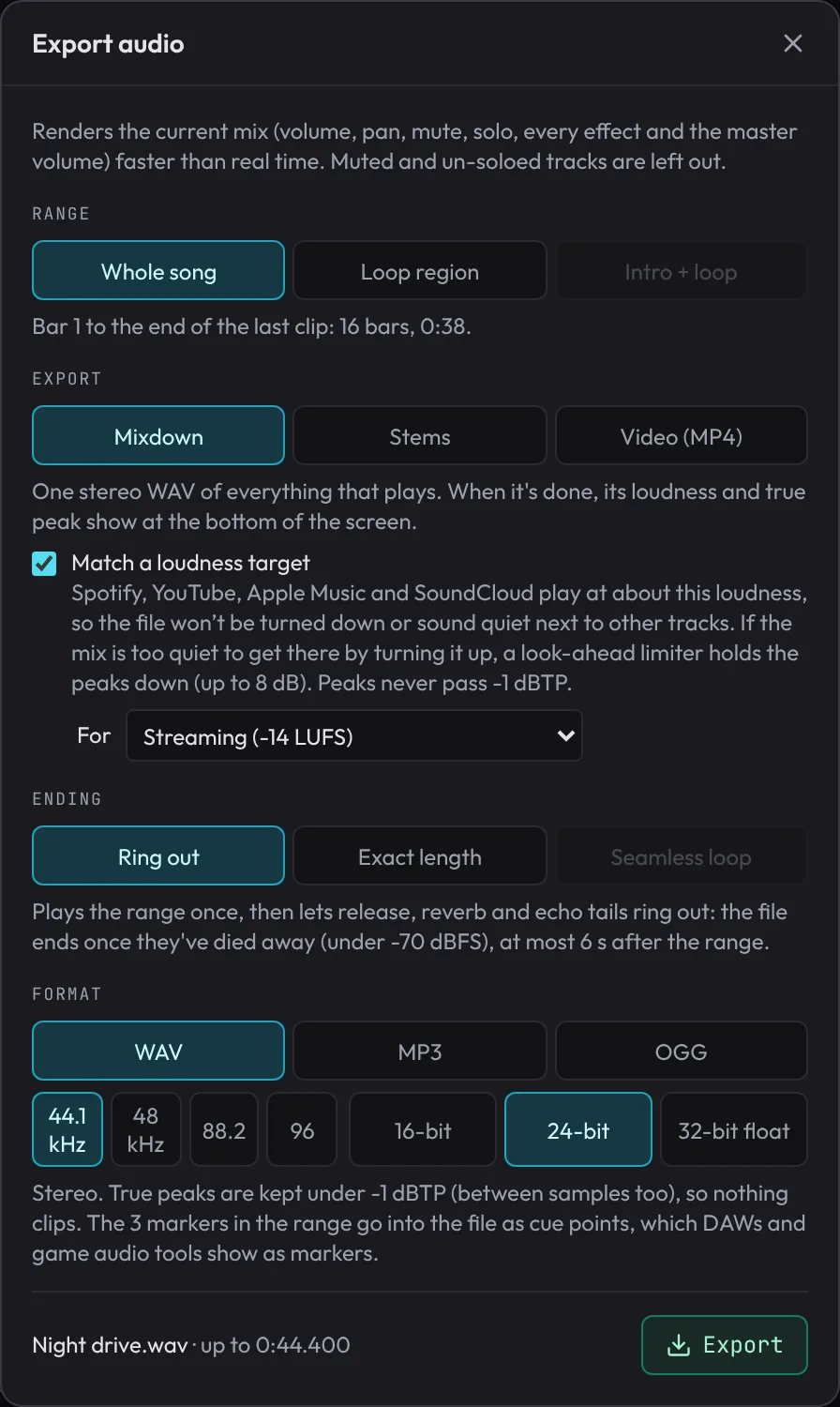
The file renders faster than real time and downloads. When it's done, its loudness and peak show at the bottom of the screen.
Each kind of destination wants its own settings. Use these as a starting point:
| Where it's going | Export | Ending | Format | Loudness target |
|---|---|---|---|---|
| Streaming (Spotify, YouTube…) | Mixdown | Ring out | WAV, 24-bit | Streaming (-14 LUFS) |
| A quick listen on a phone | Mixdown | Ring out | MP3 | Streaming (-14 LUFS) |
| A DJ set or club | Mixdown | Ring out | WAV, 24-bit | Loud: club and EDM (-9 LUFS) |
| Background music in a game | Mixdown | Seamless loop | OGG | Games (-16 LUFS) |
| Another studio, for mixing | Stems | Exact length | WAV, 24-bit | none |
A seamless loop
Game and app music usually repeats. A seamless loop is exactly one loop long, with the tail of the pass before already ringing at its start, so it repeats with no gap or click.
- Drag the loop's IN and OUT brackets on the ruler around the part that should repeat. (A starter's loop covers the whole song: Lo-Fi's is bars 1 to 17. For a game, a loop round one section, such as the Melody from bar 9, often repeats better.)
- In Export, set Range to Loop region and Ending to Seamless loop.
- Set Format to OGG, tick Match a loudness target and set For to Games (-16 LUFS).
- Click Export.
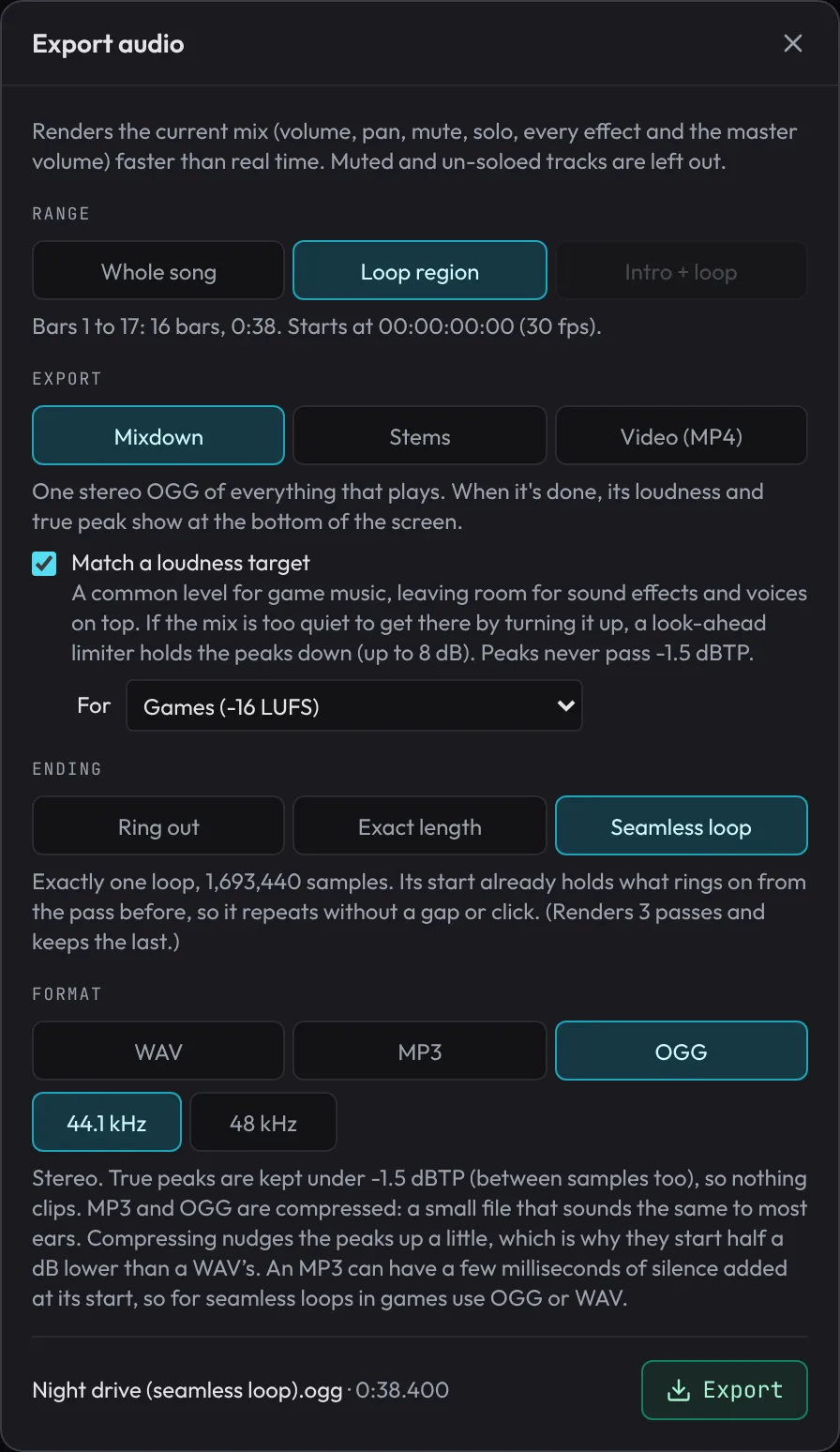
A WAV seamless loop also carries loop points, which Godot, GameMaker and samplers read for you. Don't use MP3 for a loop: the format can add a few milliseconds of silence at the start, and you'll hear the hiccup. For music that plays an intro once and then loops, see Intro + loop in Game music that reacts.
Stems
Stems are one file per track, all the same length and starting together, so they line up in another program for mixing or remixing.
- In Export, set Range to Whole song, Export to Stems and Ending to Exact length.
- Leave Bypass master compressor & limiter ticked: the stems then add up exactly to your mix before the master.
- Click Export. You get one .zip with a WAV per track that plays.
Share a link
- Click Share at the right of the menu bar.
- Under A link to this song, click Copy link and paste it into a message.
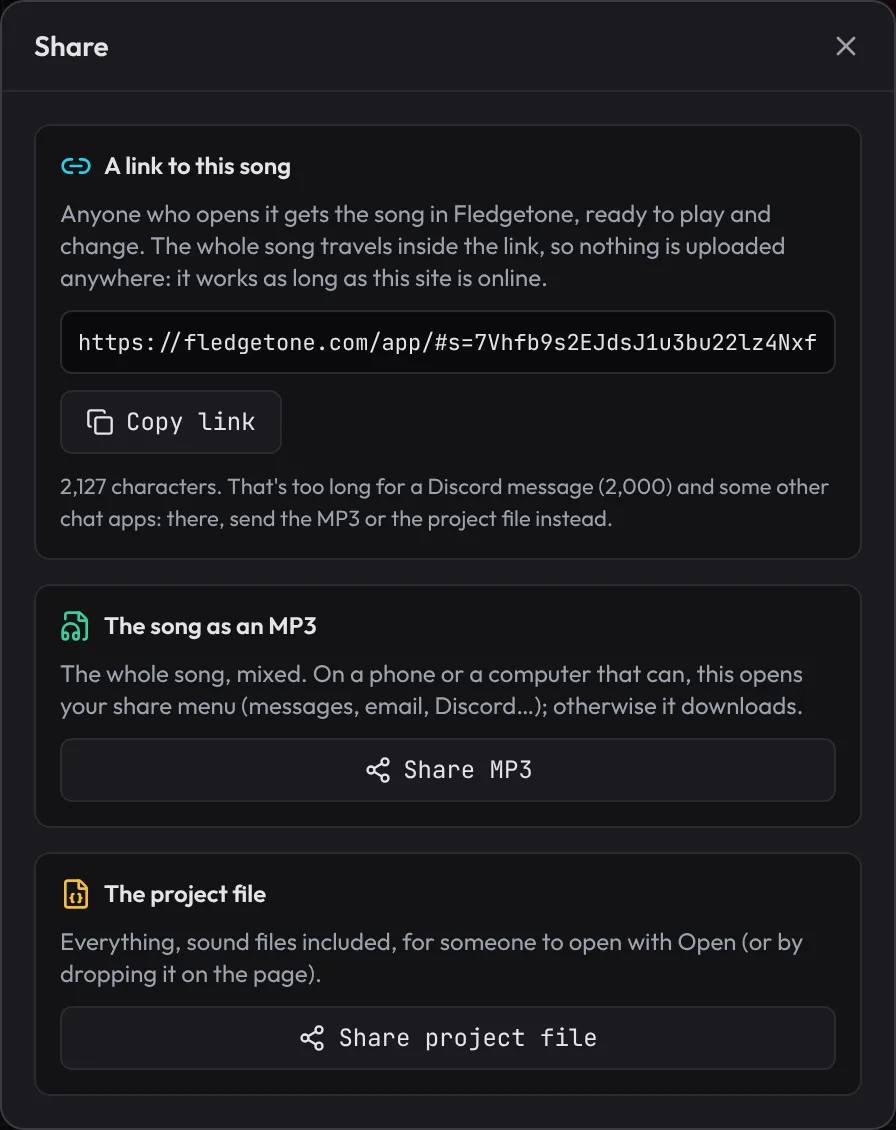
Whoever opens the link gets the song in Fledgetone, ready to play and change. The whole song travels inside the link, so nothing is uploaded anywhere. Under the link, the dialog says how long it is: a big song can be too long for some chat apps (over 2,000 characters for a Discord message), and then Share MP3 or Share project file below it is the way to send it.
Make a showcase video
For TikTok, Reels, Shorts or YouTube, export the song as a video that shows how it was made: every note slides past a red playhead in its track's colour, lighting up as it plays.
- Open File › Showcase video (YouTube, TikTok)…. Export opens set to Video (MP4), with Picture on Showcase: the notes playing.
- Pick the Shape: Portrait 9:16 for phones, or Widescreen 16:9 for YouTube and websites.
- Leave Frame rate on Smooth 60 fps, so the notes glide.
- Under Title and marks, type your Title and the line Under it (or untick them), and choose whether to show the section names, the time and the waveform.
- Tick Match a loudness target, set For to Streaming (-14 LUFS), then click Export.
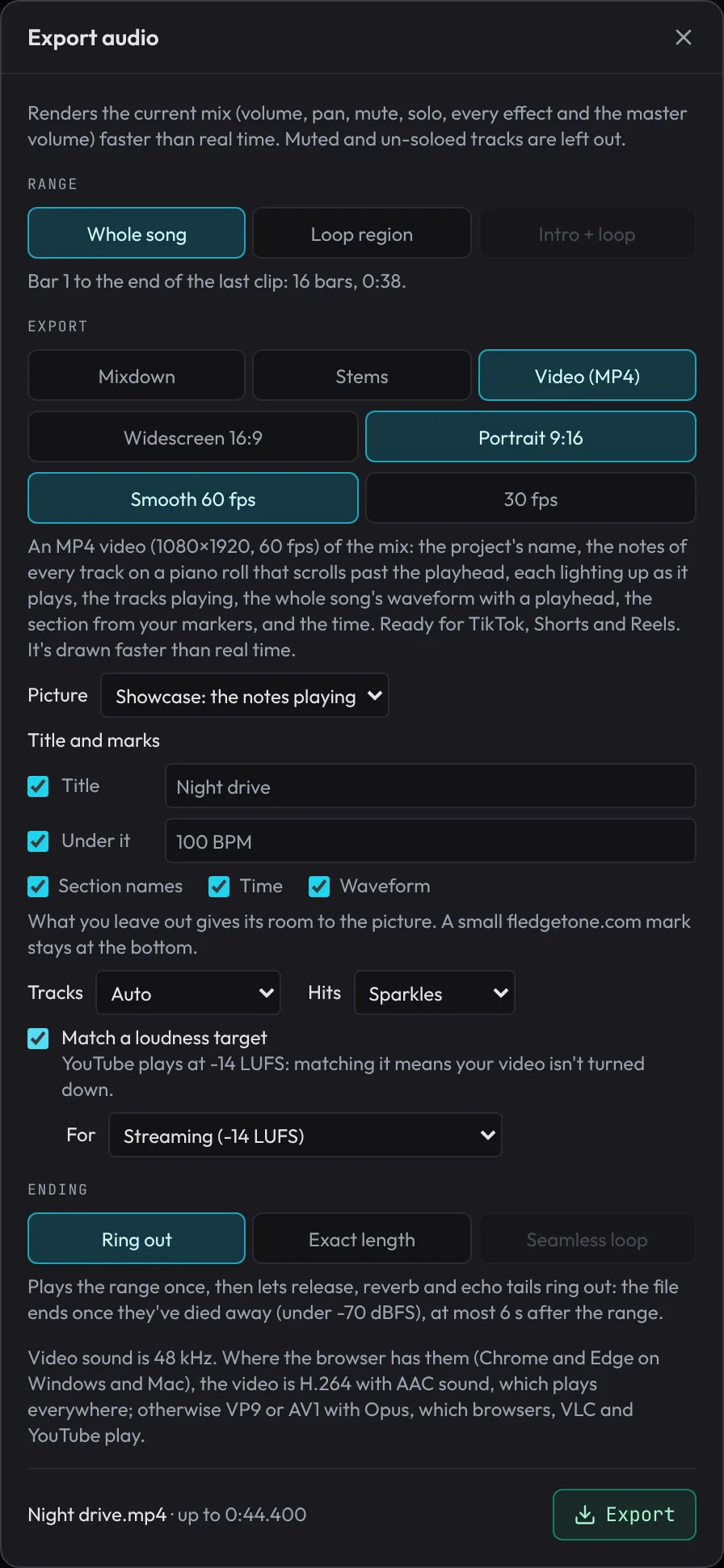
Prefer moving bars? Set Picture to Spectrum and pick a style (LED bars, Neon city, Radar HUD and more). Videos need Chrome or Edge. To put your music on a video of your own instead, see Score a video.
Cut a 30-second version
Ads and social clips often need music that lasts an exact time. Cut to length makes a shorter (or longer) version from the song's own sections.
- Choose File › Save As… and save a copy (Night drive 30s), so you keep the full song too.
- Choose File › Cut song to length….
- Click 30 s. The dialog shows the sections it keeps, in order.
- Leave Nudge the tempo ticked: the tempo moves a little so it lasts exactly 0:30.00.
- Click Cut to 0:30.00.
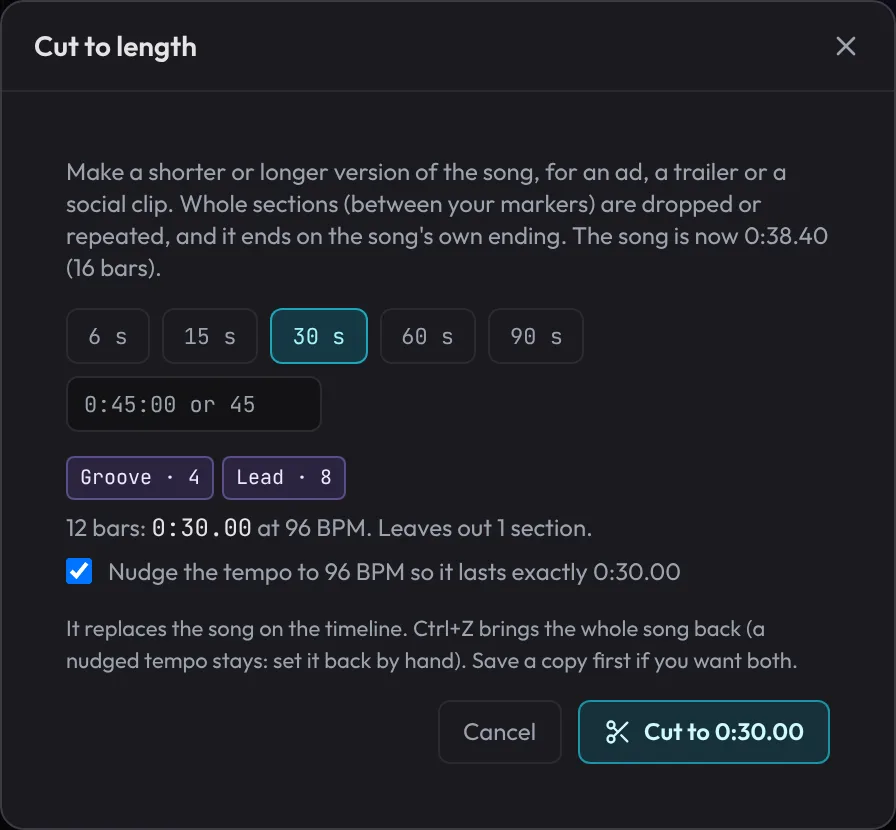
It always ends on the song's own ending and cuts only on bar lines between sections, so the edit can't be heard. Ctrl+Z brings the whole song back, though the nudged tempo stays: set it back by hand. More in the guide: Cut to length.
Install the app
Fledgetone can run in its own window, with an icon in your Start menu, Dock or app list, and it opens even with no internet connection.
- Chrome or Edge on a computer: Help › Install Fledgetone…, or the install icon at the right of the address bar.
- Safari on a Mac: File › Add to Dock.
- iPhone or iPad: tap Share, then Add to Home Screen.
- Android: the browser's menu (⋮) › Install app.
The installed app shares everything with the web page: your autosave, sounds and recordings. See Installing Fledgetone and Working offline.
What's next
You've saved a song, exported it for streaming and for a game, shared a link and a video, and cut a 30-second version. Next, take the studio with you: Make music on your phone.