
Learn Lesson 9
Score a video
Music for picture has one rule above the rest: the big moments in the music land on the big moments in the film. In this lesson you'll load a short film, let Fledgetone find its cuts, pick a tempo that puts every cut on a bar line, build up into the last one, and export the music on the film plus markers your editor can import.
Use any short film you have: a phone clip, a game capture, a trailer. The pictures here use a 15-second test film at 24 frames a second with three hard cuts (it's AI-generated, made for testing).
Start a song and set the frame rate
- Open File › New… and click Latin. It plays at 130 BPM in three sections: Intro, Groove and Melody. (Any song works the same way; this one is short and has a clear change at bar 5.)
- Click the frame rate next to TIMECODE (it starts at 30 FPS) and choose your film's rate. For the test film that's 24 fps.

The TIMECODE readout now counts hours, minutes, seconds and frames at 24 a second, the way your editor's software does.
Load the film
- Open the Video tab in the bottom panel and click Video, then choose your file (MP4 or WebM). Video › Load reference video… does the same, or drop the file anywhere on the page.
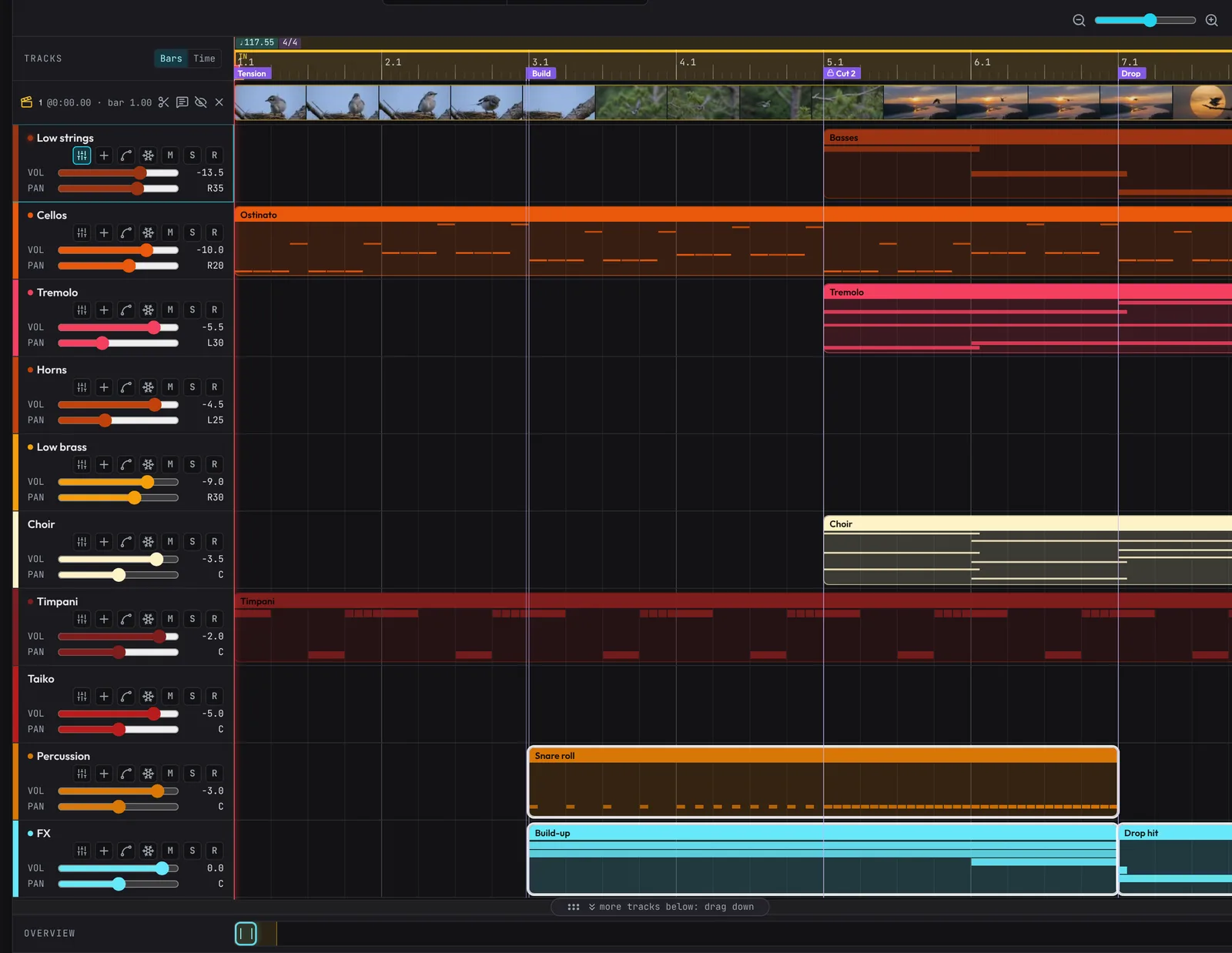
- The film appears as a strip of frames under the ruler, and in a small preview window that follows the playhead. Press Space and it plays along with the music.
- Click Time on the Bars | Time switch above the track names. The ruler now counts minutes, seconds and frames instead of bars. Click Bars to switch back.
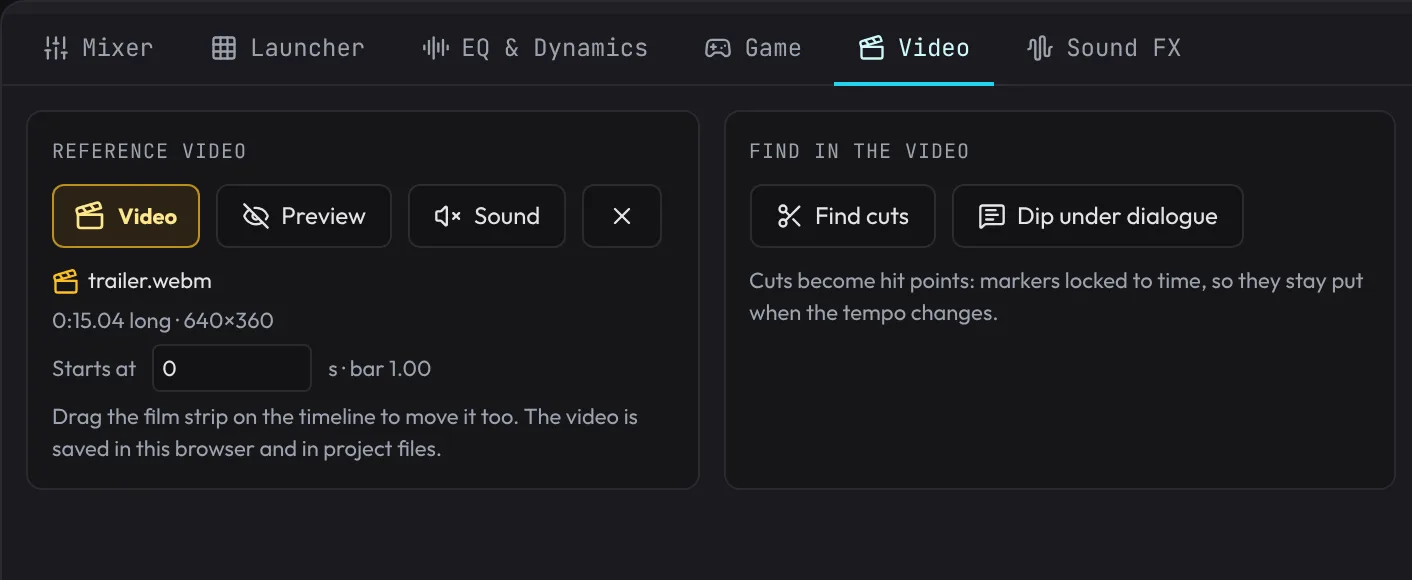
The tab shows the film's length (0:15.04 for the test film) and where it starts in the song. It starts at bar 1; leave it there for now.
Find the cuts
- Click Find cuts in the Video tab (or the scissors on the film strip's header).
- After a second or two, three violet flags with a small lock appear on the ruler: Cut 1, Cut 2 and Cut 3, each on the first frame of a new shot.
- Click bar 1 on the ruler, then press . (full stop) to jump to the next marker. Cuts and section markers both count, so keep pressing it and watch the preview window change shot at each cut.

These are hit points: markers locked to time. Change the tempo and the music moves under them, but they stay on their frame. At 130 BPM they fall in awkward places, partway through bars 3, 5 and 7.
Fit the tempo to the cuts
- Click FIT next to the tempo and choose Hit points.
- Click Bar, so the finder looks for tempos that put the cuts on bar lines.
- The list shows the five best tempos. Find the one around 117.55 BPM with 3/3 on a bar line and click it to see where each cut lands. The tempo finder guide section has more.
- Click Apply.
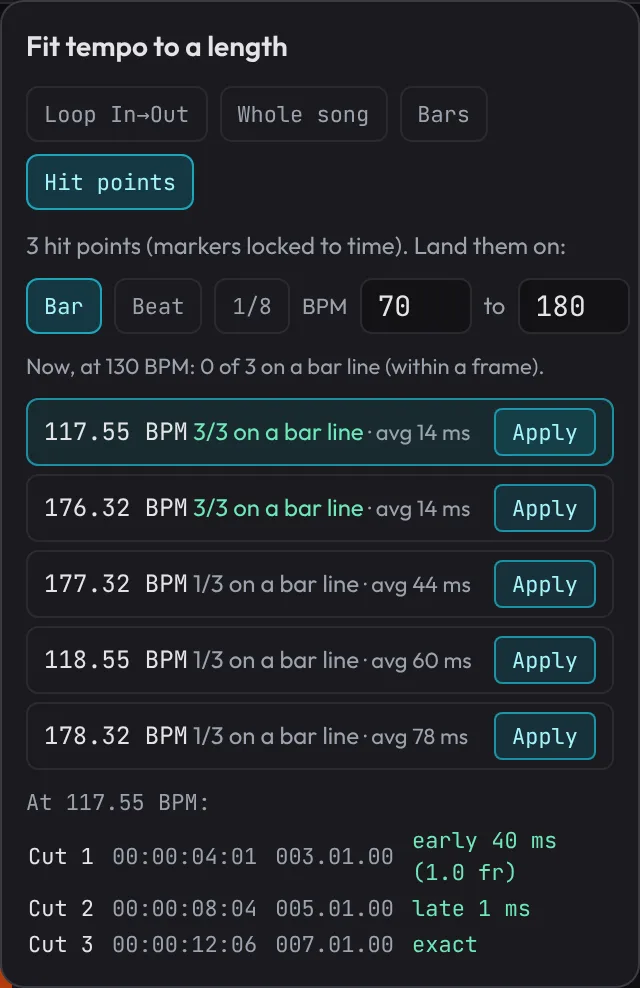
Here's the worked example for the test film:
| Hit point | Timecode (24 fps) | At 117.55 BPM it lands on |
|---|---|---|
| Cut 1 | 00:00:04:01 | bar 3, one frame early |
| Cut 2 | 00:00:08:04 | bar 5 |
| Cut 3 | 00:00:12:06 | bar 7 |
The cuts are about 4.1 seconds apart, and at 117.55 BPM a bar lasts 2.04 seconds, so each cut comes two bars after the last. Better still, the starter's Groove section starts on bar 5, so the music now changes at the very moment the film does. Your numbers may differ by a hundredth or two.
Build up into the last cut
- Right-click the ruler at the start of bar 7, where Cut 3 now sits.
- Choose Build-up & drop here.
- Click bar 1 on the ruler, then press Space, and watch the film.
You get a riser and a snare roll from bar 3 that grow towards bar 7, and an impact right on the cut, plus Build and Drop markers. They're ordinary clips: drag, shorten or delete them like any other. The Build-up & drop guide section lists everything it writes.
Dip the music under dialogue
If people talk in your film, the music has to make room for them.
- Click Dip under dialogue in the Video tab.
- It listens to the film's own sound and says how much talking it found. Set the dip (-10 dB is a good start) and click Dip the music.
Every track gets volume automation that dips a moment before each line and comes back half a second after it. Check the dips on the tracks and delete any that caught a loud sound effect instead of a voice. The test film has no sound of its own, so on that one you'll see Couldn't listen to the video: this video has no sound the browser can read.
Hand the markers to the editor
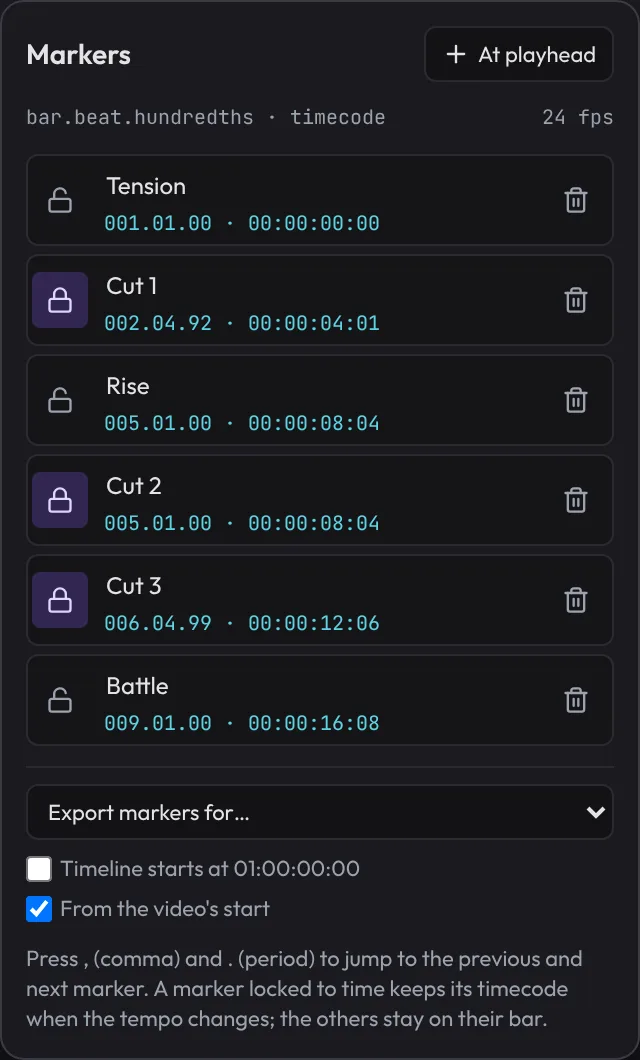
- Open Song › Markers list… (or click the flag button right of the Loop button). Every marker is listed with its bar and its timecode at 24 fps.
- Keep From the video's start ticked, so the times count from the film's first frame.
- Choose your editor's software from Export markers for…: Premiere Pro (.xml), DaVinci Resolve (.edl), Final Cut Pro (.fcpxml) or Spreadsheet (.csv).
Export the music onto the film
The song is longer than the film, so first make the loop cover just the film.
- Click the small chevron right of the Loop button to open Loop range.
- Type 1 in In and press Enter, then type 15:01 in Out (15 seconds and 1 frame, the test film's length) and press Enter.
- Press Ctrl+E (Cmd+E) to open Export. Choose Loop region, then Video (MP4).
- Check Put the music on trailer.webm is ticked (it shows your film's name). Tick Keep the video's own sound too if the film has dialogue or effects to keep.
- Choose Exact length and click Export.
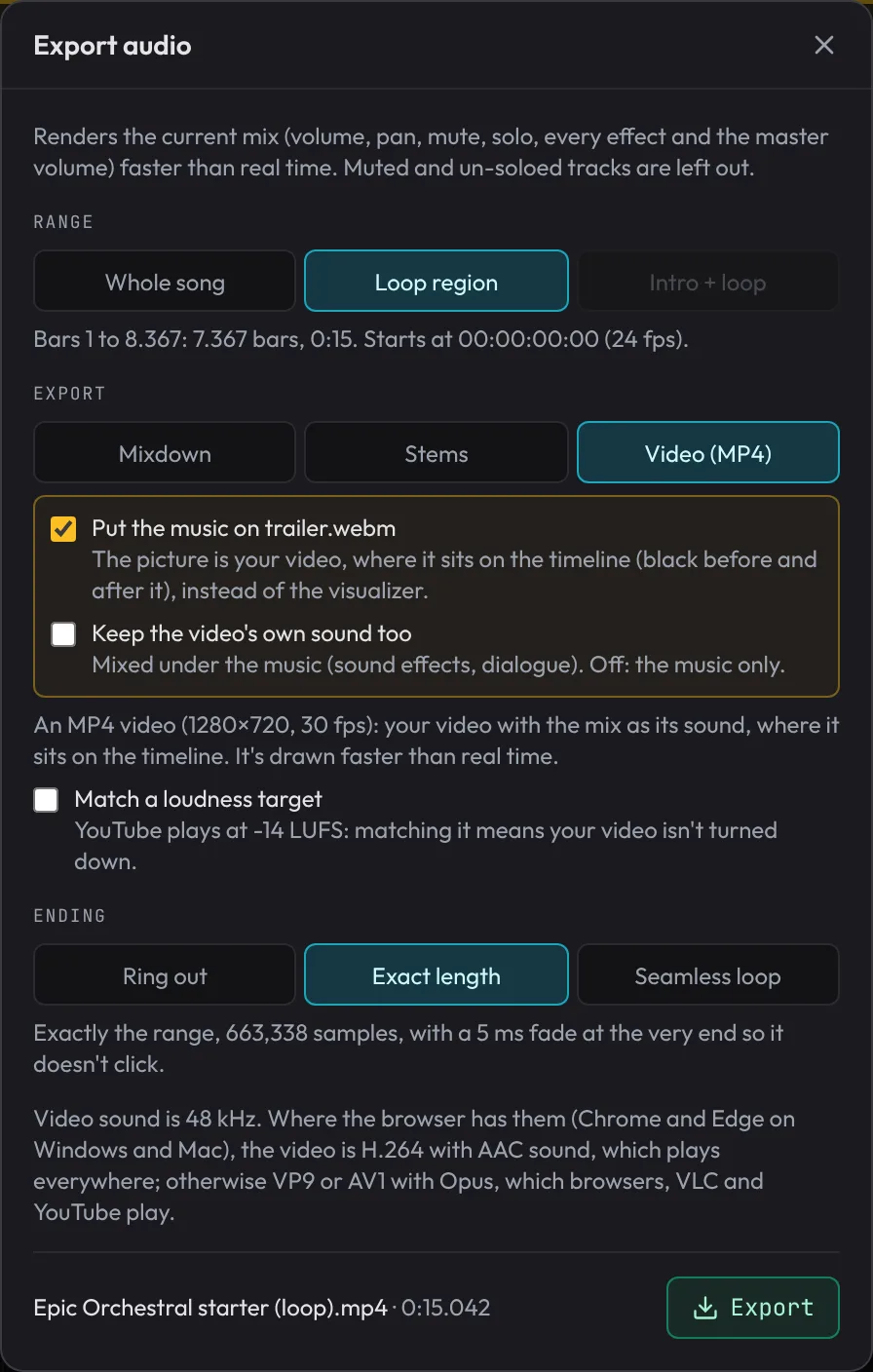
You get an MP4 of your film with your music on it, ready to send. Video export needs Chrome or Edge. See Scoring to a video for the details.
Make the cut-downs
Clients often want the music on its own in set lengths: a 30-second spot, a 6-second bumper.
- Save first with File › Save, because this rebuilds the song.
- Right-click the ruler and choose Cut song to length…, then pick 30 s.
- The dialog lists the sections it keeps, repeating or leaving out whole sections and nudging the tempo a little so the result lasts exactly 0:30.00. Click Cut to 0:30.00.
It drops or repeats whole sections between your markers, so this version won't match the film any more. That's expected: it's for the music on its own. Ctrl+Z brings the full song back, but not the tempo: open your saved file again to get the scored version back exactly.
What's next
You've fitted a tempo to a film's cuts, landed a build-up on the last one, and exported the music on the picture with markers for the editor. Next, make music that changes while someone plays: Game music that reacts.