
Learn Lesson 8
Design your own sounds
Presets get you started; your own sounds make a track yours. In this lesson you'll build two synth patches from a plain saw wave (a short pluck and a slow, wide pad), design a kick and a snare, make two classic game sounds, and play your own recordings from the Sampler, the Slicer and a Drum Rack. Every value is given, so you can match it exactly and then go your own way. Open the studio in another tab and follow along.
Start from a song
You'll design sounds in place, on parts that are already playing, so you hear each change in the music.
- File › New… and click Lo-Fi. It's 82 BPM in D minor, with Keys playing the chords, a Flute melody and Drums.
- Press Space. The keys play alone, the beat comes in at bar 5 and the flute at bar 9.
To change a track's instrument, click the sliders icon on its header to open the Track Inspector, click the instrument under SOUND GENERATOR, type a name and press Enter. The clips stay as they are.
A pluck in the Synth Designer
A synth sound is built in three stages. Oscillators make a raw tone, a filter takes away brightness, and envelopes shape how each note changes over time: how fast it starts (Attack), how quickly it falls (Decay), the level it holds at (Sustain) and how long it rings after you let go (Release). A pluck is bright for an instant, then dark and gone.
- Switch the Flute track to Synth Designer. Its panel appears under the instrument.
- Load preset… › Init saw: one plain saw wave, the blank page.
- Set the rest from this table, top to bottom.
| Section | Setting | Value |
|---|---|---|
| Osc 2 | tick it, wave Saw, Octave | +1 |
| Osc 2 | Level (leave Fine at +7 ct) | 40% |
| Filter | Low-pass, Cutoff | 500 Hz |
| Filter | Reso / Env amt | 4.0 / +4.0 oct |
| Filter envelope | Decay / Sustain | 180 ms / 0% |
| Amp envelope | Decay / Sustain / Release | 350 ms / 0% / 200 ms |
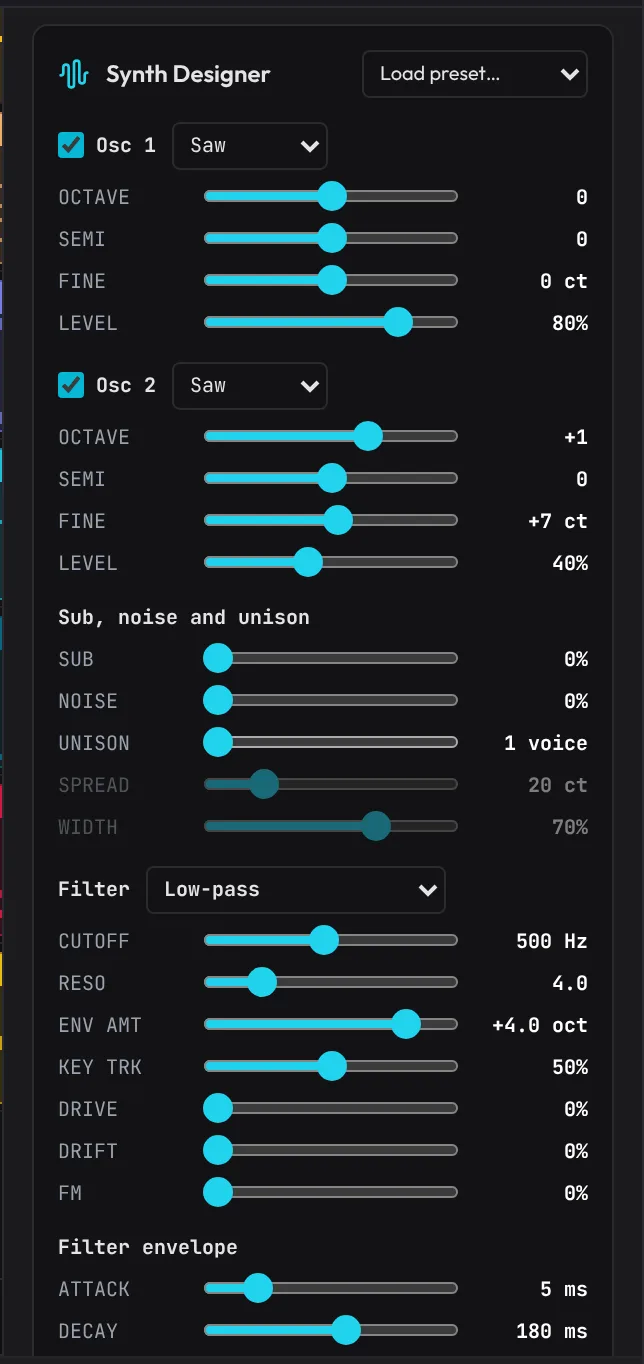
Play it. The second saw an octave up, 7 cents off, makes it shimmer. The filter sits low at 500 Hz, and its envelope throws it four octaves open at each note, then closes it in 180 ms: that's the "pluck". Reso puts a little ring on the sweep. With the amp's Sustain at 0%, every note dies away in about a third of a second, however long it's written.
A slow, wide pad
A pad is the opposite: it swells in, holds and fades out slowly, and it's wide.
- Switch the Keys track to Synth Designer and choose Load preset… › Init saw.
- Tick Osc 2 and set its wave to Saw (leave Fine at +7 ct and Level at 60%).
- Set the rest:
| Section | Setting | Value |
|---|---|---|
| Sub, noise and unison | Unison / Spread / Width | 5 voices / 25 ct / 90% |
| Filter | Ladder (warm, 24 dB), Cutoff | 1.2 kHz |
| Filter | Env amt / Drift | +1.0 oct / 30% |
| Filter envelope | Attack / Decay / Sustain / Release | 1.50 s / 1.80 s / 60% / 2.00 s |
| Amp envelope | Attack / Decay / Sustain / Release | 1.20 s / 1.80 s / 90% / 2.00 s |
| LFO | Filter (wobble), Sine, 1/1, Depth | 20% |
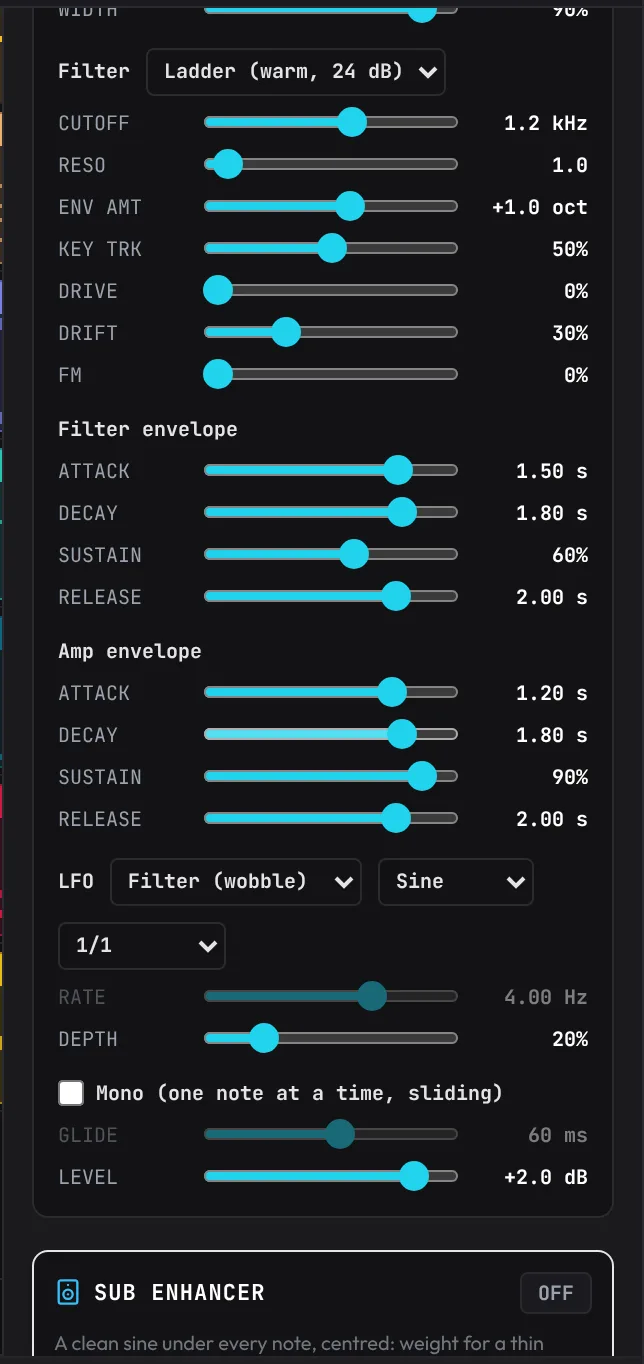
Unison stacks five copies of each saw, detuned across 25 cents and spread across the stereo field: that's the width. The Ladder filter is the warm, slightly driven kind on classic analog synths, and Drift makes every chord a touch different, as an analog synth does. The long attacks fade each chord in over a second, and the LFO at 1/1 opens and closes the filter once a bar, so the pad breathes in time.
All the Synth Designer's controls are in the guide.
Drums from scratch: the Drum Designer
The Designed Kit is a drum kit synthesized in the browser: you design each row's sound.
- Switch the Drums track to Designed Kit. The Drum Designer appears with a button for each row.
- Click Kick (it plays). Set Preset to Punchy short kick, then Pitch to 48 Hz and Decay to 400 ms: a little deeper and longer.
- Click Snare. Set Preset to Crisp snare.
- Click ADD LAYER. A clap is stacked on the snare at -8 dB. Set its Delay to 8.0 ms, so the clap lands just behind the snare's crack and widens it.
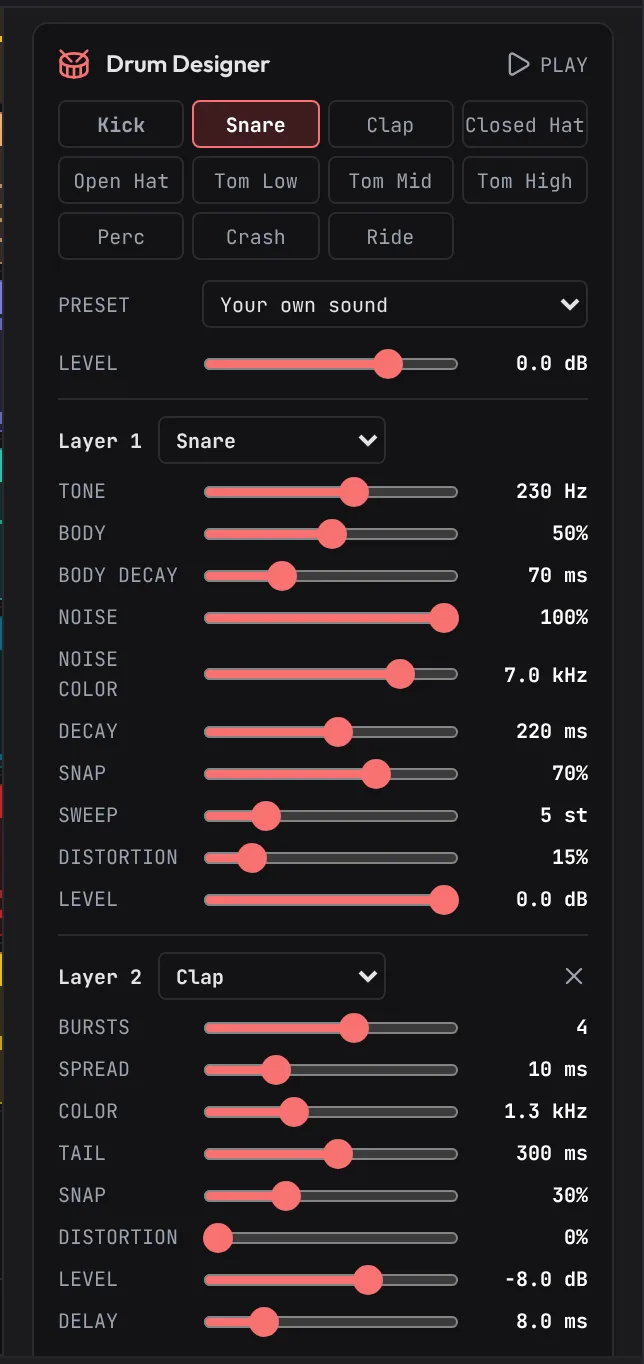
Each change plays the drum so you hear it as you go. Once you change anything the Preset box reads Your own sound, and the row's name turns bold. The sounds are rendered once and replayed, so a designed kit costs next to nothing to play and sounds the same in every export. More in the guide.
Game sounds: a coin and a jump
The sound effects maker makes the sounds games are full of, from layers of simple sources. It works beside any song, so stay on this one: open the Sound FX tab of the bottom panel.
- Click Retro, then Coin. Each click makes a new coin and plays it.
- Make it exactly this one: Source square, Pitch 990 Hz, Slide 0 st, Jump +5 st, Jump at 15%, Attack 0 ms, Hold 80 ms, Punch 50%, Decay 300 ms, Width 50%.
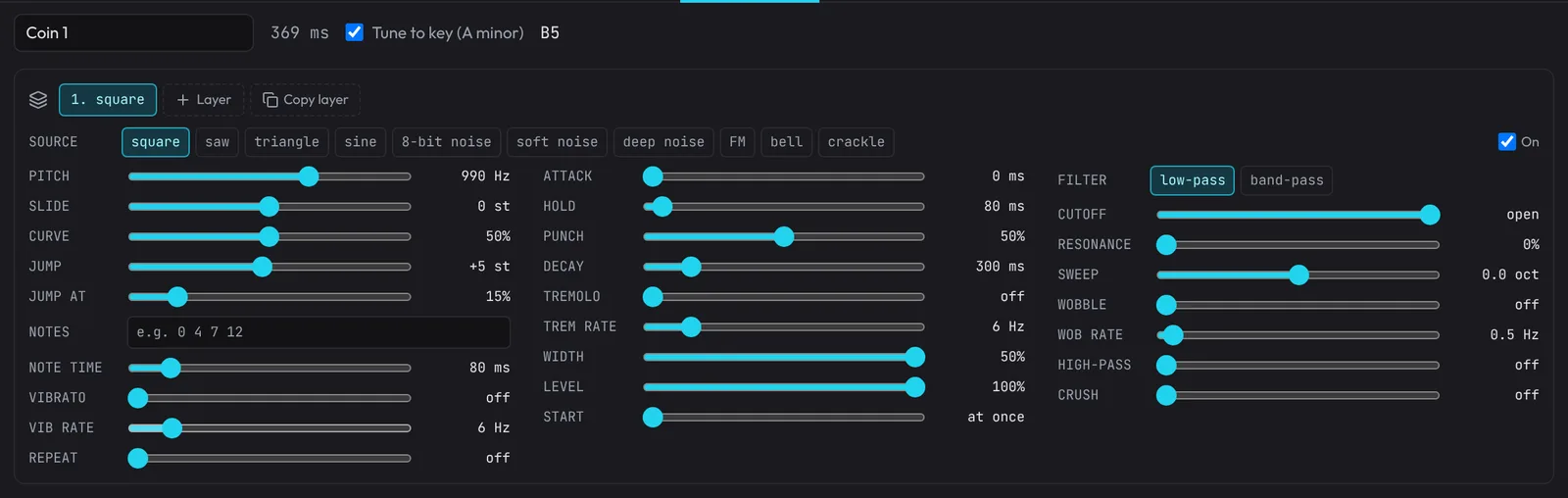
That's the classic pickup: a bright square note that leaps up a fourth almost at once and rings out. Letting go of any slider plays it. Tune to key is on because the song has notes: it shows the nearest note of the song's key, so the coin sits in the music.
Now the jump: click Jump and set Source square, Pitch about 330 Hz, Slide +12 st, Curve 60%, Jump off, Attack 0 ms, Hold 40 ms, Punch 0%, Decay 200 ms, Width 50%. The Slide sweeps it up an octave, quickly at first (that's the Curve), like a body leaving the ground.
Click Save for a WAV or OGG file named for a game, Add to song to put it on an Audio track at the playhead, or Keep to keep it in My sounds. The same settings always make the same sound. More in the guide.
Your own samples
Any recording can become an instrument: a note you sang, a hit you recorded, a loop you made.
- Sampler: + Add Track, type sampler, Enter. Click Load a sound… and pick a file. C4 plays it at its own pitch; higher notes play it faster and higher.
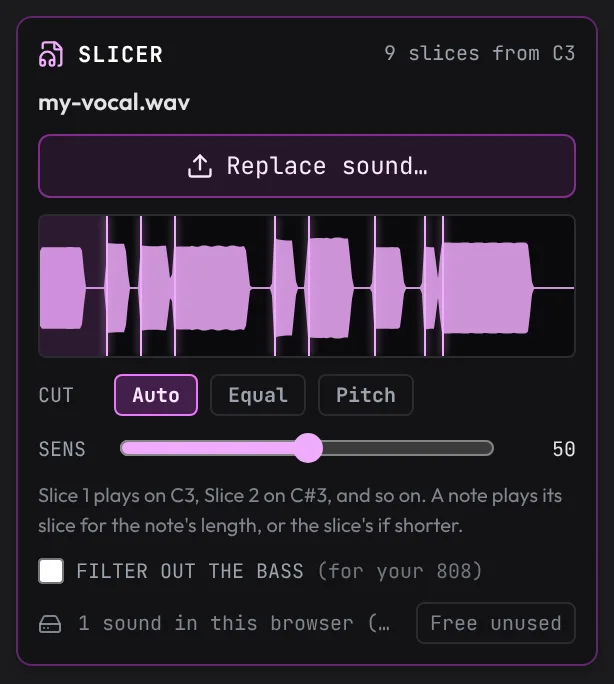
- Slicer: + Add Track, type slicer, Enter, then Load a sound…. With CUT on Auto it cuts where it hears each new word or hit (SENS sets how faint a hit still counts) and puts Slice 1 on C3, Slice 2 on C#3, and so on. Click a slice to hear it, and write notes to play the chops in a new order.
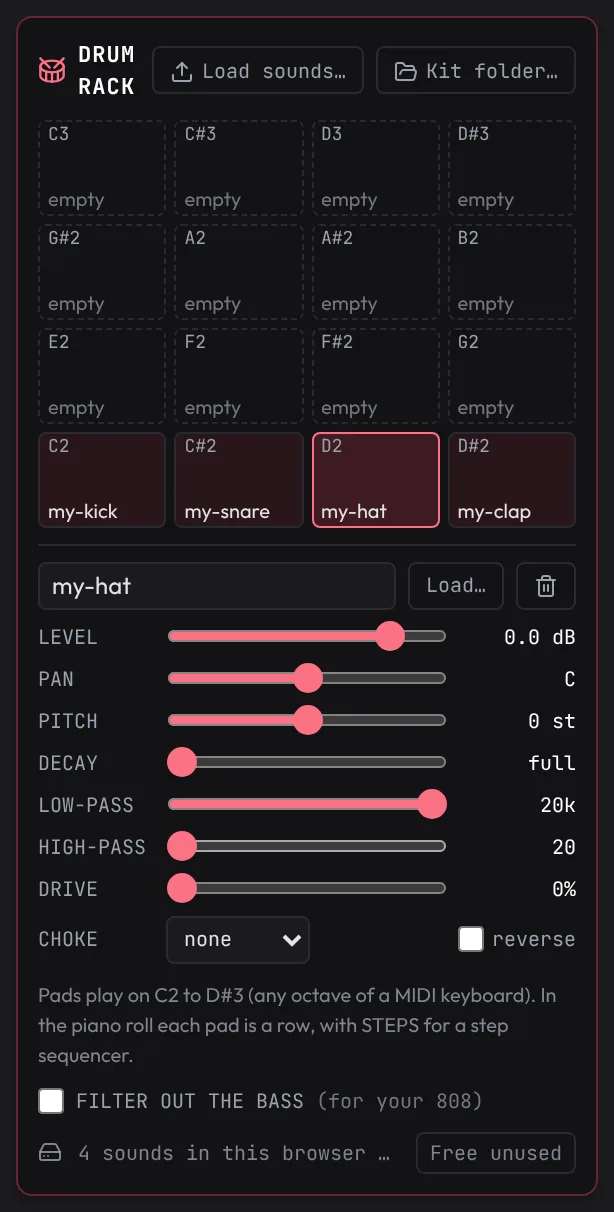
- Drum Rack: + Add Track, type drum rack, Enter, then Load sounds… and pick up to 16 files. They fill the pads in order from pad 1 (C2, bottom left). Click a pad for its Level, Pan, Pitch, Decay, filters and Drive. Put a closed and an open hi-hat in the same Choke group, and the closed one cuts the open one off.
Plugins, briefly
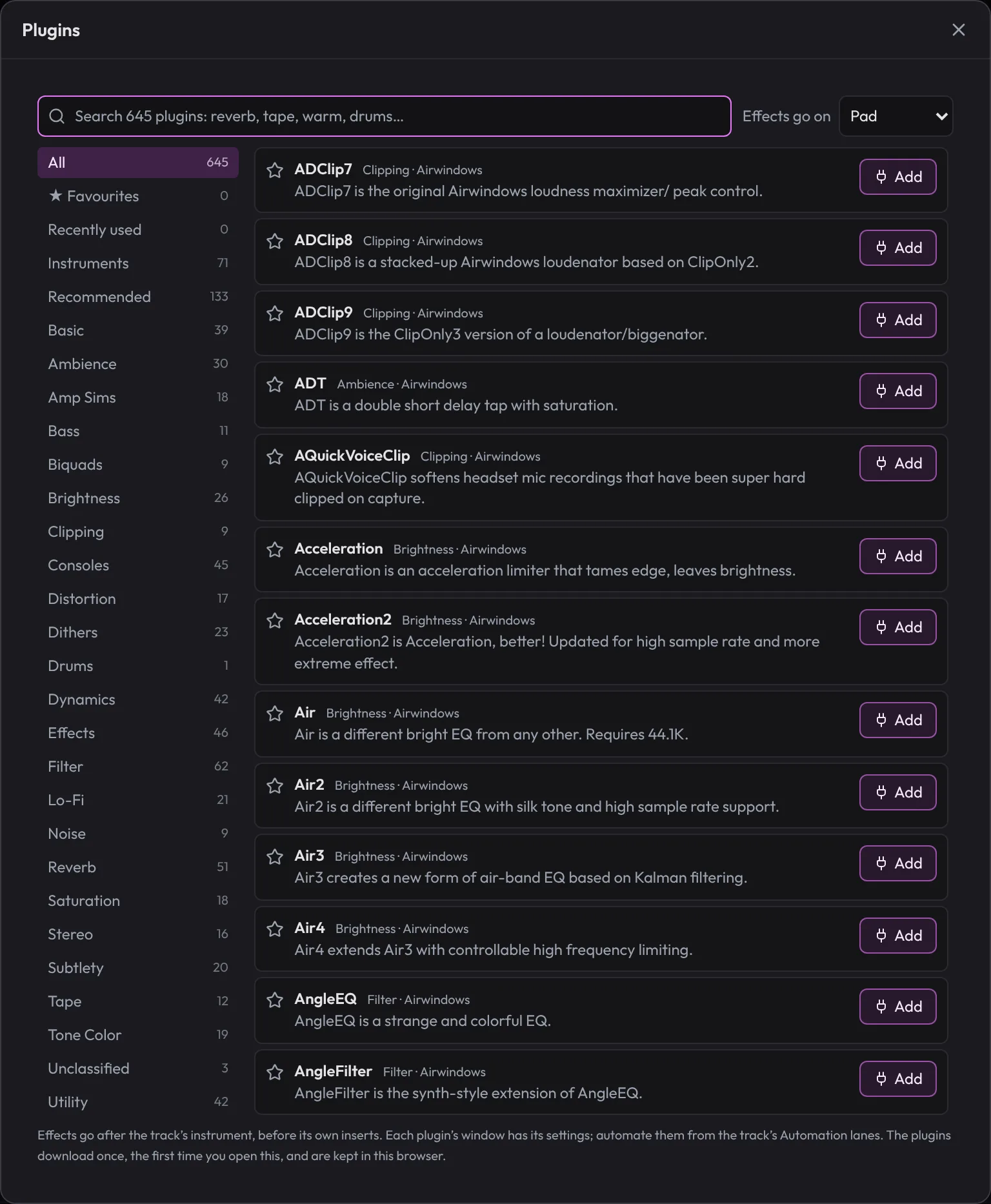
Plugins › Browse plugins… opens hundreds of built-in effects and instruments: open-source plugins compiled to run in the browser. Search by what they do (tape, warm, bell), choose the track under Effects go on, and click Add. An instrument's New track makes a track that plays it. Each plugin's window has a slider for every setting. See the guide.
What's next
You've built a pluck and a pad, designed drums, made game sounds and played your own recordings. Next, put sounds to pictures: Score a video.
The example is Lo-Fi with this lesson's sounds: the pluck on the flute line, the pad on the keys, and the designed kick and snare.