
Learn Lesson 7
Record and polish vocals
In this lesson you'll record a vocal over a finished lo-fi beat and take it all the way to a mix-ready stack: a lead built from your best takes, gently or hard tuned, a double to thicken it, an ad-lib track off to the side, and a beat that dips a little whenever you sing. Rap, a sung hook or a spoken line all work the same way. Open the studio in another tab and follow along.
You'll need a microphone (the one in your laptop or headset is fine to start) and headphones. The studio doesn't play your voice back while you record, so there's no feedback, but the beat has to reach your ears without reaching the mic.
Set up the beat and a vocal track
- File › New… and click Lo-Fi. It's 82 BPM, on D minor chords, and the beat proper starts at bar 5.
- Click + Add Track under the tracks, type audio and press Enter. An Audio track appears and the Track Inspector opens on the right. Audio tracks hold recordings as clips, not notes.
- Click the small chevron (˅) right of the Loop button and set In to 5 and Out to 9, pressing Enter after each. Now playback goes round the first four bars of the beat.
- Put your headphones on and press Space to check the level. If you'd like a click as well, switch on the metronome (the triangle in the toolbar). It's never in your exports.
Record a take
- Click bar 4 on the ruler.
- Click Mic in the toolbar. The first time, the browser asks to use your microphone: allow it.
- The beat starts at once. Sing or rap your line from bar 5.
- Click Stop when you've finished.
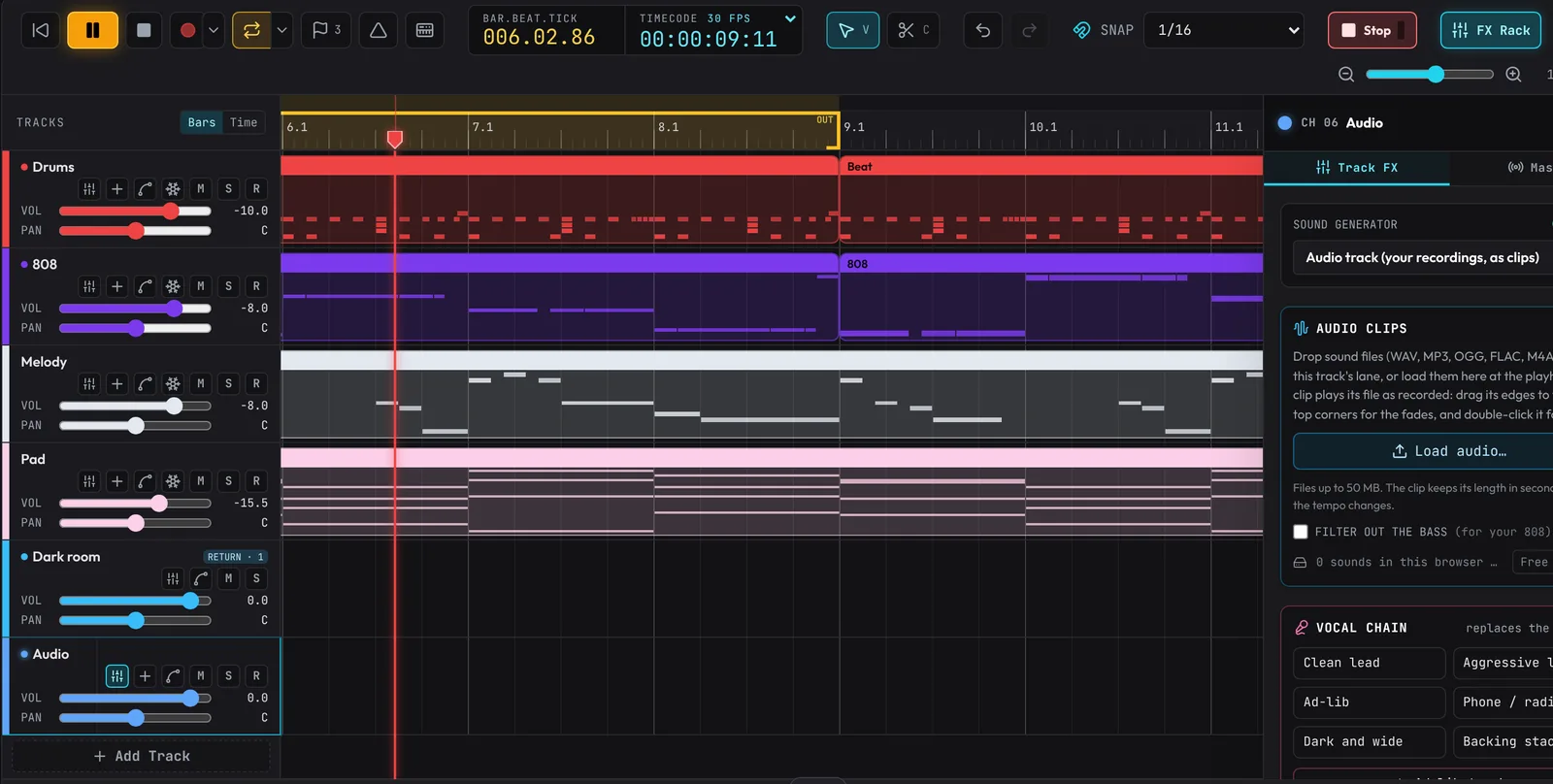
While you record, Mic turns into Stop with a small level meter: it should jump on loud words without staying at the top. The take lands on the selected Audio track as a clip called Mic take 1, exactly where you sang it. The studio takes off the delay of your speakers and microphone, so it lines up with the beat. Press Space to hear it.
Sing it three times, keep the best bits
Nobody nails every word in one go. Let the loop run and sing the line again and again, then build one performance from the best parts. That's called comping.
- Click the arrow next to the red Record button to open the recording settings, and tick Loop passes are takes.
- Delete the first take if you like (click it and press Delete), click bar 4 on the ruler and click Mic.
- Sing the line three times, once each time round the loop, and click Stop as the third pass ends.
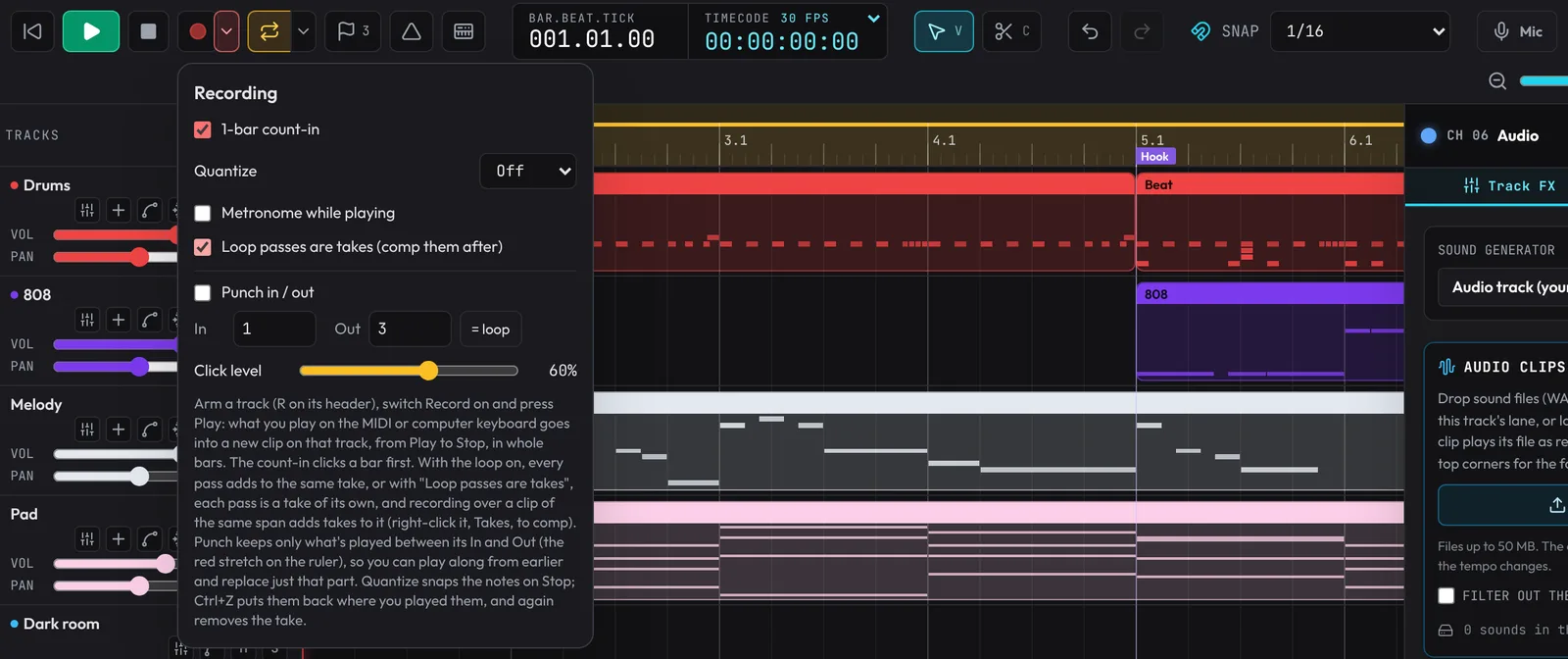
You get one clip with 3T by its name: three takes in a take folder, the newest playing. Click 3T to comp them.
- Click a take's name, Pass 2 say, to use it all the way through.
- Then drag along another take where it was better, Pass 3 over the last bar. It snaps to beats (hold Shift for 16ths).
- Press Space and listen. The lit part of each row is what plays, and the joins blend over 10 ms, so they don't click.
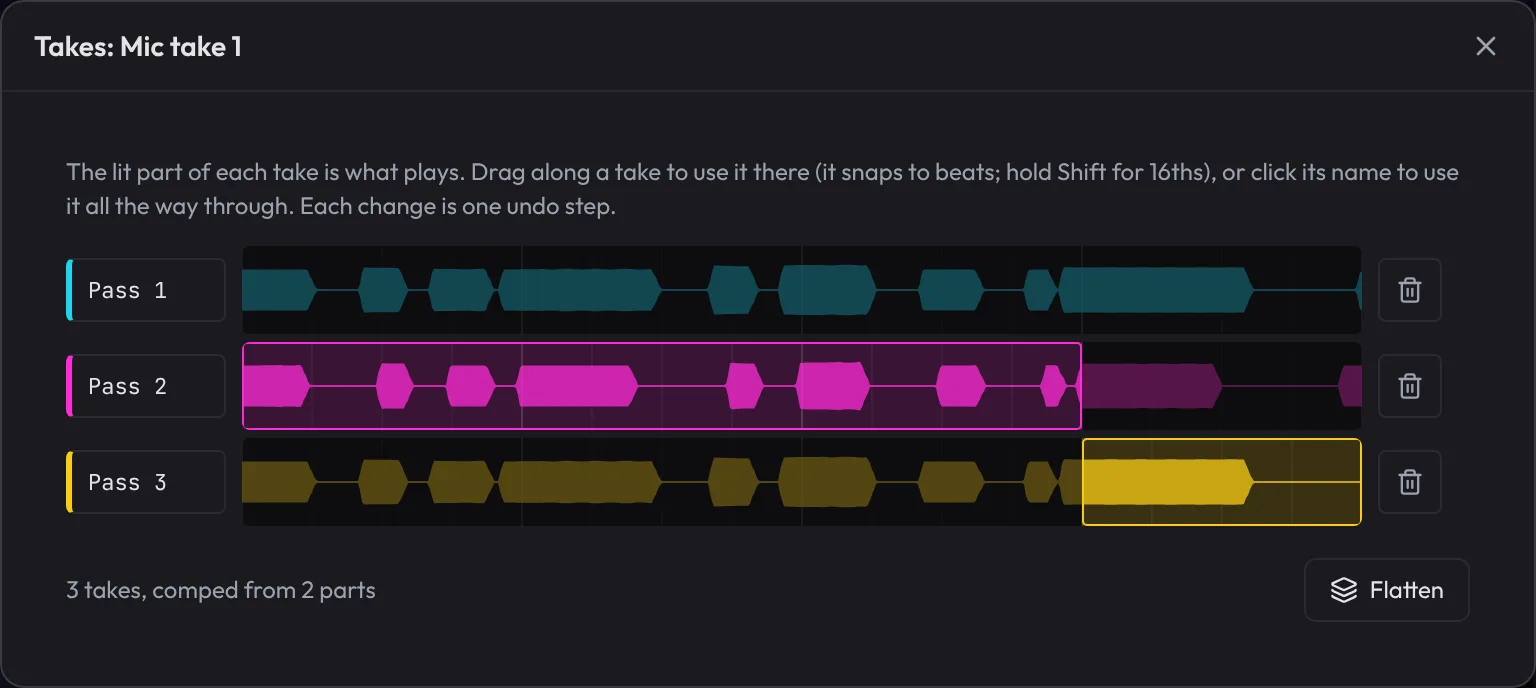
Flatten turns the folder back into one ordinary clip. Do this before tuning or doubling, which work on one recording. If your comp mixes several takes, Flatten keeps only the take it starts with, so for a line you'll tune, pick the best whole take by clicking its name, then Flatten. More in the guide.
Put on a vocal chain
A raw voice sounds thin and uneven next to a produced beat. A vocal chain is the set of effects that fixes that: a low cut, EQ for presence, compression to even it out, a de-esser for harsh S sounds, and some space.
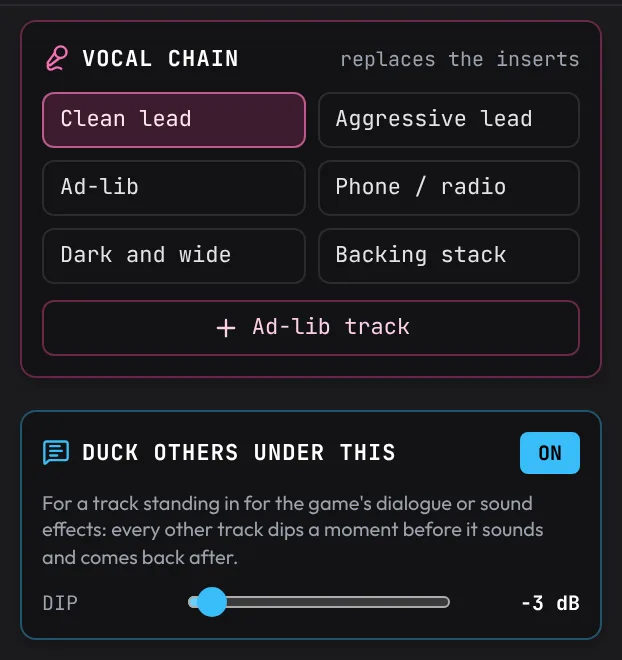
- Click the Audio track's header to select it. Scroll the Inspector down to Vocal chain.
- Click Clean lead. It lights up, and the track's inserts fill with ready settings.
- Play the loop and try the others: Aggressive lead for in-your-face rap, Dark and wide for a moody hook, Phone / radio for an intro.
Each click replaces only the track's inserts, as one Undo step, and you can change any insert afterwards. The chains are levelled against each other, so switching doesn't jump in volume.
Tune it: gently or hard
Right-click the take and choose Tune vocal…. It pulls your pitch onto the notes of a key and keeps your timing.
- Check KEY: it starts on the key the song's notes are in: G major here, the same notes as D Dorian, which the chords move in.
- Click Natural: Strength 80%, Speed 40 ms. Most of the way onto the notes, slowly enough that your slides and vibrato stay.
- Click Hear tuned, then Hear original, to compare.
- Click Apply.
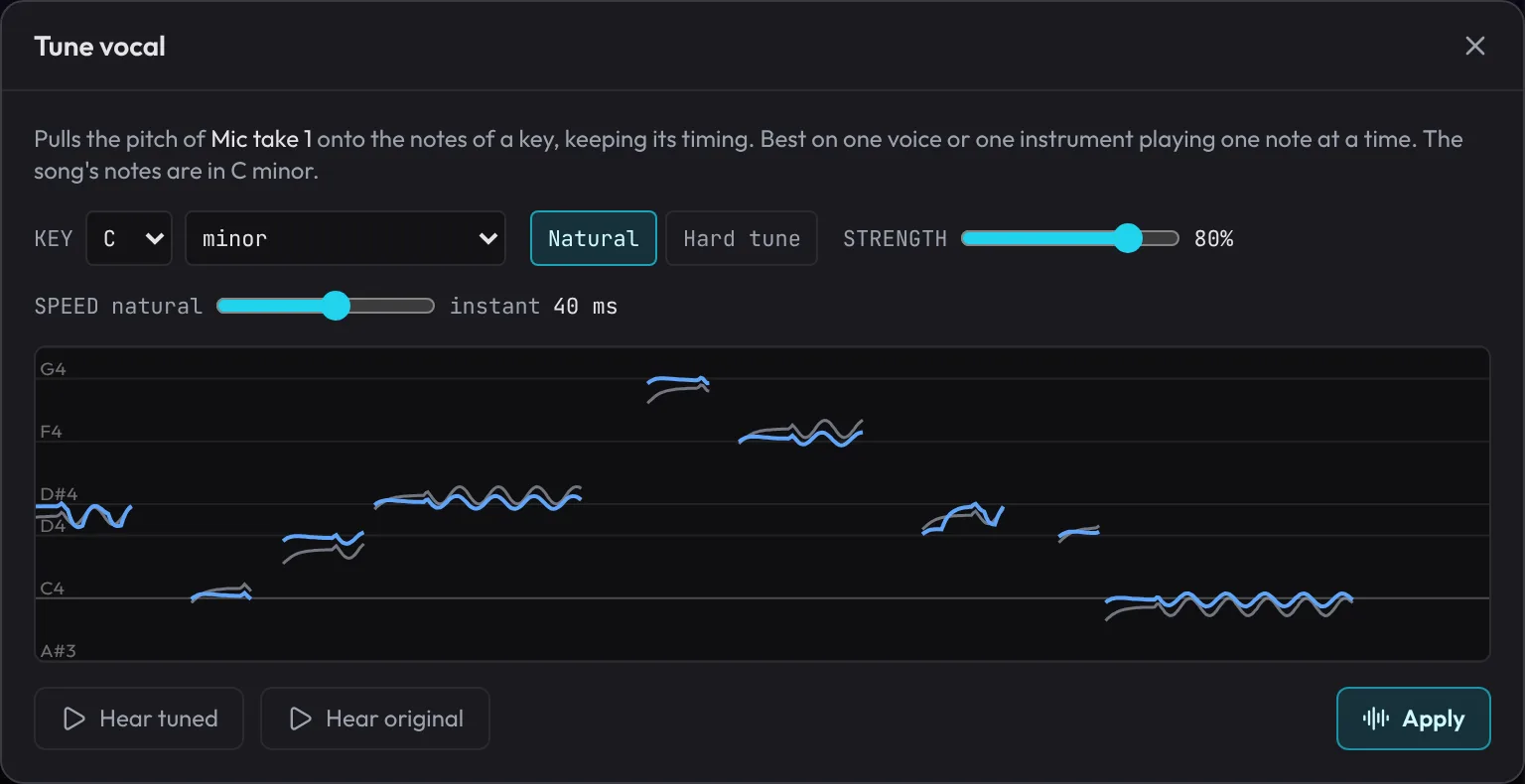
The graph shows the pitch you sang in grey and where it goes in colour, against the key's notes. For the robotic, stepped sound of melodic rap, right-click the take and choose Hard tune… instead: Strength 100%, Speed at instant (0 ms). Each note snaps straight to the nearest note of the key.
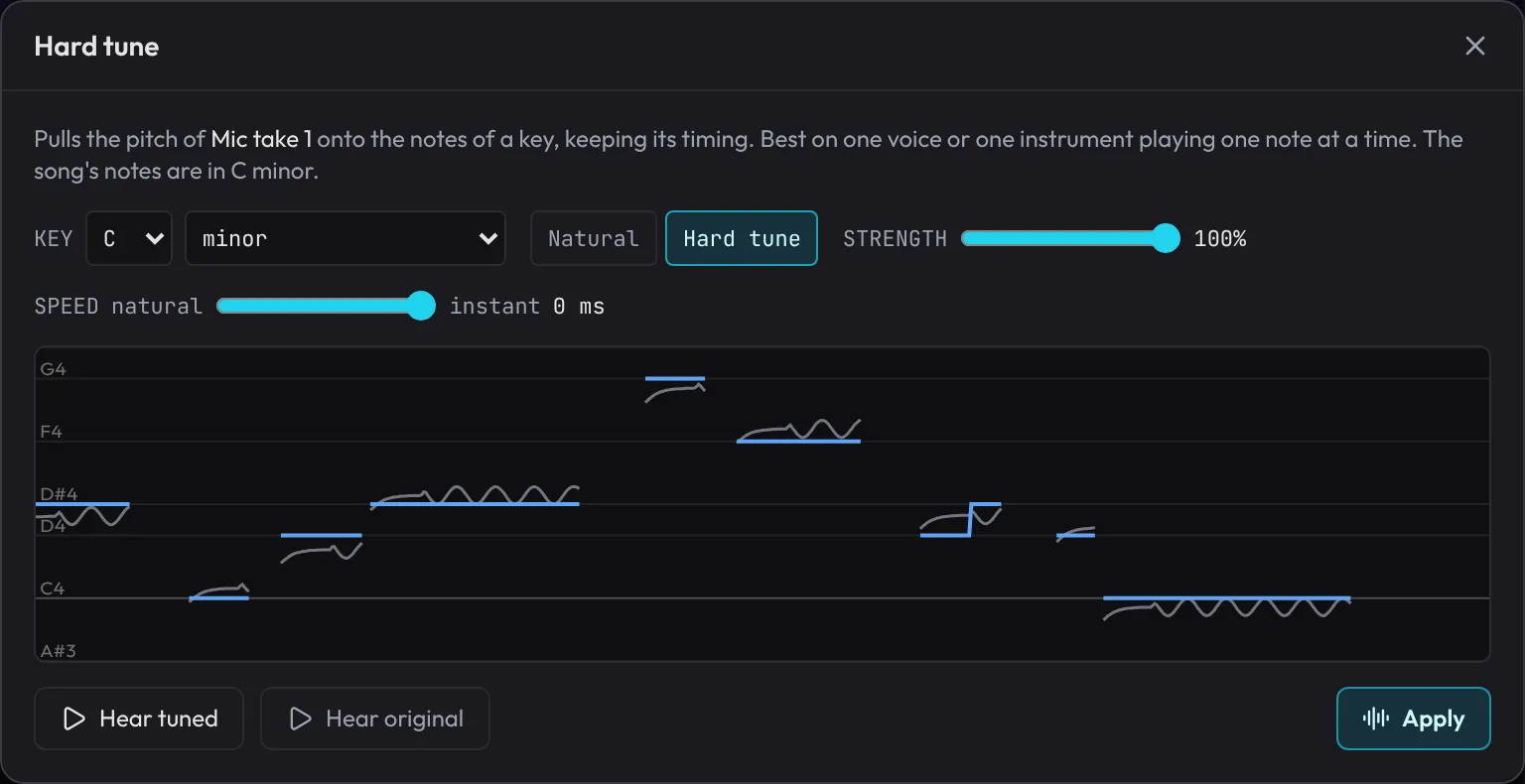
Apply makes a tuned copy of the recording, so what you hear is exactly what exports play. Your original is kept: open the same dialog and click Untune to go back.
Double it and add ad-libs
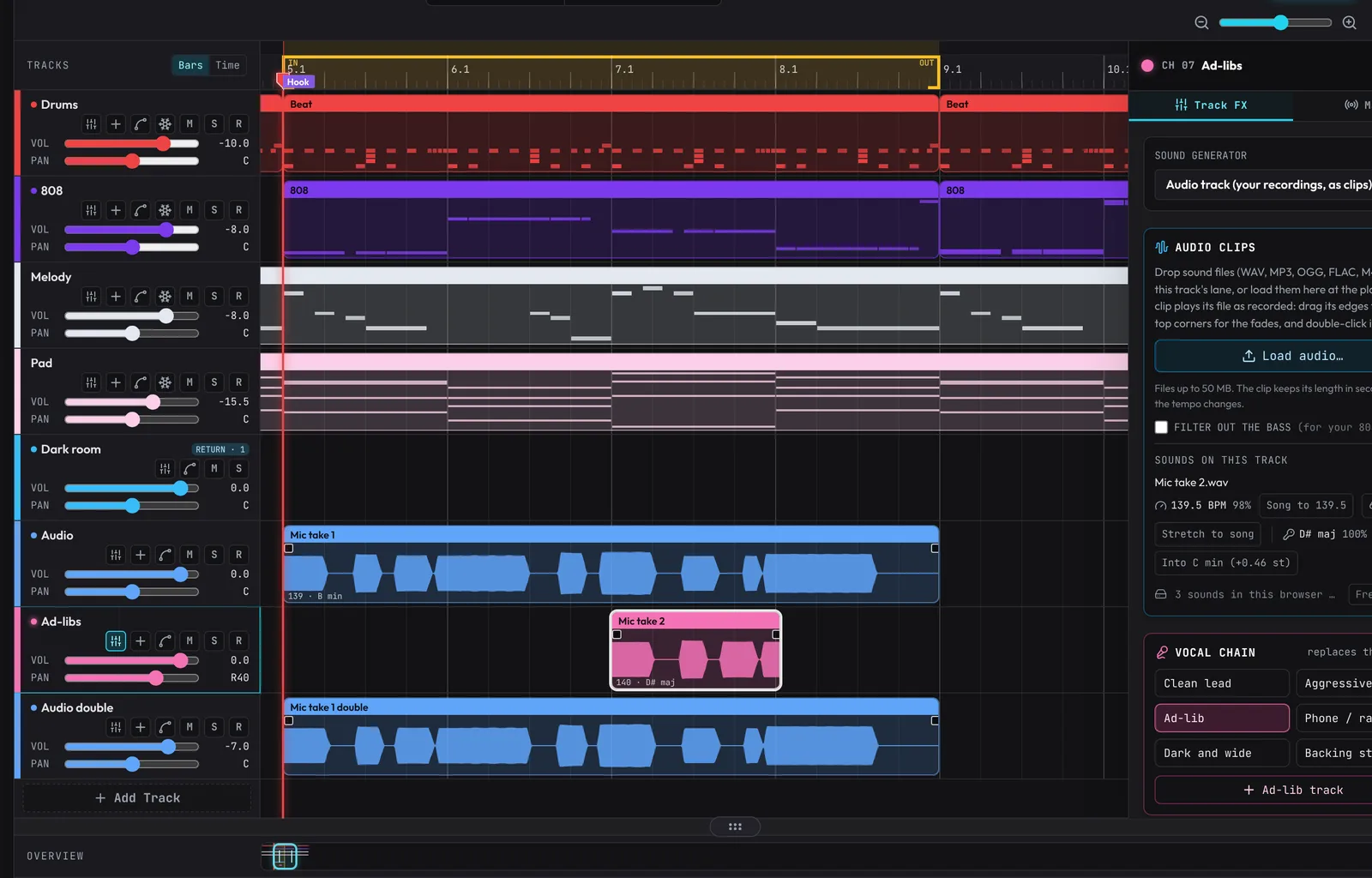
- Right-click the tuned take and choose Double this take. A new Audio double track appears under it: two new performances of your line, one left and one right, each a few milliseconds early or late and a few cents off, 7 dB under the lead, through the same chain. It sounds like you sang it twice more.
- Click the lead's header, then Ad-lib track under the Vocal chain buttons. A new Ad-libs track appears under the lead, with the Ad-lib chain on, panned a little right, and selected.
- Click bar 7 on the ruler, click Mic and add a shout or an answer between your lines. It records onto Ad-libs.
Duck the beat under the vocal
Busy beats bury words. The fix is to dip the beat slightly whenever you sing.
- Select the lead Audio track.
- In the Inspector, switch Duck others under this to ON.
- Drag Dip to -3 dB. (It starts at -8 dB, which suits a voice-over, not a song.)
Every other track now dips 3 dB a moment before each of the lead's clips and comes back 0.4 s after it ends. You hear it as clarity more than as a volume change. It ducks for the whole length of each clip, so trim long silent ends off your takes (drag a clip's edges) and the beat comes back up between lines.
What's next
You recorded, comped, chained, tuned, doubled and ducked a vocal. Next, make the instruments themselves: Design your own sounds.
The example below is this lesson's Lo-Fi starter set up for you: the lead vocal track with Clean lead and the 3 dB duck, an Ad-libs track and the loop round bars 5 to 9. Recordings can't travel in a song link, so it's ready for your own voice.