
Learn Lesson 10
Game music that reacts
Game music can't just play from start to finish, because nobody knows how long a player will stay in one place. It has to loop, change when something happens, and get busier as things heat up. In this lesson you'll take a starter, turn its sections into states and add a third, choose how the music moves between states, set up intensity layers and stingers, hear it the way a game will play it, and export it for your engine.
Open a song
- Open File › New… and click Plaza. It's 104 BPM in A minor, with two sections marked on the ruler: Verse (bar 1) and Montuno (bar 9).
- Name the sections for the game: double-click the Verse flag on the ruler, type Explore and press Enter; do the same for Montuno, naming it Danger.
- Open Game › Game panel (states, intensity, stingers). The Game tab opens in the bottom panel, in three columns: states and transitions, intensity, and stingers with the exports.
Any song with markers works the same way. See Game music in the guide for every control.
Markers are states
Each stretch between two markers is a state: one loop the game can ask for. Explore runs 8 bars, but its second half (with the guiro joining) feels like a journey, so make it a state of its own.
- Click the BAR.BEAT.TICK readout, type 5 and press Enter. The playhead jumps to bar 5.
- Press M to drop a marker there.
- Double-click its flag on the ruler, type Travel and press Enter.
The Game tab now has three state buttons: Explore, Travel and Danger.
Switch between states
- Click Explore. It plays and loops bars 1 to 4. The playing state is green.
- Click Travel. The button pulses amber while it waits for the next bar, then the music moves there.
- Click Danger, then Explore again.
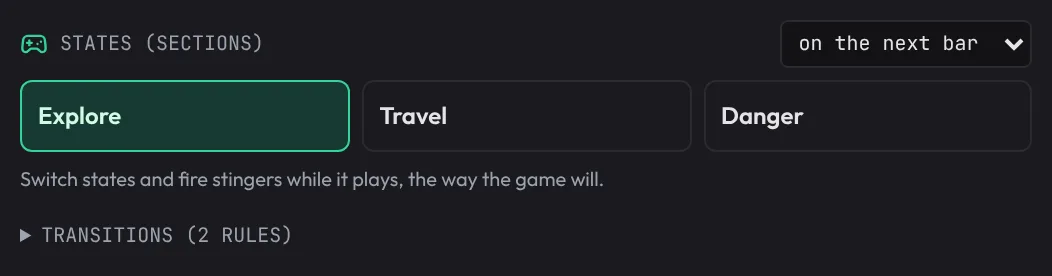
The menu at the top of the column (on the next bar) sets when a switch with no rule of its own happens: the next bar, the next beat, or at once.
Choose how states hand over
- Click Transitions under the states. A matrix opens: rows are the state you come from, columns the state you go to.
- Click the cell in the Explore row and Danger column and set it to Fill.
- Click the cell in the Danger row and Explore column, set it to Crossfade, over 8 beats.
- Click the cell in the Travel row and Danger column. Set it to Bridge, on the next phrase, of 4 bars, and 2 bars: a turn, then the pull.
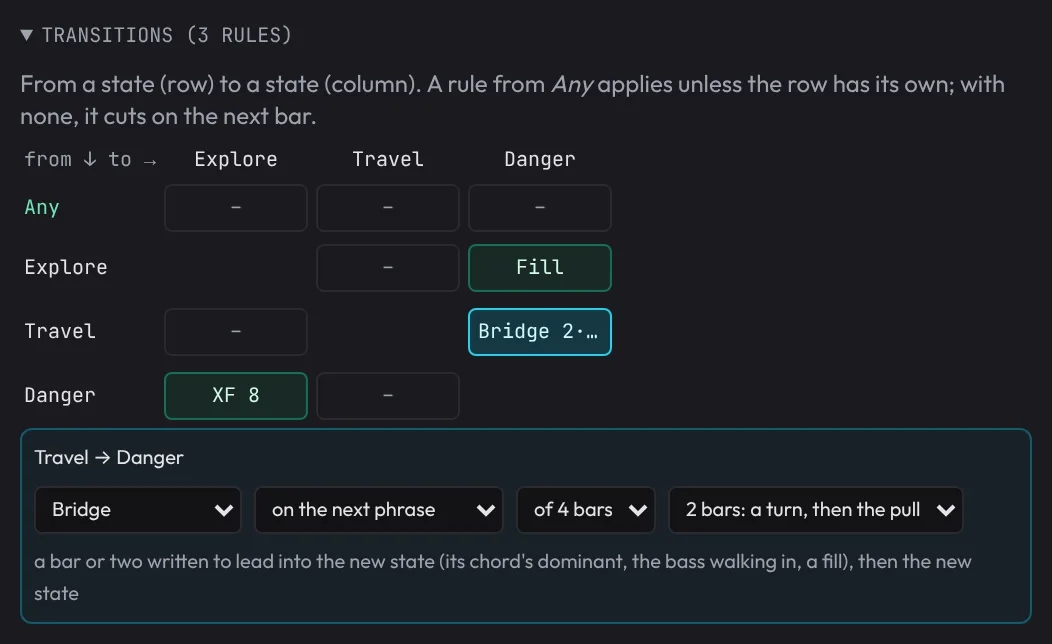
Here's what your three rules do:
| From → to | Rule | What you hear |
|---|---|---|
| Explore → Danger | Fill | a snare fill over the last beat, then Danger |
| Danger → Explore | XF 8 | Danger fades out as Explore fades in, over 8 beats |
| Travel → Danger | Bridge, 2 bars, next phrase | waits for the end of a 4-bar phrase, then plays two bars that lead into Danger's opening chord |
The bridge is written from your song: its last bar is the dominant seventh of the chord Danger opens on, the chord that pulls hardest into it, and the bar before turns into that. It plays on the song's own chords, bass and drums. Any cell that shows a dash has no rule and cuts on the next bar; a rule in the Any row applies from every state that doesn't have its own.
Layer the intensity
Intensity is one number, 0 to 100%, that a game turns up as things get exciting. Each track belongs to a stem group, and each group has a curve for how loud it plays at each intensity.
- In the middle column, set Nylon guitar to Ambient with the list beside it. (The percussion is already in Percussion and the trumpet in Climax.)
- Click Explore to play, and drag Intensity down to 40%.
- Drag it slowly up to 100% and back while the music plays.
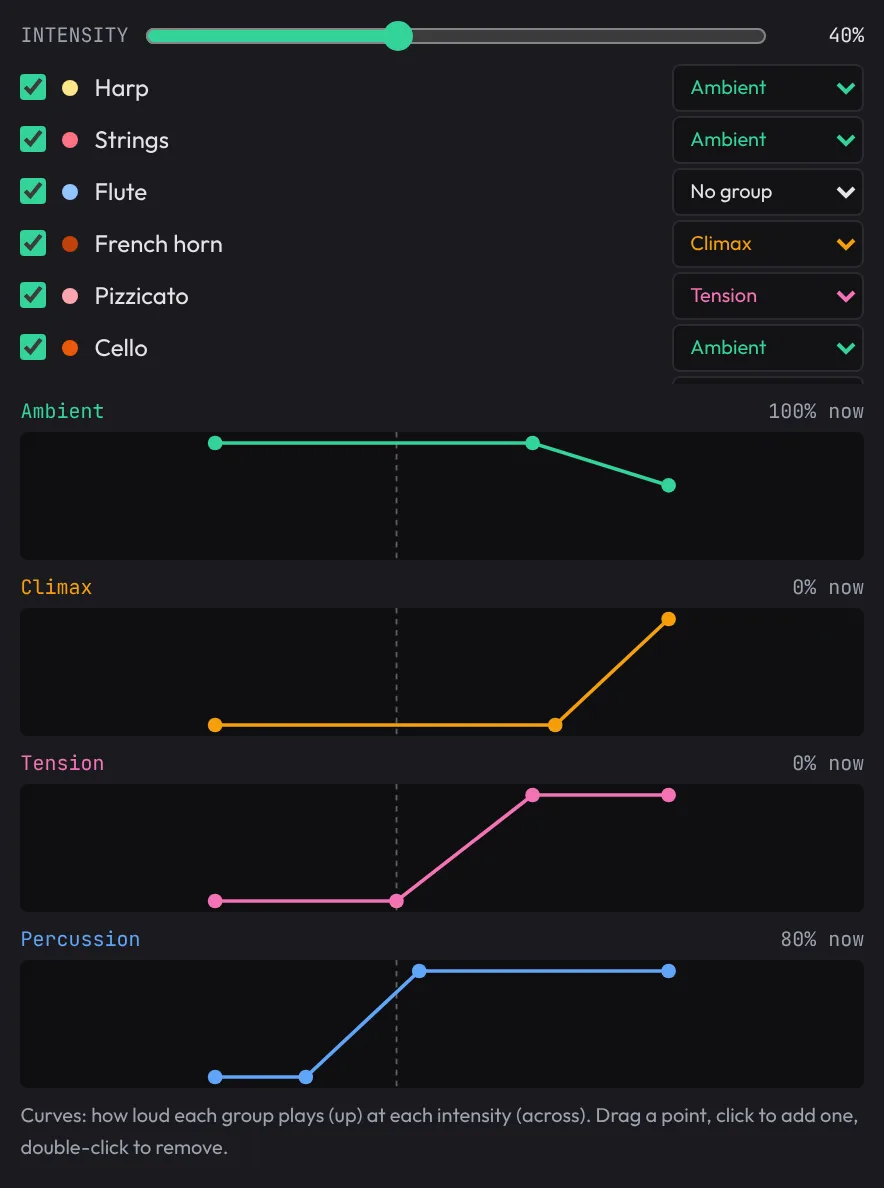
At 40%, Ambient (the guitar) plays at full level, Percussion at 80%, and Climax is silent. Higher up, the percussion reaches full level, then the trumpet comes in near the top, while Ambient eases back to 60%. Drag a point on a curve to move it, click empty space to add one, double-click a point to remove it. The bass has no group, so it always plays at full level.
Add stingers
Stingers are short cues the game plays over the music: a coin, a checkpoint, a win.
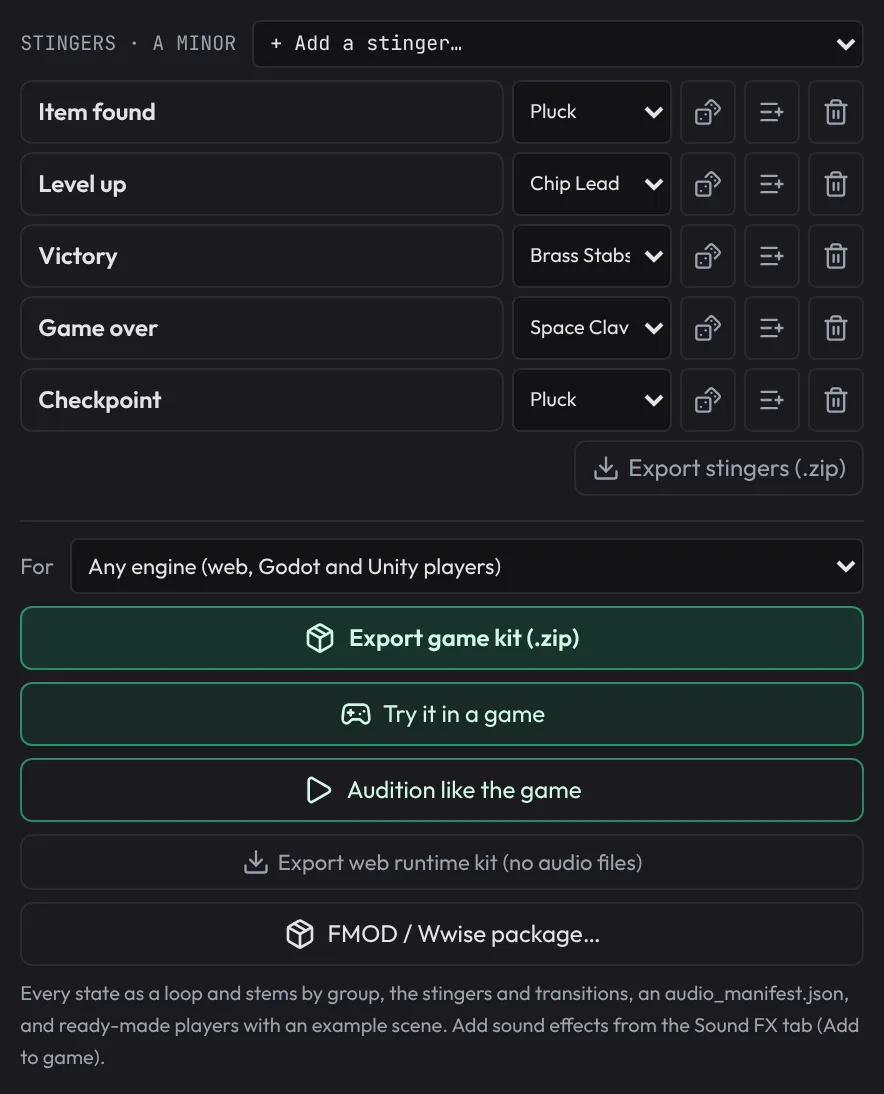
- Open + Add a stinger… at the top of the right column and choose Checkpoint. Add Item found and Victory the same way: the little game below uses them.
- While the music plays, click Checkpoint. It plays on the next bar, in the song's key.
- Click the dice beside it for another version, and pick another sound from its instrument list.
Loop variations
A player who waits in one place for five minutes hears the same loop over and over. Loop variations (in the middle column) makes takes of the loop region with a different ending each.
- Click Travel, so the loop covers bars 5 to 9.
- In Loop variations, choose 3 takes and click Export.
You get take A as written, B with a snare fill into the loop point and C with a tom fill, all the same length, for the game to rotate through.
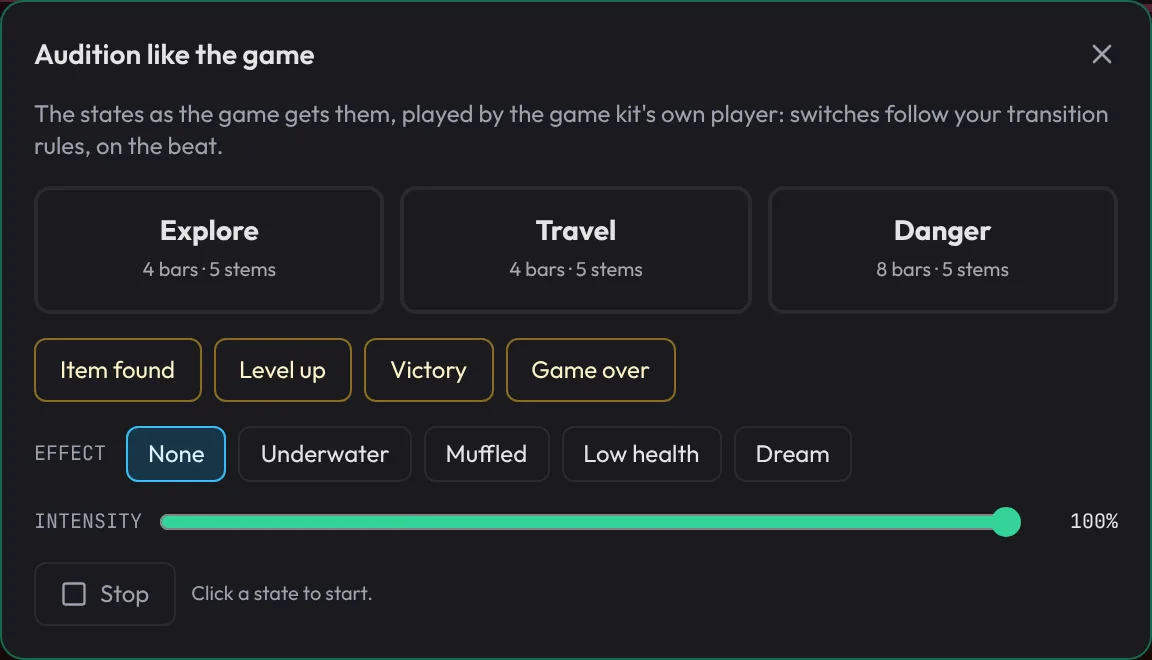
Audition like the game
- Click Audition like the game in the right column. It renders every state, stem, stinger and transition exactly as the game kit will (it takes a little while).
- Click the big Explore pad, then Travel, then Danger. Every switch follows your matrix, crossfades and the bridge included.
- Fire the stinger pads, drag Intensity, and try the Effect buttons, such as Underwater and Low health.
Try it in a game
- Close the audition and click Try it in a game. A little 3D level opens with your song.
- Walk with the arrow keys or WASD, and grab coins. Coins fire your Item found stinger.
- Walk towards the cube guard. When it spots you the music switches to Danger through your Fill, and intensity rises as it gets closer. Jump on it with Space to beat it.
- Click Music wiring: it shows what each moment plays, guessed from the names. Win (stinger) is on your Victory; pick another to change it, then press R to restart and beat the guard again.
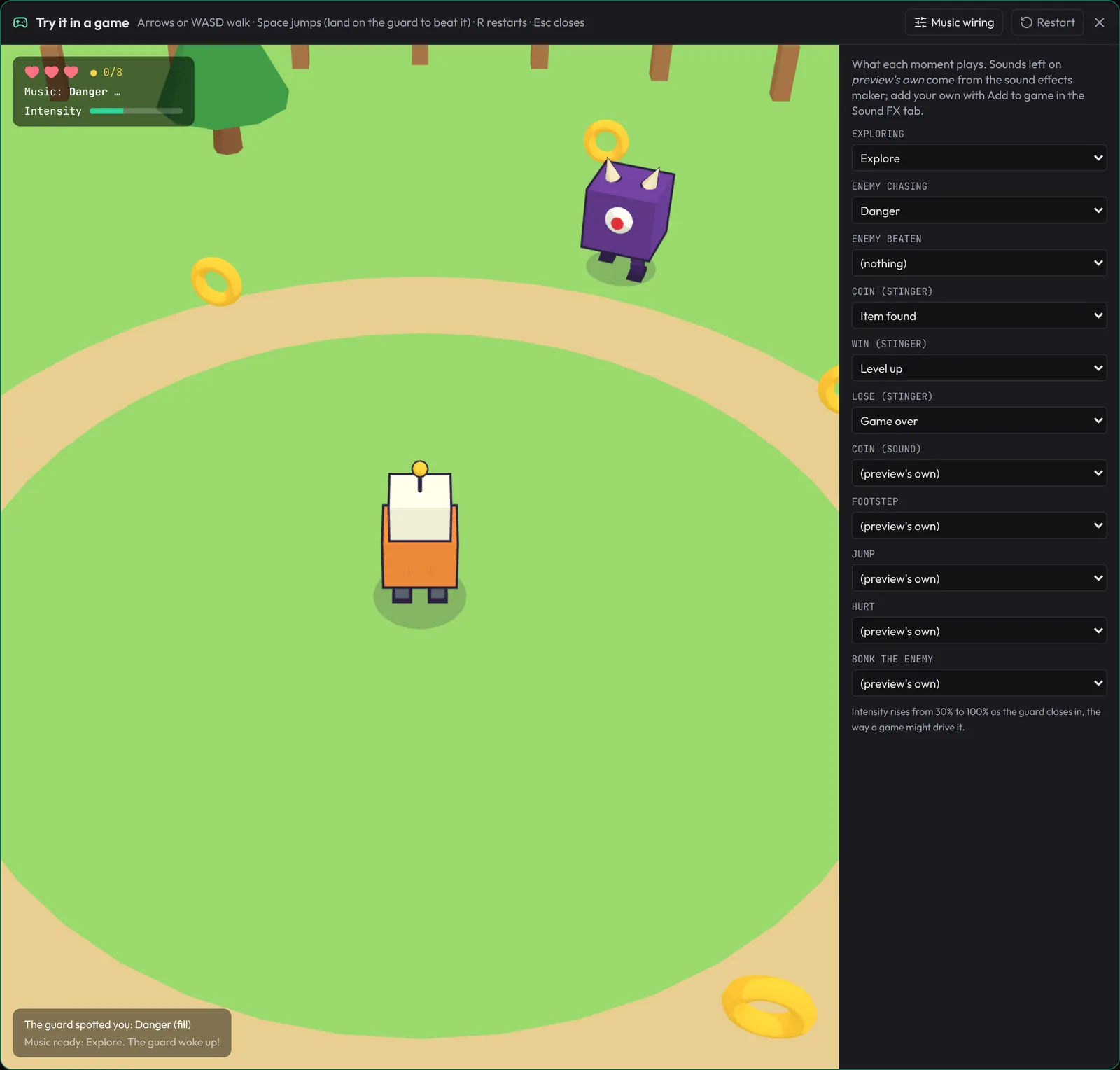
Two more games are at the top of the window. Click 2D platformer to run and jump to a flag past gaps, spikes and blobs: a blob that spots you switches the music to Danger the same way. Click Rhythm game and your song's own notes fall down four lanes; hit D F J K in time, on Easy, Normal or Hard. It's a quick way to hear whether a beat is fun to play along to.
Export for your engine
- In the right column, choose what the kit is For: Godot 4 project (unzip into it), Unity project (unzip into it), or Any engine (web, Godot and Unity players).
- Click Export game kit (.zip).
For Godot, unzip it into the folder with project.godot, open bos_music/<song>_example.tscn and press F6: number keys switch states, Up and Down change intensity, Space plays a stinger. For Unity, unzip it into the folder with Assets, add an empty GameObject, choose Add Component › Adaptive Music Example and press Play. Either way you get every state as a seamless loop, the stems by group, the stingers and transition sounds, an audio_manifest.json with the curves and rules, a player script, and a README using your own state names.
Working in audio middleware instead? Game › Export FMOD / Wwise package… lays out the same music with a script that builds the event in FMOD Studio or a Music Switch Container in Wwise. The game kit and FMOD and Wwise guide sections list every file.
What's next
You've made a song a game can steer: three states, transitions with a written bridge, intensity layers, stingers and loop takes, tested in a real level and exported. Next, finish and share your music: Export, share and finish.