
Learn Lesson 5
Arrange a full song
A loop that sounds great for eight bars gets dull by the thirtieth. A song keeps you listening by changing: parts come in and drop out, tension builds, something lands, and the end feels like an end. In this lesson you'll turn one 8-bar loop into a 56-bar song, about two minutes long, and learn the arranging tools on the way. Open the studio in another tab and follow along.
Start from an 8-bar loop
Use a loop of your own if you have one (from Make your first beat or Chords and a melody). To follow along exactly, build this one in a couple of minutes:
- File › New… and click Blank timeline.
- Right-click the Space Clav lane at bar 1, choose Chord progression…, set the key to A minor and the progression to i – VI – III – VII (epic) (Am – F – C – G), set Times through to 2× (8 bars) and Played as to Held chords, and click Make clip at bar 1.
- Do the same on the Brass Stabs lane, but set Played as to Arpeggio (16ths).
- Right-click the Drums lane at bar 1, choose Drummer…, set Style to Backbeat (rock, pop), set Length to 8 bars and click Make clip at bar 1.
- Right-click the Am F C G clip on Space Clav and choose Bass line from these chords. It goes on a new Bass line track. The blank timeline's own Slap Bass track is now spare: click its name and choose Track › Delete “Slap Bass”.
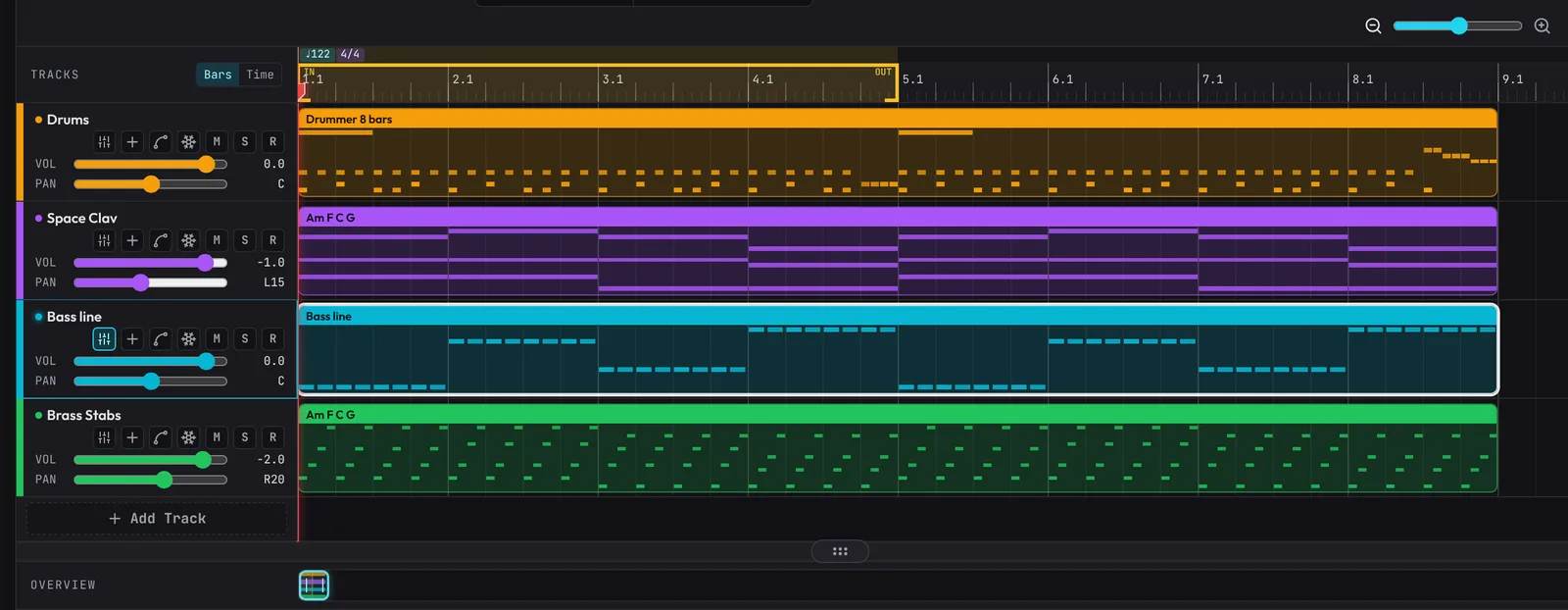
You now have four parts: Drums, chords on Space Clav, a Bass line and an arpeggio on Brass Stabs. Close the Track Inspector on the right (its X) if it opened.
Copy the loop across the song
- Press Ctrl+A (Cmd+A on a Mac) to select every clip.
- Right-click any of them and choose Repeat ×N….
- Type 6 and press Enter.
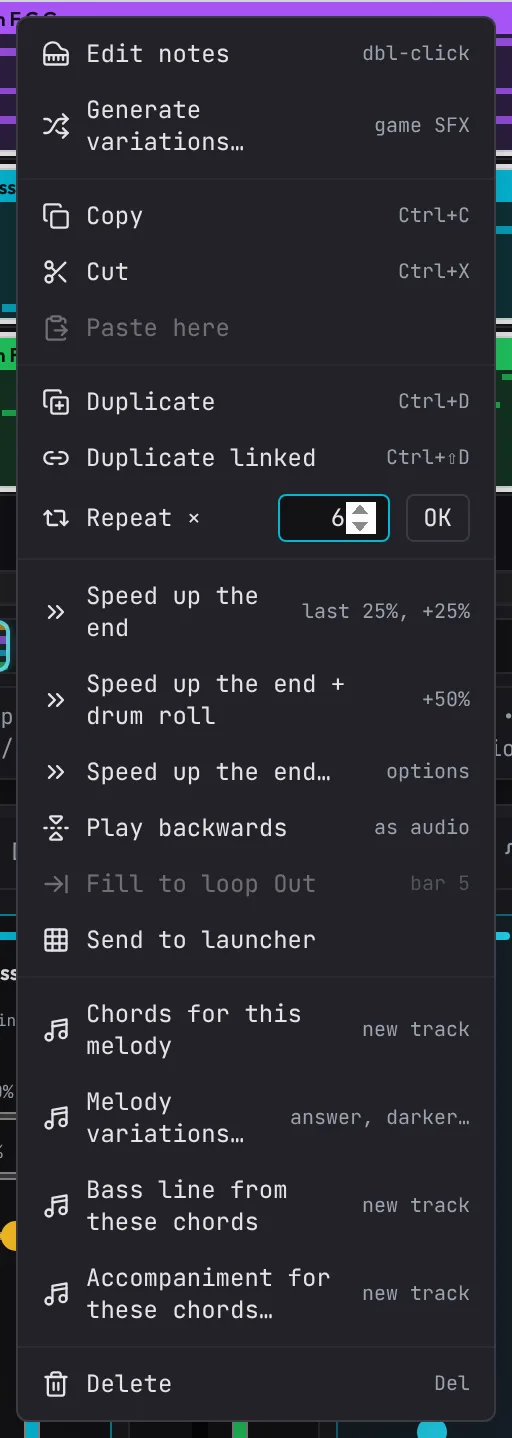
Six copies go end to end after the loop, so every part now runs from bar 1 to bar 56. Press - a few times (or drag the zoom slider at the top right of the timeline) until you can see all 56 bars.
Plan the song
Before cutting anything, decide what each stretch is for. Here's the plan for this song, a common shape for electronic and pop tracks:
| Bars | Section | What plays | Why |
|---|---|---|---|
| 1–8 | Intro | Chords, arpeggio | Sets the mood without the beat |
| 9–20 | Verse | Drums, bass, chords | The groove arrives; the arpeggio waits |
| 21–24 | Build | Drums, bass, chords, riser, sweep, snare roll; the tempo rushes up in bars 23–24 | Tension |
| 25–32 | Drop | Everything, with an impact on bar 25 | The payoff |
| 33–40 | Breakdown | Chords, bass | Room to breathe |
| 41–48 | Last drop | Everything, a whole step up (Bm – G – D – A) | A final lift |
| 49–56 | Outro | Chords alone | Lets it end |
At the starting tempo of 122 BPM that's just under two minutes.
Take parts out for contrast
The fastest way to try a section without a part is the track's M (mute) button: click M on Drums while the intro plays and hear how it opens up. Mute works on the whole track, though, so once you know what you want, delete the clips in that section instead. Click a clip to select it and press Delete:
- Intro (the clips starting at bar 1): delete the Drums and Bass line clips.
- Verse: delete the Brass Stabs clips at bars 9 and 17.
- Breakdown (bar 33): delete the Drums and Brass Stabs clips.
- Outro (bar 49): delete the Drums, Bass line and Brass Stabs clips.
Leave everything else in place. The drop at bar 25 and the last drop at bar 41 keep all four parts, and they'll sound bigger because of what came before.
Name the sections with markers
Markers are violet flags on the ruler. They make a song easy to find your way around, and other tools use them.
- Click the BAR.BEAT.TICK readout in the toolbar, type 1 and press Enter. The playhead jumps to bar 1.
- Press M to drop a marker there. It's called Marker 1.
- Double-click its flag on the ruler, type Intro and press Enter.
- Do the same for Verse at bar 9, Breakdown at 33, Last drop at 41 and Outro at 49.
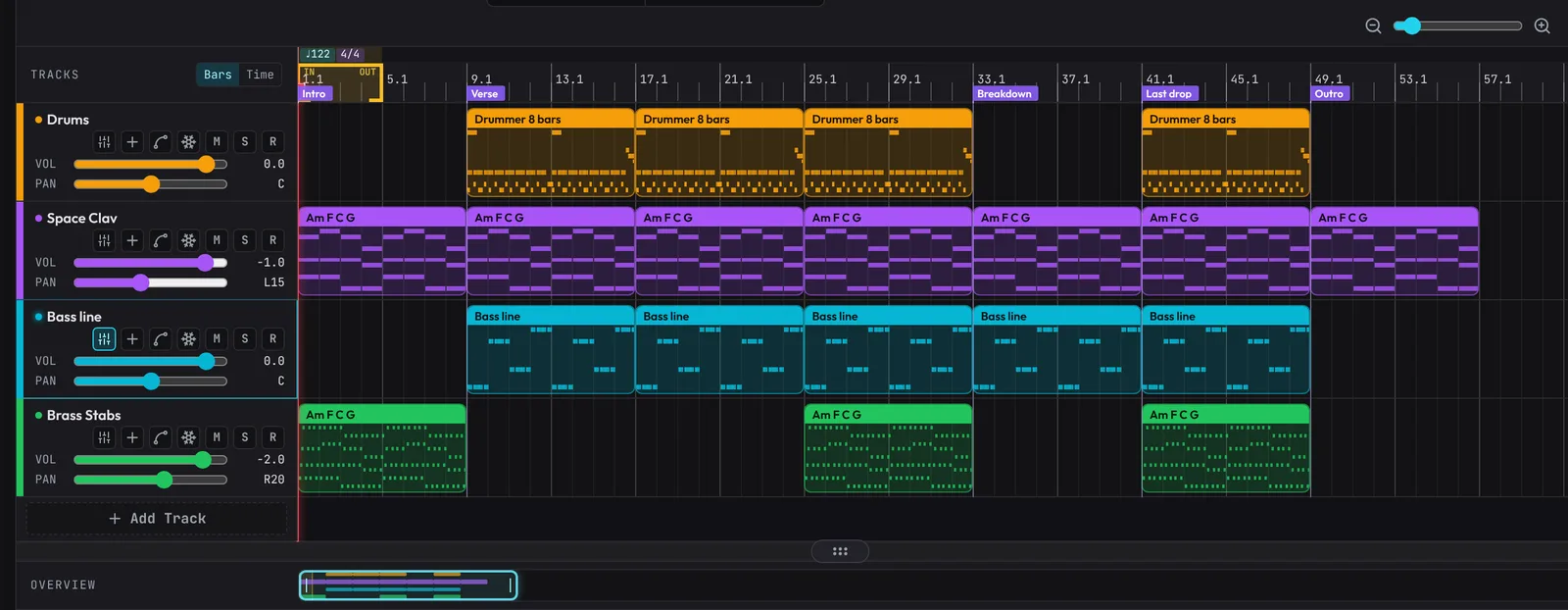
Now , (comma) and . (full stop) jump to the previous and next marker, even while playing. Leave the build and the drop for the next step: that tool names them itself. More in the guide under Markers.
Build up to the drop
- Right-click the ruler right on the line of bar 25 (zoom in a little if you need to). The menu's top line should read At 025.01.00.
- Choose Build-up & drop here.
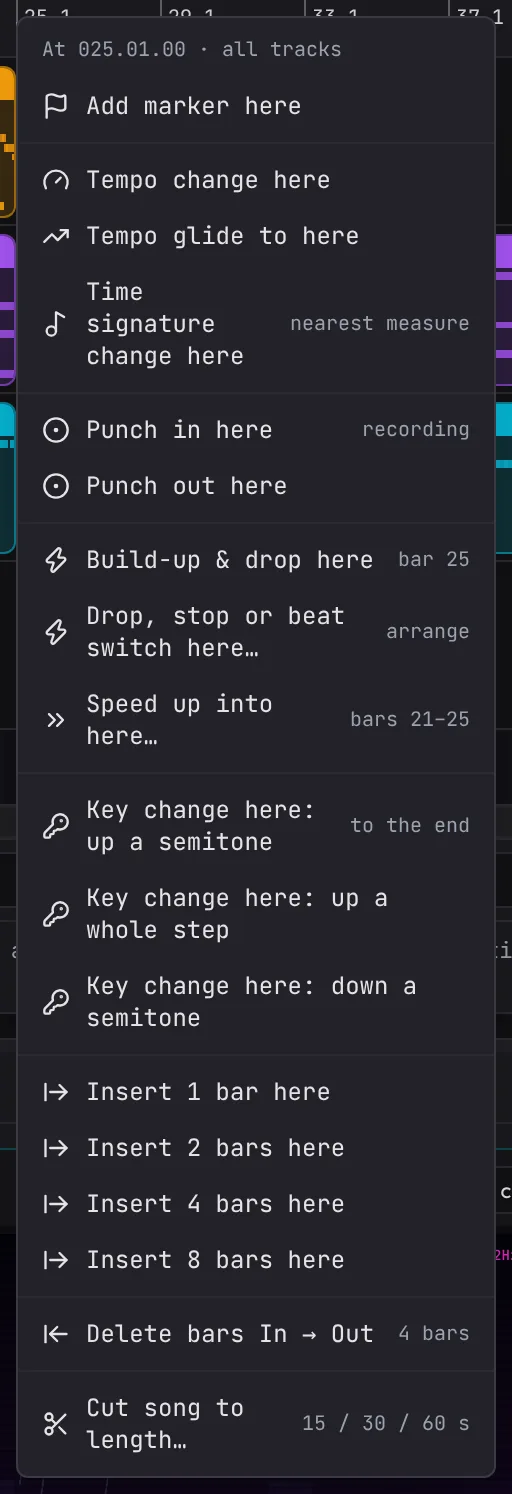
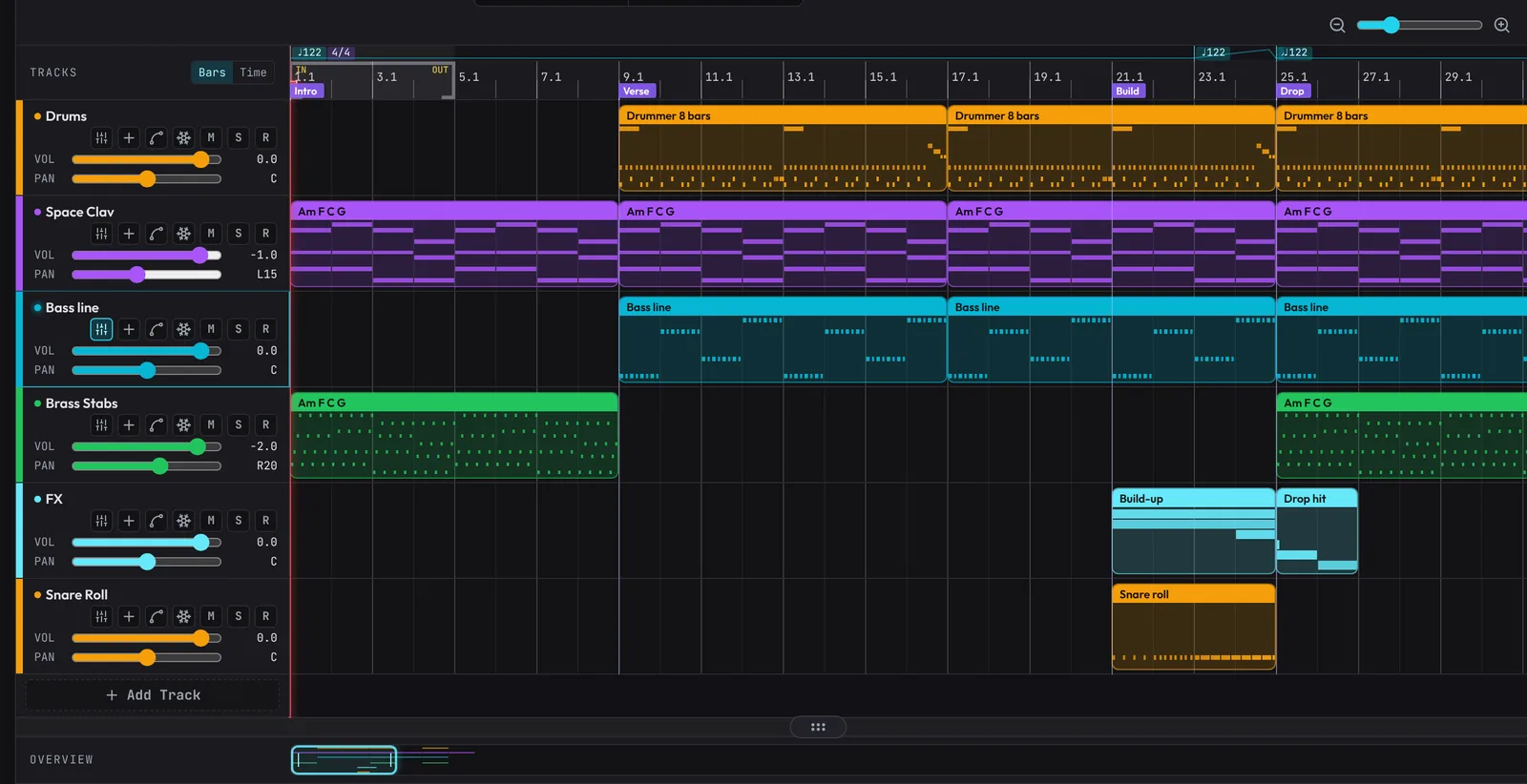
In one go it writes a riser, a noise sweep and a reverse crash over bars 21 to 24 on a new FX track, a snare roll that speeds up from quarters to 16ths on a new Snare Roll track, an impact and a sub drop on bar 25, and markers called Build and Drop. They're ordinary clips, so move or delete anything you don't like. Details in the guide under Build-up & drop.
Speed up into the drop
A tempo that rushes into the drop, then snaps back, adds a lot of excitement.
- Click the Drums clip that starts at bar 17 to select it on its own.
- Right-click it and choose Speed up the end.
The last quarter of that clip (bars 23 and 24) gets 25% faster, from 122 to 152.5 BPM, and the tempo snaps back to 122 right on bar 25. You'll see the tempo flags on the ruler's top row. Speed up the end + drum roll goes 50% faster with a snare roll, and Speed up the end… opens all the options.
Lift the last drop with a key change
- Right-click the ruler on the line of bar 41.
- Choose Key change here: up a whole step.
Every pitched note from bar 41 to the end moves up two semitones: A minor becomes B minor, and the chords become Bm – G – D – A. The drums don't change. This is the classic final-chorus lift; see Key change.
See and hear the whole song
- Press L to turn the loop off. A new project loops bars 1 to 5, and with the loop on you'd only ever hear those.
- Press Home, then Space, and listen all the way through.
- Use the Overview strip under the tracks to get around: drag its cyan window to scroll, click anywhere on it to jump, and drag either end of the window to zoom.
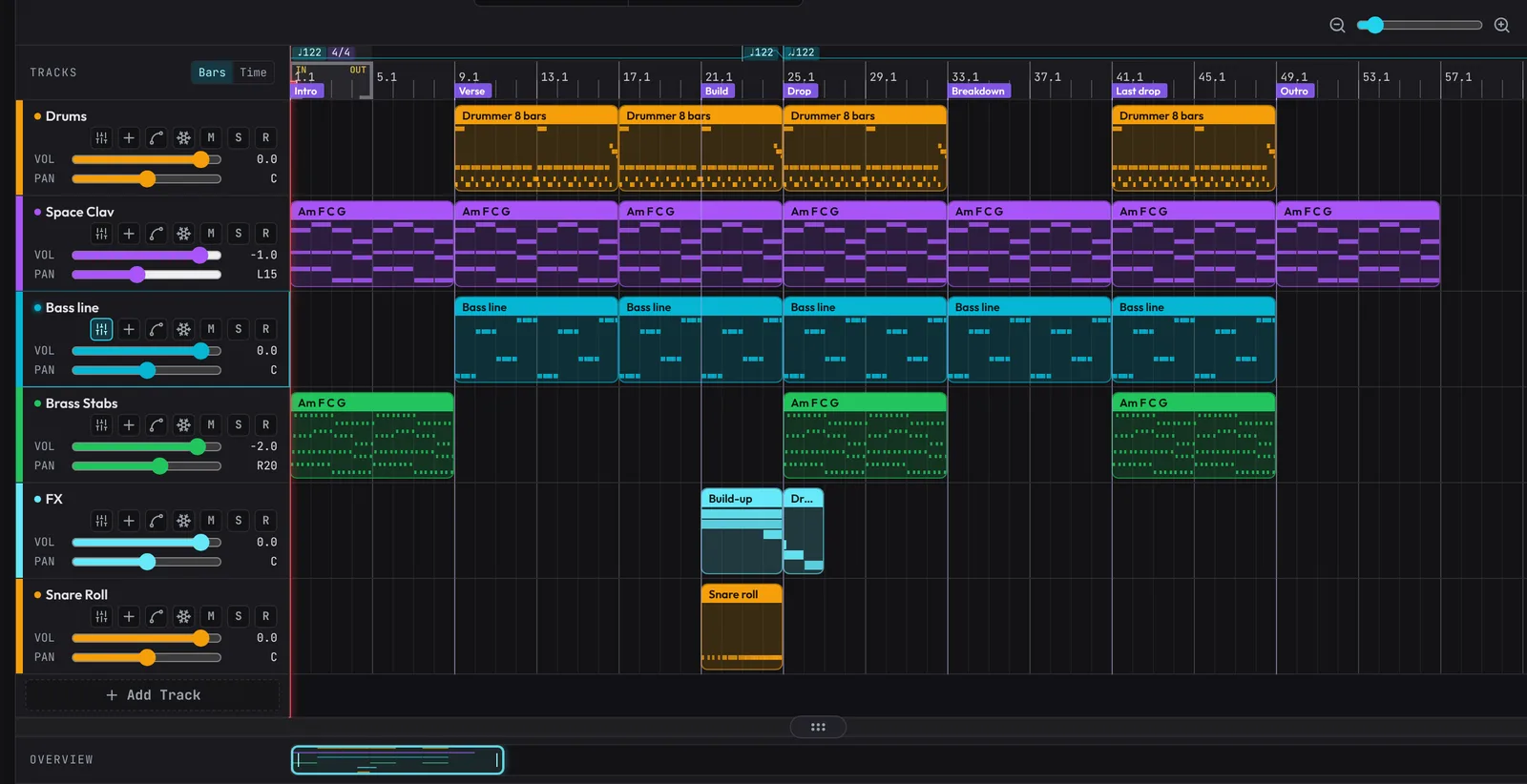
Listen for the shape: thin, groove, rise, hit, breathe, lift, fade. If a section outstays its welcome, right-click the ruler and use Delete bars In → Out with the loop around it, or Insert 4 bars here to stretch one.
The quick way: Arrange a beat
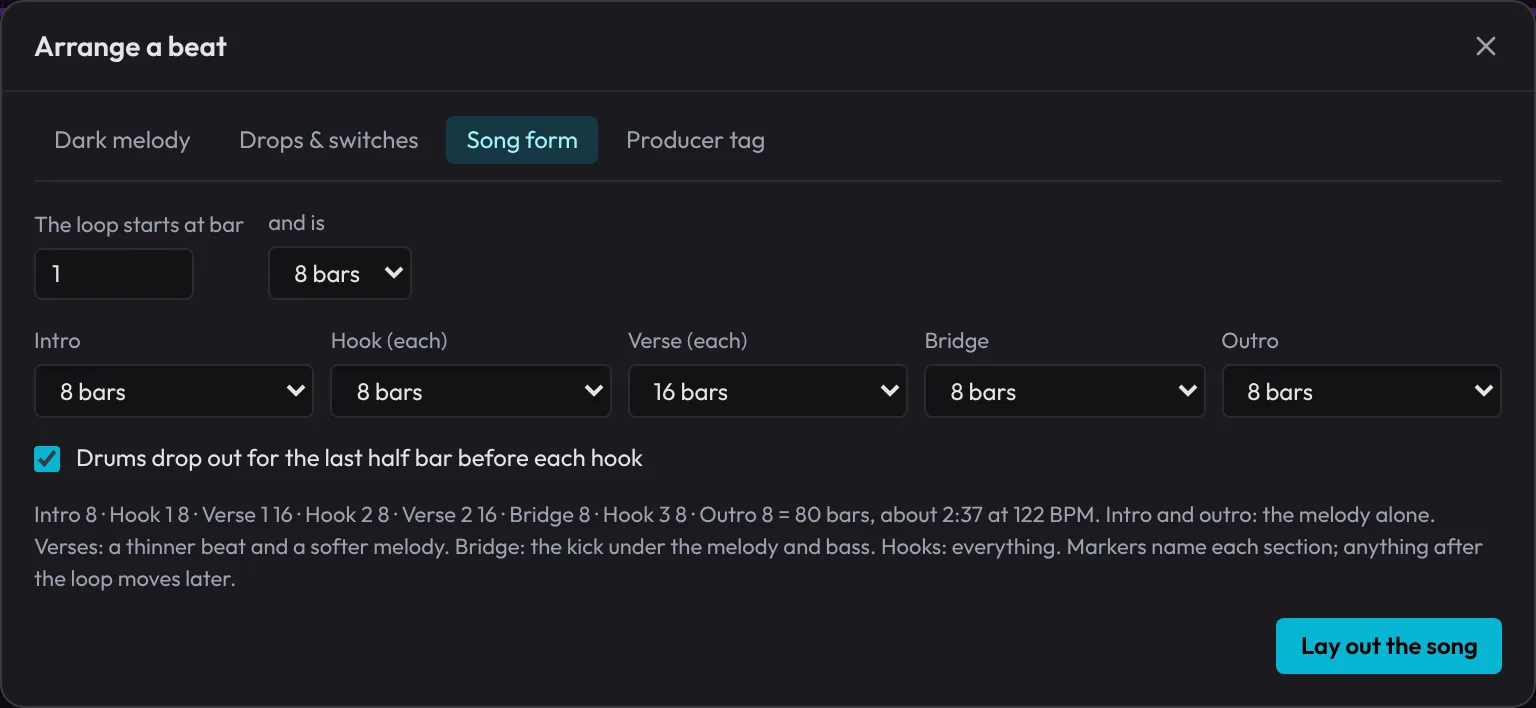
When you just want a song from a loop, Song › Arrange a beat: drops, beat switch, song form, tag… does the copying and thinning for you. Click its Song form tab, set where the loop starts and that it's 8 bars, choose a length for each section, and click Lay out the song. It writes Intro, Hook, Verse, Hook, Verse, Bridge, Hook and Outro, with markers for each. The Drops & switches tab has the drop-outs, stops, risers and Speed up into the drop with every option. It's all one Ctrl+Z, so try it on a fresh copy of your loop and compare it with your own arrangement. See Arranging a beat.
What's next
You've turned a loop into a song with sections, markers, a build, a drop, a tempo rush and a key change. Next, make it sound finished: Mix and master.
Open the example in the studioThe 56-bar song: intro, verse, build, drop, breakdown, a last drop a whole step up, and an outro.