
Guide Recording
Recording
Recording from a microphone
Click Mic in the toolbar (or Tools › Record from the microphone) to record your voice, a guitar, or anything on your computer's audio input. The browser asks for permission the first time. Playback starts from the playhead as you click it, so you can sing or play along; the button turns into Stop with a level meter. Click Stop and the take goes onto the selected Audio track (or a new one) exactly where you played it: the delays of the speakers and the mic are taken off, so it lines up with the beat. The take is saved in the sound library like a dropped sound file, so it can be trimmed, faded, chopped (Chop sample), frozen and exported.
The input isn't played through the speakers while you record (no feedback); use headphones to hear the music. Microphone access needs a secure page (the published site, on https).
Lining up. The browser's own figure for those delays is often a little off (on phones, by tens of milliseconds). To measure it instead, open the Record button's settings (the chevron beside it) and click Line up under Line up mic recording: Fledgetone plays a few soft clicks through the speakers and records them, about 3 seconds; keep quiet, and use the speakers rather than headphones. From then on, mic takes on this computer and microphone are moved back by the measured delay. Again measures it once more, Forget goes back to the browser's figure. Bluetooth headphones add a lot of delay (often 150 ms or more) that changes from moment to moment: when the output looks like Bluetooth, a note says so as a take starts; record with wired headphones.
To resample (record a part, then mangle it), export the part as a WAV and drop it back onto a lane, or right-click an audio clip for Chop sample….
Recording notes
To record what you play on a MIDI keyboard (or the computer keyboard piano) as notes:
- Arm a track with R on its header (one track at a time; Audio tracks can't be armed).
- Switch Record on (the red circle in the toolbar).
- Press Play. With the 1-bar count-in on (the default) you hear one bar of clicks first (four in 4/4), then the music and the take start together.
- Play. Notes are placed where you heard them against the music, with their velocity and length.
- Pause, Stop or switching Record off ends the take. It becomes a clip named Take 1, Take 2 and so on, on whole bars. Switching Record on while playing starts a take right there.
- Undo removes the whole take in one step. With Quantize on, the notes are snapped when you stop, as a second step: the first
Ctrl+Zputs them back where you played them, the second removes the take. - Loop recording: with the loop on, every pass adds to the same take, so you can build a part up pass by pass. Or tick Loop passes are takes to keep each pass as a take of its own and pick the best afterwards (see Takes and comping).
- Takes are ordinary clips: swing, editing, Insert/Delete bars and export work on them like any other.
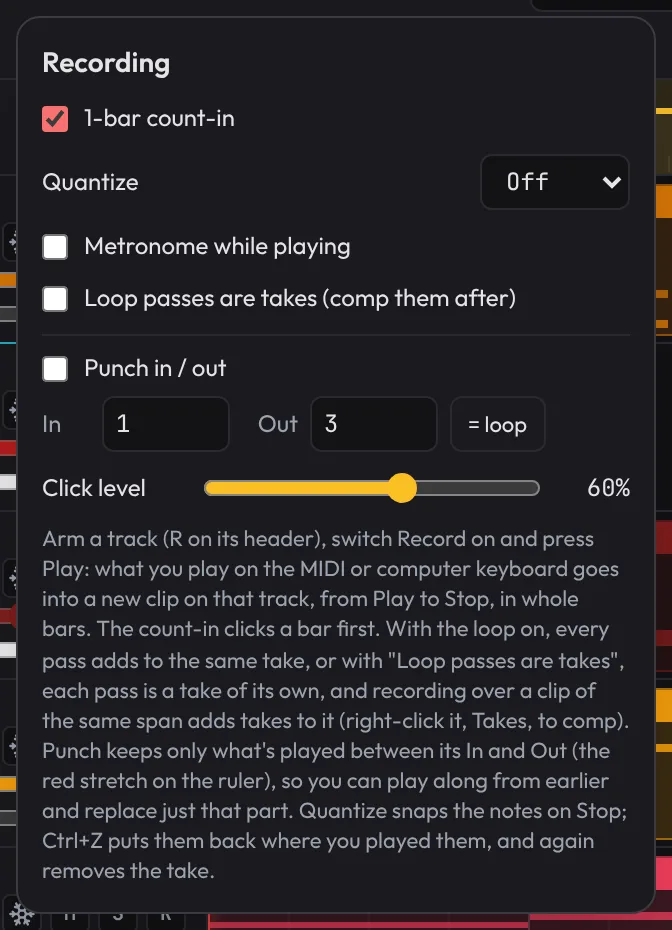
- Recording settings (the arrow next to Record): 1-bar count-in, Quantize (Off, 1/16, 1/8 or 1/16T), Metronome while playing, Loop passes are takes, Punch in / out and Click level. These are kept in your browser, not in the project.
Punch in and out
Punch replaces just one part: play along from earlier to get the feel, and only what you play between the punch In and Out is kept.
- Tick Punch in / out in the recording settings and type its In and Out bars, or press = loop to punch over the loop. Or right-click the ruler: Punch in here and Punch out here (each switches punch on).
- The punch range shows as a red bar along the bottom of the ruler.
- A MIDI take keeps the notes that start inside the range, cut off at the Out, and its clip is exactly the range. A mic recording is cut to the range too.
- With Loop passes are takes on, punching over the same range again adds a take each time, so you can try a fill as often as you like.
Takes and comping
With Loop passes are takes ticked, recording round the loop keeps each pass as a separate take in one clip (a take folder), and recording over a clip of exactly the same span (the same punch range, or the loop again) adds takes to it. This works for MIDI and for the microphone. The newest take plays at first; the clip shows NT (N takes) by its name.
Click NT, or right-click the clip and choose Takes (N)…, to comp: build the part from the best bits of each take.
- Each take is a row (notes or waveform). The lit stretch of each row is what plays; the rest is shaded.
- Drag along a take to use it there; it snaps to beats (Shift for 16ths). A click uses that beat.
- Click a take's name to use it all the way through. The bin deletes a take.
- Flatten keeps what the comp plays as an ordinary clip and drops the other takes. (A mic comp made of several takes stays as the take it starts with when flattened: to keep a mixed comp, leave it as a folder.)
- Where a mic comp changes take, the two blend over 10 ms, so the joins don't click.
- Each change is one Undo step. Take folders save with the project, split and trim like any clip, and play the comp live and in every export. Editing a MIDI folder's notes in the piano roll works as usual, but the next comp change rebuilds the notes from the takes.
Metronome
The metronome button in the toolbar clicks on every beat while playing, louder on beat 1 of each bar. It follows the tempo, ignores swing, and is never in an exported WAV. It clicks in time with the music as you hear it, allowing for the few milliseconds the master section and any compressors hold the music back. The count-in clicks even when the metronome is off.