
Guide The timeline
The timeline
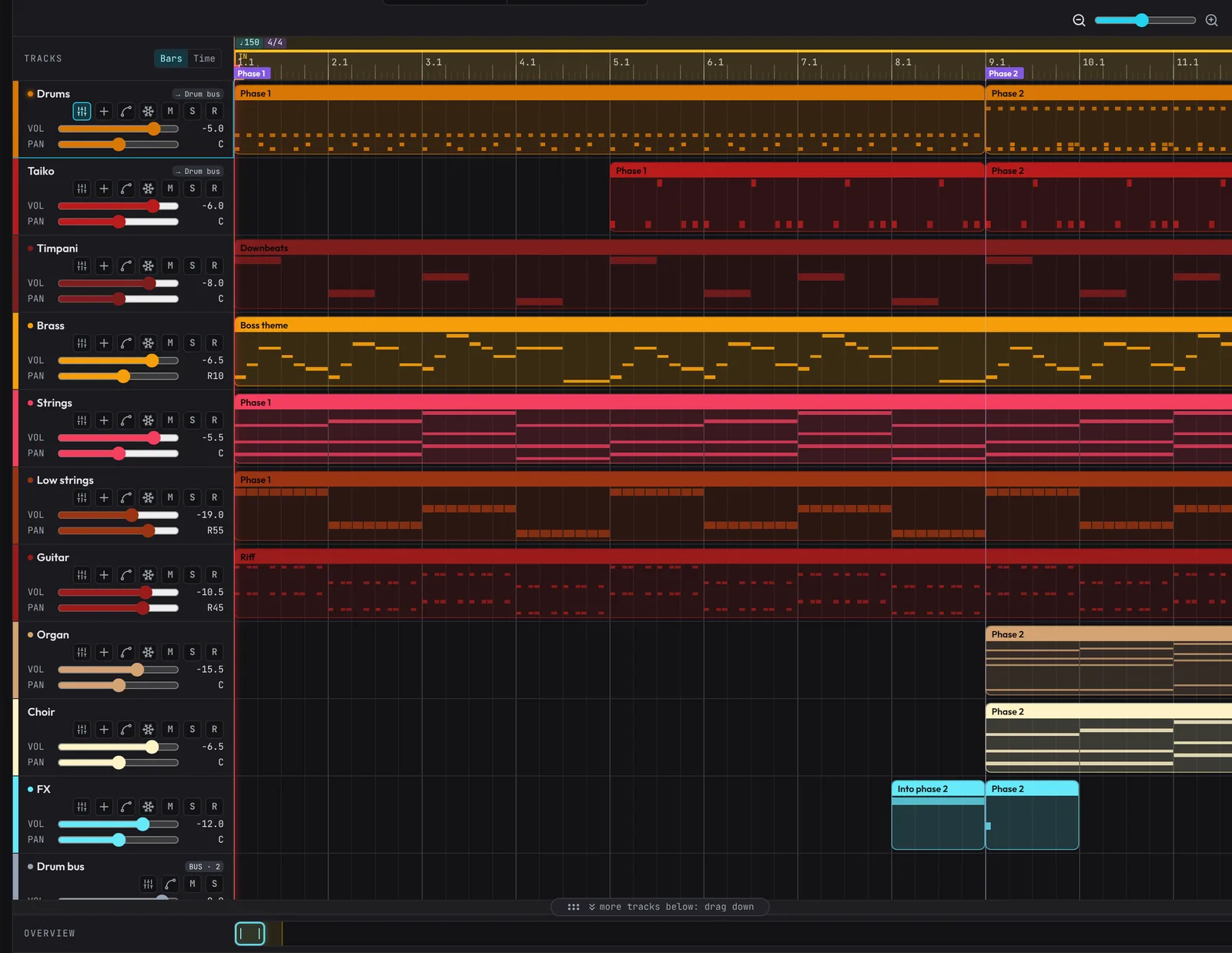
The timeline is 400 bars long. It starts in 4/4 at one tempo; you can add tempo and time signature changes along the ruler (see Tempo changes and time signatures). Each row is a track: its header on the left (name, volume, pan, mute, solo), its clips on the right.
Tools
- Selection tool (
V, the arrow): select, move, trim and create clips. - Razor tool (
C, the scissors): click a clip to cut it in two at that point. A red line previews the cut.
Creating clips
- With the Selection tool, double-click empty lane space for a new 1-bar clip starting on that beat (whatever SNAP is set to). It opens in the piano roll.
- Right-click empty lane space for empty clips of 1, 2 or 4 bars, the writing helpers (Drummer… on a drum kit; Chord progression…, Math patterns… and Dark melody… on a pitched instrument: see Smart tools and Arranging a beat), ready-made patterns (every drum kit, Slap Bass, Space Clav, Brass Stabs and the EDM instruments have them), and Paste here or Paste at playhead. On an Audio track it offers Load audio file… instead.
- The + in a track header opens the same menu at the playhead.
Selecting clips
- Click a clip to select it. Shift, Ctrl or Cmd-click adds or removes clips.
- Drag a box over empty lane space to select every clip it touches (hold Shift to add to the selection).
Ctrl+Aselects all clips.Escor a click on empty space clears the selection.
Editing clips
- Move: drag the middle of a clip. All selected clips move together, sideways in time and up or down to other tracks. To ignore snap, start dragging and then hold Shift (Shift-clicking a clip selects it instead). A click that wobbles by a few pixels changes nothing.
- Move to another track: a clip can only go onto a track whose instrument can play it: the same instrument, drum kit to any other drum kit, FX track to FX track, or any pitched instrument to any other (the Sampler and Taiko count as pitched). While you drag, the tracks it can land on are outlined in cyan; over any other track the clips stay on their own tracks. If several clips are selected and any one can't go to its new track, none of them change track, so a section spread over several tracks stays lined up.
- Scroll while dragging: bring the pointer to the edge of the track area and the timeline scrolls that way, faster the closer you get. The mouse wheel works mid-drag too.
- Alt-drag: hold Alt (Option on a Mac) and drag. Copies stay behind and the originals move.
- Duplicate (
Ctrl+D, or right-click a clip > Duplicate): copies the selected clips as one block right after the end of the selection, so a section spread over several tracks stays lined up. The copies become the selection, so pressingCtrl+Dagain keeps extending the section. If the copy wouldn't fit before bar 401, nothing is copied and a message says why. - Duplicate linked (
Ctrl+Shift+D, or right-click a clip > Duplicate linked): like Duplicate, but each copy is linked to its original, as a pattern is in a pattern-based DAW: edit the notes of any of them (in the piano roll, with a tool, by recording into it) and every linked clip changes with it, wherever it is. Linked clips show a badge with the pattern's name (P1, P2…). Each keeps its own place, length and track; they share their notes, controller lanes, groove and wobble. Duplicate linked again (of an original or a copy) adds more clips to the same pattern. Make unique (right-click, or in the piano roll) unlinks a clip: it keeps its notes, and edits stop reaching the others. Trimming a linked clip's start or splitting it makes those clips their own, since their notes move; moving, copying to the end and trimming the end don't. Edits that move notes across the whole song (a key change from a bar) change a pattern everywhere it plays. Only note clips can be linked. - Repeat ×N… (right-click a clip): type how many copies you want (1 to 64) and press Enter. They go end to end after the selection, like Duplicate. If they wouldn't all fit before bar 401, the menu says how many would.
- Fill to loop Out (right-click a clip): repeats the selection end to end up to the loop's OUT. The last copy is cut short at OUT (its hidden notes come back if you drag its edge out). Fill makes at most 2,000 clips at a time.
- Trim: drag a clip's left or right edge. Trimming hides notes rather than deleting them, so dragging the edge back brings them back. Zoom in if a clip is too narrow to show its edge handles.
- Copy, cut, paste:
Ctrl+C,Ctrl+X,Ctrl+V. Paste lands at the playhead (on the snap grid), on the tracks the clips came from, and selects the pasted clips. When playback is stopped, the playhead then moves to the end of the paste, so pressingCtrl+Vagain lays copies end to end. Right-click a lane or clip for Paste here: if everything you copied came from one track, it pastes onto the track you right-clicked when that track's instrument can play it (the menu says "this track"); otherwise clips go back to the tracks they came from. Clips whose track no longer exists are only pasted that way. - Delete:
DeleteorBackspace. - Right-click a clip for Edit notes (Gain and fades on an audio clip), Takes… (a take folder), Copy, Cut, Paste here, Duplicate, Duplicate linked (Make unique on a linked clip), Repeat ×N…, Speed up the end (see Arranging a beat), Play backwards (note clips), Fill to loop Out, Send to launcher, Generate variations… (game sounds, see Micro-variations) and Delete, and what suits the clip: the writing helpers on a note clip (see Smart tools), and Chop sample…, Tune vocal…, Hard tune…, Double this take and Chop my voice on an audio clip.
- Duplicate, Repeat, Fill and every move (time and track together) are one Undo step each.
Snap
The SNAP menu in the toolbar sets the grid that clip moves, trims, razor cuts, the playhead, the loop brackets, markers and paste land on: 1/4 (a beat), 1/8, 1/16, Frame (one video frame, see Timecode & frame rates) or Off. Hold Shift to ignore snap when clicking or dragging on the ruler, razor-cutting, right-clicking or dropping a pad; for clip moves and trims, start the drag first and then hold Shift. The loop brackets always snap: set SNAP to Off to place them freely. The snap step is also the shortest a clip or the loop can be (never less than a 16th).
Magnetic edges: while you drag a clip or its edge (with SNAP on and Shift not held), its start or end jumps onto another clip's start or end, a marker, the playhead or a loop bracket once it comes within a few pixels, so parts butt up exactly. Further away, it snaps to the grid as usual.
Zoom and scrolling
- Zoom with the slider at the right of the toolbar, or
+and-(they keep the playhead where it is on screen when it's visible). Ctrl+mouse wheel (Cmd on a Mac) or a trackpad pinch zooms around the pointer. Zoom goes from 12 to 1280 pixels per bar, deep enough to see single video frames. - Zoomed in, the lanes show faint lines on every 16th, or on every frame when SNAP is Frame.
- Scroll in time with Shift+mouse wheel, a sideways trackpad swipe, or the Overview strip under the tracks: drag its cyan window to scroll, click anywhere on it to jump, and drag either end of the window to zoom.
- See more tracks at once: drag the bar with the grip right under the tracks down to make the timeline taller, pushing the panel under it down (or up to make it shorter). It stops at the last track, so there's never empty space under them. Double-click it to fit every track in, and again to go back to the usual height. Adding a track grows the timeline just enough to show it (up to about three quarters of the window; past that, it scrolls to the new track). The height is remembered in this browser.
- While playing, the view follows the playhead. While stopped, a jump to a spot that's off screen (
,and., a position in the Markers list, Go to In orHome, or a position typed into a readout) scrolls the view to it.
Undo
Ctrl+Z undoes and Ctrl+Shift+Z or Ctrl+Y redoes, up to 100 steps (Edit › Undo and Redo too). Undo covers:
- clip and note edits;
- Insert and Delete bars, along with where they moved the loop and the playhead;
- markers: adding, moving, renaming, locking and deleting them;
- adding and deleting tracks (Undo brings a deleted track back with its clips), and changing a track's instrument;
- M, S and R, VOL and PAN, the EQ, Distortion, Compressor, Chorus, the sends and the Master tab (OTT, Stereo Width, reverb and delay);
- loading, replacing or removing a Sampler sound, and its Original pitch on note;
- automation: adding, moving and deleting points, ramps and clearing or removing lanes;
- the Game tab's own parts: costumes, stingers, the game's sound effects, transition rules, and how each state plays (shuffle and silences).
Every tool that writes music for you (the smart tools, Arrange a beat, Speed up into the drop, a build-up and drop, a key change...) is one step too. One slider adjustment is one step, whether you drag it, tap its arrow keys or double-click to reset it. The starting tempo (tempo changes on the ruler are undone), swing, the loop (other than by Insert and Delete bars), zoom, snap, frame rate, ruler units, listening volume and the project name are not undone.
Inserting and deleting bars
Right-click the time ruler. Its menu has Add marker here (see Markers), tempo and time signature changes (see Tempo changes), Punch in here and Punch out here (see Recording), the arranging tools below and Cut song to length…. Its bar edits act on all tracks at the point you clicked (on the snap grid; Shift for the exact point):
- Insert 1, 2, 4 or 8 bars here: adds empty bars. Clips that cross the point are cut in two there, and everything after it moves right. If that would push a clip or a marker past bar 401, nothing changes and the menu says so.
- Delete bars In → Out: removes the loop's range. Clips inside it go, clips that cross IN or OUT lose the part inside, and everything after it moves left to close the gap.
Markers, automation points, the loop and the playhead move with the music. Each edit is one Undo step, even one that only moves the loop or the playhead. Undo puts everything back, the loop and the playhead included; if either has moved since (you played, or dragged the loop), it moves back with the music instead. Ctrl+Shift+Z or Ctrl+Y does the edit again.
Build-up & drop
Right-click the time ruler on the bar where the drop lands and choose Build-up & drop here. In one Undo step it writes:
- a riser and a noise sweep over the 4 bars before it, with a reverse crash into the drop (an FX track);
- a snare roll over the same 4 bars: quarters, then 8ths, then 16ths getting louder (a drum track);
- an impact with a sub drop on the drop itself, and a downlifter a bar later;
- markers called Build and Drop, unless there's already one on those bars.
It uses an FX track and a drum track that are empty there, or adds new ones (an FX track, called Build FX if the song has one already, and Snare Roll) so nothing you wrote is covered up. Near the start of the song the build is shorter (a drop at bar 3 gets 2 bars). They're ordinary clips: change, move or delete them as you like.
Key change
Right-click the ruler where the new key starts and choose Key change here: up a semitone, up a whole step or down a semitone. Every pitched note from there to the end moves, in one Undo step; drum kits, percussion (Taiko and the like), sound effects, the FX track, the Slicer and audio clips stay as they are. A clip that runs across that point changes only from it on. A note that would go outside its instrument's range stays put, and the menu says how many did. The classic final-chorus lift is up a whole step, set up by a bar of the new key's V7 chord or a bar of silence.
Cut to length: 6, 15, 30, 60 and 90-second versions
For an ad, a trailer or a social clip, the music often has to last an exact time. Right-click the time ruler and choose Cut song to length… (or search cut down), pick 6 s, 15 s, 30 s, 60 s or 90 s, or type a length (0:45:00 or 45).
- It works in sections: the stretches between your markers (in a song without markers, 8-bar phrases; 4-bar ones in a song under 16 bars). Whole sections are left out for a shorter version, or a middle section is repeated for a longer one, so every edit falls on a bar line where the music changes anyway.
- It always ends on the song's own ending (its last section), keeps the sections in order, and keeps the parts that matter most: the busiest sections, and those named like a main part (Drop, Chorus, Hook, Theme, Combat, Boss...) before an Intro, Break or Build.
- The dialog shows the sections it will use, in order, with the length that makes. Nudge the tempo (on by default) changes the tempo by up to 8% so it lasts exactly the length you picked, to the hundredth of a second; untick it to keep your tempo and get the nearest whole number of bars.
- Cut to rebuilds the timeline in one Undo step: clips are cut at the section edges, automation goes with its section, the section markers move to where their sections now start (hit points locked to time stay put), and the loop covers the new version.
Ctrl+Zbrings the whole song back; a nudged tempo stays, so set it back by hand. Save a copy first if you want to keep both versions.
Arranging a beat
Tools for rap beats and heavy 808 music, and for turning a loop into a song. Open them from Song › Arrange a beat: drops, beat switch, song form, tag… or Song › Dark melody…, right-click the ruler (Drop, stop or beat switch here…), right-click an empty spot on an instrument track (Dark melody…), or search arrange. Each button is one Undo step, and the results are ordinary clips, markers, automation and tempo changes, so they play the same in every export.
- Dark melody: a short loop (1, 2 or 4 bars) in one of four styles: Sparse bells (syncopated bells with space), Sliding piano (piano with a bounce and triplet runs), Fast riff (busy 16th riffs with octave jumps) or Cowbell riff (a stubborn 3+3+2 riff). It plays a motif, repeats it, and changes the ending (in 4 bars: the motif, an answer that hangs on a tension note, the motif, an answer that comes home), so it loops cleanly. The half step above the root (the flat second) is in every one, for that dark pull back onto the root. In Minor, Harmonic minor or Phrygian, in the song's key (a major song gets its relative minor), with Density (sparse to busy) and Register (low, middle, high). It goes onto the track you pick or a new bell, pluck or piano track. New idea writes another in place of the last one; the idea number is a seed, so the same number with the same settings always writes the same melody.
- Drop out: tick the tracks to silence (all but the melody, say) for the last half bar, 1 or 2 bars before the drop. Their notes there are cut, and a Volume automation dip silences what still rings (an 808's tail, a bell's ring).
- Stop before the drop: every track silent for the last beat (or half beat) of the bar before the drop, so the drop hits out of silence. It cuts the notes and writes a short Volume dip on each track (return tracks too), back to full level exactly on the drop. The master's shared reverb isn't a track, so its tail of what came before still rings faintly (very quiet, around -27 dB, but audible); turn the tracks' reverb sends down there, or use a return track for reverb, for total silence.
- Riser and Reverse cymbal: on an FX track (the FX instrument's riser and reverse crash; the sound effects maker has no riser), over 1 to 8 bars, peaking right on the drop, or a beat or half a beat early to meet a stop.
- Beat switch: copy bars (the loop's In to Out to start with) right after themselves with new drums and bass, the melody unchanged: Half time (the beat at half speed), Double time, or a New drum pattern from the Drummer (pick its style), the bass re-cut to follow the new kicks at its old pitches. The rest of the song moves later and a Beat switch marker names it.
- Speed up into the drop: the tempo rises over the end of a block of music and snaps back on the drop, the rush producers put into a build. Pick the block (Use the loop, Use the selected clips, or type the bars: it ends where the drop lands), how much of it speeds up (the last 10 to 100%, shown in bars and beats; it starts on a beat) and how much faster it gets (up to +100%, double time). Steady rises evenly; Slow, then fast creeps up and then rushes, the classic build. At the drop it snaps back to the old tempo (it reaches the top a 32nd before the drop) or stays at the new speed. Tick Roll the drums up and the snare (or clap) in the sped-up part becomes a roll, 8ths, then 16ths, then 32nds, getting louder. Quickest: right-click a clip (or one of several selected clips): Speed up the end does it at once (the last 25%, 25% faster, snapping back), Speed up the end + drum roll goes 50% faster, slow then fast, with the roll, and Speed up the end… opens these options on that block. Or right-click the ruler on the loop (or the selected clips) and choose Speed up into here…. It writes ordinary tempo changes (see Tempo changes), so playback, exports, the metronome, recording and the grid follow it, and the music before and after keeps its timing; tempo changes already inside the sped-up part are replaced. Audio clips that follow the tempo are cut on the beats there (more finely where it speeds up fast), each piece at its own tempo, so they keep time; audio clips that play at their own speed are left alone. One Undo puts everything back. The pitch doesn't rise with the tempo.
- Song form: from a 4- or 8-bar loop, the whole song: Intro, Hook, Verse, Hook, Verse, Bridge, Hook, Outro. Choose each section's length (none leaves it out). The intro and outro play the melody alone; verses a thinner beat (kick, snare, clap and 8th-note hats: no rolls or open hats) under a softer melody, so a voice has room; the bridge only the kick under the melody and bass; hooks everything. With the box ticked, the drums drop out for the last half bar before each hook. Markers name every section; anything after the loop moves later.
- Producer tag: Record a tag (or Import a sound file…) once: silence at both ends is trimmed off and it's kept in this browser for every project (clearing space with Free unused in the sound library doesn't delete it). Tag the start puts it at a bar; Tag the whole beat puts it every 4, 8 or 16 bars, for a beat-store preview. It goes on a Producer tag audio track that the rest of the beat ducks under by 6 dB (the track's Duck others under this), live and in exports. A project file carries the tag inside it like any other sound.