
Guide Markers
Markers
Markers are named points on the timeline: the sections of a song (intro, build, drop), or hit points in a video.
Adding markers and jumping to them
- Press
Mto drop a marker at the playhead, even while playing. Markers are named Marker 1, Marker 2 and so on. If a marker is already at that exact spot, nothing is added and a message says so. - Press
Shift+Mto drop a hit point instead: a marker named Hit 1, Hit 2... that's locked to time, for a moment in a video the music should land on (a door slam, a cut, a logo). The tempo finder uses them (below). - Or right-click the time ruler and choose Add marker here: it goes where you clicked, on the snap grid (hold Shift for the exact point).
- Or open the Markers list and click At playhead.
,(comma) jumps to the previous marker and.(period) to the next. While playing,,skips a marker you passed less than half a second ago, so pressing it again and again keeps going back. Holding the key down while playing jumps once; holding it while stopped steps through the markers one by one. If the marker is off screen, the view scrolls to it.
Flags on the ruler
Each marker is a violet flag with its name in the ruler, just under the numbers, with a thin violet line down through the tracks. The lines don't get in the way: clips, box selection and automation work straight through them. A long name is cut short to fit before the next flag; hover a flag to see its full name, position and timecode.

- Click a flag to move the playhead there.
- Drag it to move the marker. It snaps to the SNAP grid; hold Shift for no snap.
- Double-click it to rename it (up to 80 characters). Enter or a click anywhere else keeps the name;
Esccancels. - Right-click it for Rename, Lock to time (or Lock to bar) and Delete. Unlike a click, the menu leaves the playhead where it is, so it doesn't interrupt playback.
- With the keyboard:
Tabreaches each flag.Entermoves the playhead there,F2renames it,Deletedeletes it,←/→move it one SNAP step (with Shift, a bar), and the menu key orShift+F10opens its menu.
A marker normally stays on its bar when you change the tempo, so it moves with the music. Lock to time keeps its timecode instead and lets its bar move, for lining up with a video; its flag shows a small lock. If a faster tempo pushes a locked marker past the end of the timeline, it isn't drawn and the list says "after the end"; it comes back when you slow the tempo down.
The tempo finder: land the music on your hit points
Drop hit points on the moments in a video that matter (Shift+M, or Lock to time on any marker), then click FIT next to the tempo and choose Hit points. It tries every tempo in the range (70 to 180 BPM unless you type another, in steps of 0.01) and lists the five that put the most hits on the grid:
- Bar, Beat or 1/8: what the hits should land on. A hit counts when it's within one frame at your frame rate.
- Each suggestion shows how many hits it lands and how far off they are on average; click it to see every hit's timecode, the bar and beat it lands on, and how early or late it is.
- Apply sets that tempo. Hit points keep their times, so they now sit on the grid, ready for a crash or a stab right on them. The tempos assume one steady tempo: a song with tempo changes gets a note saying so, since Apply sets the tempo from bar 1 and hits after a change can then miss (remove the changes first).
- The line above the list says how many land at the tempo you have now.
The Markers list
Click the flag button right of the Loop button (it shows how many markers there are). The list has every marker in order, with its position (bar.beat.hundredths) and its timecode at your frame rate, drop-frame included. It grows to fill the room under it, and scrolls when there are more markers than fit.
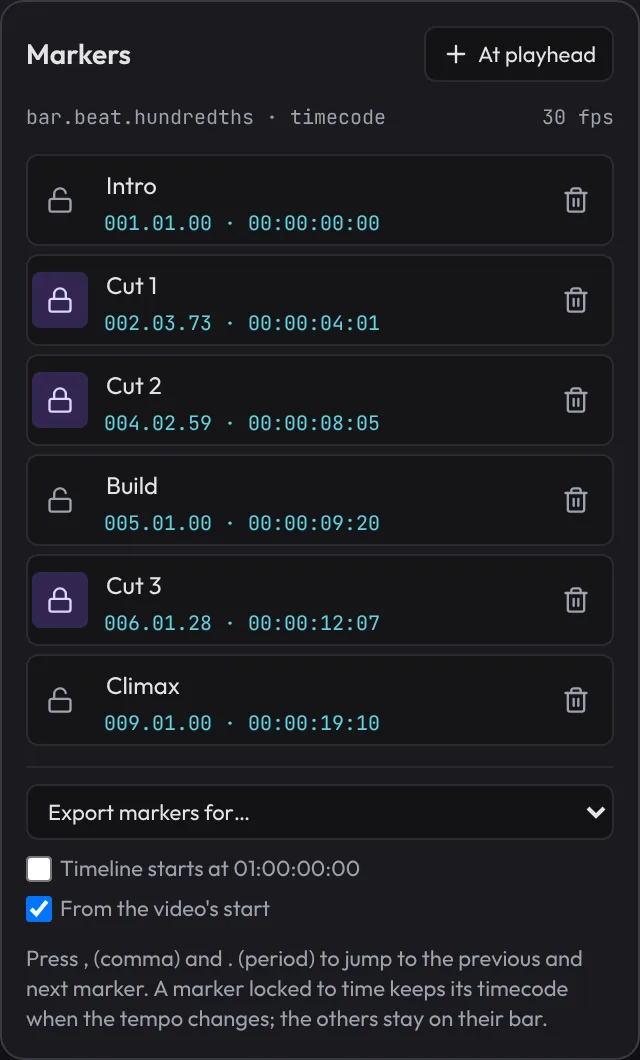
- Type over a name to rename the marker; the flag changes as you type.
- The lock button locks the marker to time, or back to its bar. The bin deletes it.
- Click a position to move the playhead there (the view scrolls to it if it's off screen).
Escor a click outside closes the list.- Export markers for… saves every marker (sections and hit points) as a file your video editing software imports, so the editor sees the same names at the same moments on their timeline:
- Premiere Pro (.xml): File › Import; it opens as a sequence carrying the markers.
- DaVinci Resolve (.edl): right-click the timeline in the Media Pool, or Timeline › Import › Timeline Markers from EDL. Resolve timelines usually start at 01:00:00:00, so tick Timeline starts at 01:00:00:00 first.
- Final Cut Pro (.fcpxml): File › Import › XML; a project with the markers on its timeline.
- Spreadsheet (.csv): name, timecode and seconds.
They use your frame rate (drop-frame included). With a reference video loaded, From the video's start (on) counts from the video's first frame, where it sits on the editor's timeline; untick it to count from bar 1.
Markers and the rest of the song
- Adding, moving, renaming, locking and deleting a marker are one Undo step each.
- Insert bars moves the markers at or after the insert point with the music. Delete bars In → Out deletes the markers in the removed bars (one exactly at IN goes, one exactly at OUT is kept) and moves the later ones left. Markers locked to time stay where they are.
- Markers are saved with the project and in autosave, even before there are any clips (hit points placed on a video before the music is written): the Restore banner offers that session too. Older versions of the app open the file without them.
- WAV exports carry the markers as cue points (see Exporting audio).