
Guide Instruments
Instruments
Each track plays one instrument. Add a track with + Add Track under the last track, or change a track's instrument in the Track Inspector (SOUND GENERATOR). Both open a list with a search field at the top: type part of a name (sax), a style or mood (8-bit, angelic, orchestral, jazz, horror) or a word from the description (slap), then Up / Down and Enter, or click. With nothing typed it lists every instrument by group. <!-- instruments:start (generated by npm run guide-tables) --> There are 249 instruments in 13 groups. 128 of them are retro instruments (the 1990s General MIDI soundfonts and early sample sets), which the lists hide until you show them: see Retro instruments below.
| Group | Instruments |
|---|---|
| Drums & Percussion | Drums, Drum Machine, Designed Kit, Techno Kit, Retro Drum Machine, Rhythm Box, Break Kit, Studio Kit (Real), Session Kit (Real), Brush Kit (Real), Latin Percussion (Real), Percussion Extras (Real) |
| Bass | Slap Bass, Sub-Bass, 808 Bass, Wobble Bass, Growl Bass, Reese Bass, Upright Bass (Real), Electric Bass (Real) |
| Choir & Voices | Choir (Real), Choir "Ooh" (Real), Solo Voice (Real), Airy Vocal Chops (Real), Soul Vocal Chops (Real), Shout Vocal Chops (Real) |
| Orchestra | Violins (Real), Violins Short (Real), Violas (Real), Violas Short (Real), Pizzicato Section (Real), Tremolo Section (Real), Solo Violin (Real), Violin (Real), Viola (Real), Cello (Real), Contrabass (Real), Double Bass (Real), Harp (Real), Flute (Real), Flute Short (Real), Oboe (Real), Clarinet (Real), Bassoon (Real), French Horn (Real), French Horn Short (Real), Trumpet (Real), Trumpet Short (Real), Trombone (Real), Trombone Short (Real), Tuba (Real), Piccolo (Real), Muted French Horn (Real), Alto Flute (Real), Bass Flute (Real), Bass Clarinet (Real), Bass Trombone (Real), Gong (Real), String Section (Real), Brass Section (Real), Timpani (Real), Recorder (Real), Concert Bass Drum (Real) |
| Keys & Synths | Grand Piano, Space Clav, Wavetable Synth, Analog Lead, Supersaw, Synth Designer, Pluck, Concert Grand (Real), Upright Piano (Real), Studio Grand (Real), Old Upright (Real), Pipe Organ (Real), Chapel Organ (Real), Harpsichord (Real), Electric Piano (Real) |
| Guitars & Strings | Acoustic Guitar (Real), Cellos (Real), Cellos Short (Real), Electric Guitar (Real), Crunch Guitar (Real), Distortion Guitar (Real), Hollow-Body Guitar (Real), Flatwound Guitar (Real), Classical Guitar (Real), Banjo (Real) |
| Winds & Brass | Alto Sax (Real), Baritone Sax (Real), Tenor Sax (Real), Soprano Sax (Real), Muted Trumpet (Real), Brass Stabs |
| Mallets & Bells | Glass Harp (Real), Hand Chimes (Real), Marimba (Real), Xylophone (Real), Glockenspiel (Real), Tubular Bells (Real), Vibraphone (Real), Celesta (Real) |
| World | Folk Harp (Real), Mbira (Real), Balafon (Real), Bowed Psaltery (Real), Didgeridoo (Real), Kalimba (Real), Steel Drums (Real), Harmonica (Real), Ocarina (Real), Zither (Real), Erhu |
| FX | FX, Drop Pad |
| Chiptune | Chip Lead, Chip Bass, Chip Drums |
| Your Sounds | Sampler, Drum Rack, Multi Sampler |
| Retro (1990s soundfonts) | Taiko Drums, Bass Guitar, Electric Piano, Pipe Organ, Electric Guitar, Mandolin, Harp, Violin, Cello, Strings, Saxophone, Trumpet, French Horn, Flute, Marimba, Chimes, Timpani, Choir, Voices "Ooh", Synth Choir, Halo Pad, Warm Pad, New Age Pad, Choir Pad, Glass Pad, Sweep Pad, Atmosphere, Crystal, Sci-Fi, Goblins, Viola, Contrabass, Pizzicato Strings, Tremolo Strings, Slow Strings, Synth Strings, Orchestra Hit, Oboe, Clarinet, Bassoon, English Horn, Piccolo, Recorder, Trombone, Tuba, Brass Section, Muted Trumpet, Tenor Sax, Harpsichord, Drawbar Organ, Rock Organ, Celesta, Glockenspiel, Music Box, Vibraphone, Xylophone, Classical Guitar, Distortion Guitar, Overdrive Guitar, Muted Guitar, Banjo, Upright Bass, Fretless Bass, Fiddle, Sitar, Koto, Shamisen, Shakuhachi, Pan Flute, Ocarina, Bagpipes, Accordion, Harmonica, Kalimba, Steel Drums, Dulcimer, Bright Piano, Electric Grand, Honky-Tonk Piano, FM Electric Piano, Clavinet, Percussive Organ, Reed Organ, Square Lead, Saw Lead, Calliope, Chiff Lead, Charang, Voice Lead, Fifths Lead, Bass + Lead, Synth Brass, Synth Brass 2, Synth Strings 2, Polysynth Pad, Metallic Pad, Rain, Soundtrack, Brightness, Echo Drops, Jazz Guitar, Clean Guitar, Steel-String Guitar, Guitar Harmonics, Finger Bass, Pick Bass, Slapped Bass, Slapped Bass 2, Analog Synth Bass, Synth Bass 2, Soprano Sax, Baritone Sax, Shehnai, Whistle, Melodic Toms, Synth Drum, Woodblock, Agogô, Tinkle Bell, Reverse Cymbal, Seashore, Birds, Telephone, Helicopter, Applause, Gunshot, Fret Noise, Breath |
- Generated in the browser (they work offline): Drums, Drum Machine, Designed Kit, Techno Kit, Retro Drum Machine, Rhythm Box, Break Kit, Slap Bass, Sub-Bass, 808 Bass, Wobble Bass, Growl Bass, Reese Bass, Space Clav, Wavetable Synth, Analog Lead, Supersaw, Synth Designer, Pluck, Brass Stabs, Chip Lead, Chip Bass, Chip Drums, FX, Drop Pad.
- Recorded (221 instruments and kits, downloaded the first time you use them): all the others, except the Sampler, Drum Rack and Multi Sampler, which play your own sound files.
<!-- instruments:end -->
Hearing an instrument before you choose it
Every instrument menu (Add Track, and the instrument at the top of the Track Inspector) has a ▶ button on each row: click it to hear that instrument play a short rising phrase and a chord (a drum kit plays a short beat), without choosing it. It plays "dry", without any track's volume or effects. The first time, a recorded instrument downloads its sounds before it plays. A row too long for the menu shows its whole name and description when you point at it or reach it with the arrow keys.
Favourites and My sounds
- ★ an instrument (point at its row in any instrument list, then the star) to keep it under Favourites, at the top of every instrument list. Click the star again to take it off.
- Save a sound you've set up with the bookmark button beside the instrument in the Track Inspector. It keeps the whole sound under a name you give it: the instrument with all its settings (the Synth Designer patch, the 808 or Designed Kit, a plugin's knobs, Ring and Breathe, glide, the Sub), the track's EQ, inserts, plugin effects and reverb and delay sends. The track's level, pan and routing stay with the song.
- Saved sounds are under My sounds, at the top of every instrument list (and found by typing their name). Picking one in the Track Inspector puts it on that track (Undo takes it back); picking one in Add Track makes a new track with it. Save again under the same name to update it, and delete one with the bin on its row; tracks already playing it keep their settings.
- Favourites and saved sounds are kept in this browser for every project, and show in Pocket on the same browser too (Pocket can star instruments, and play the saved sounds of instruments it edits).
- Share one sound: the share button beside the bookmark (or File › Share this track's sound…) saves the selected track's sound, with every setting and plugin knob, as a small
<name>.fledgetone-sound.jsonfile to send to anyone. No account is needed: Open a sound file (the folder button beside it, or File › Open a sound file…) puts it on the selected track (Undo takes it back) and adds it to My sounds. In Pocket, both buttons are in the Sound tool. - Keep them safe or take them with you: File › Save my sounds to a file… saves your sounds and stars (and the recordings a Sampler or Drum Rack sound plays) in one
.fledgetone-sounds.jsonfile; Open a my sounds file… adds them to another browser's, replacing any sound of the same name. In Pocket, both are under the song's settings. Clearing the browser's data clears My sounds, so it's worth keeping a file. A song you save as a file has its tracks' settings in it whether or not they're saved sounds.
Real recordings
The instruments marked (Real) are proper multi-sampled recordings, made the way commercial sample libraries are, rather than the general-purpose (General MIDI) soundfont sounds of the 1990s many of the others use:
- Several loudnesses per note. Most were recorded played softly and loudly, some at three or four loudnesses (the clarinet, horn, trombone, pianos and basses), and the velocity picks the recording, so a soft note has the tone of a softly played instrument, not a loud one turned down. The recordings' levels are matched, so velocity still sets the loudness smoothly.
- Several takes per note. Short notes, plucked strings and guitars have two takes of each note that play in turn, so repeated notes, strummed rhythms and ostinatos don't sound copy-pasted.
- In tune and even. Every recording was measured and corrected to true pitch (the pianos keep their stretched upper octaves, as real pianos have), brass and wind notes that scoop up into pitch were bent onto it, and notes much louder or quieter than their neighbours were evened out.
- In stereo. The recordings keep both sides as they were recorded, so a string section is as wide as the section and a piano spreads from low to high, with the room they were played in (the basses were recorded straight from the instrument, in mono, and stay so; the guitars, recorded straight from the pickup or in a dead room, play in a small studio room, after the amp, as a microphone in front of the speaker hears one).
- Held as long as you like. A held note plays its recording, then repeats a seamless stretch of its steady part for as long as the note (or your key) lasts: a pad of strings can hold for a minute.
- Let ring. The pianos ring on for as long as a real one does with the pedal down (up to 24 seconds, until each note has died away), the harp up to 14, the tubular bells 16, the vibraphone 12 and the celesta 10. Where a library stopped its recording before the note had died away, it rings on at the rate it was dying away.
- Smooth between loudnesses. A velocity right at the boundary between two recordings plays both, blended, so notes either side of it don't jump from one tone to the other.
- Letting go. The Harpsichord, Concert Grand and Upright Piano make the sound a key makes as it's let go (the harpsichord's jack falling back, a piano's damper settling on the string) when a note ends before it has rung out, at the level it was recorded with the note (a piano's quieter the longer the note was held). The Electric, Crunch, Distortion and Hollow-Body Guitar (Real) do the same with the guitar's own recordings of a string being damped, so short, chopped chords sound played.
- Guitars are strummed. A chord written as one block (all its notes at the same moment) on a guitar, banjo or mandolin is strummed: the pick crosses the strings a few milliseconds apart, low to high, quicker the harder it's played, the last strings a touch softer. A chord following closely on another is the hand coming back up (high to low, its top strings loudest), so 8th- and 16th-note strumming goes down and up as a player's hand does; after a pause the hand starts down again. Chords you've strummed yourself (the piano roll's Strum tools, or notes placed apart) play as written.
- Players breathe. Wind and brass notes held longer than a player's breath (about 6 to 9 seconds) fade gently instead of holding forever (switch Breathe off in the track's Ring panel for a drone that never tires).
- Ring (the Track Inspector, on any recorded instrument): notes ring on after they end, dying away over the time you set (0.3 to 30 seconds), for long, substantial notes in dramatic and ambient music without drawing a sustain pedal lane. An instrument that rings by itself (a piano, the harp, bells, plucked strings) rings on as if the pedal were down for that long, then is damped; a bowed, blown or sung note fades away as a string left to sound in a hall does. Off, notes stop as the instrument's own do when let go. It changes from the next note, so you can try it while the song plays.
- Sections aren't robots. In the string and brass sections and the choir, the notes of a chord start a few milliseconds apart, as no two players start together.
The instruments:
- Strings: Violins, Violas and Cellos (Real), sections bowed with vibrato, each with a Short version playing short, bouncing strokes (spiccato) for ostinatos; Pizzicato Section and Tremolo Section (cellos, violas and violins across the range); a Solo Violin, a bowed Double Bass and a concert Harp. Violin, Viola, Cello and Contrabass (Real) are single players recorded on every note at three loudnesses (soft, medium and loud), so nothing is stretched between notes; they were recorded without vibrato in a dead room, so the app gives each held note a player's vibrato (coming in after the note starts, a little different every time, with the shimmer of the instrument's body) and a small stage around it. The bowed strings play as a string player would: a held note's bow swells in (slower the softer it's played), a short note starts past the bow's slow start, so fast runs speak instead of swelling in; a note written to overlap the one before is a legato change, sliding into the new note without a fresh bow attack (overlap the notes in the piano roll to get it); and a solo violin, viola or cello plays at most two notes of a chord at once (a double stop: the lowest and highest). The violins have a string player's EQ (the 2.5 and 4 kHz bite taken down), the single players a hall's softening of the bite a close microphone hears, and the reverb, as a real hall does, soaks up the very top and the boom. A new orchestral track starts with more of the hall's reverb than other tracks (strings on records sit in a hall); turn its Reverb send down for a drier sound.
- Woodwinds: Flute (and Flute Short for tongued notes), Oboe, Clarinet and Bassoon, and Recorder (Real): wooden baroque recorders played straight, the tenor at the bottom, the alto in the middle and the soprano at the top.
- Brass: French Horn, Trumpet and Trombone, each with a Short version for stabs and fanfares, Tuba, and Muted Trumpet (Real), the trumpet with a harmon mute, soft and loud. The French Horn (Real) is recorded on every note from A#1 to F5 at three loudnesses; its Short version stops at D#4 (that library has nothing between there and D5), so for short notes higher up use the Brass Section.
- Sections: String Section (Real) is the cellos, violas and violins as one instrument (cellos at the bottom, violins at the top), for pads, swells and film chords; Brass Section (Real) is the trombone, horn and trumpet the same way. Each section is levelled so it sounds as one group across the keyboard.
- Percussion: Timpani (Real), five kettle drums at three loudnesses (notes from D#2 to A#3; a starter's lower or higher hits move by octaves onto the drums).
- Keys and mallets: a Concert Grand at four loudnesses (the Grand Piano plays the same recordings, so songs made on it before get them too, at the level they had), an Upright Piano, a Flemish Harpsichord, a church Pipe Organ with its pedal pipes and a gentler Chapel Organ, and Marimba, Xylophone, Glockenspiel, Vibraphone (soft mallets), Tubular Bells, a Kalimba and a Celesta recorded key by key.
- Band: Alto Sax, Tenor Sax and Baritone Sax, a plucked Upright Bass and a fingered Electric Bass, and the guitars: Electric Guitar (Real), Crunch Guitar (Real) and Distortion Guitar (Real) (one recorded electric through three amps: clean and bright, pushed until it breaks up, and high gain), Hollow-Body Guitar (Real) through a warm clean amp, Flatwound Guitar (Real), warm and round for jazz and soul, and Classical Guitar (Real), a nylon-string guitar recorded on every note, soft, medium and hard, for Spanish, bossa nova and fingerpicking. Acoustic Guitar (Real) plays the same recordings voiced brighter for strumming.
The electric guitars were recorded straight from the pickup, as guitarists do when they want to choose the amp later, and each instrument adds its amp and speaker cabinet in the app, voiced as a miked amp sounds on a record (the speaker's narrow peak near 4 kHz, which a close microphone makes piercing, taken down). Chords go through the amp together, as they do on a real amp, so a distorted chord grinds the way it should. The three amp versions share one set of recordings, so using all three downloads it once. Their hardest-picked recordings, much brighter than the rest, play only for accents (velocities over about 0.88; a new note's 0.8 plays the medium ones), and a held note rings on for 5 or 6 seconds, dying away as a string does.
They come from the site the app is published on (about 600 MB in all, fetched a set at a time the first time you use each instrument, 1 to 15 MB each and up to 90 MB for a piano, then kept in this browser; they're encoded at high quality, with the top end up to 20 kHz) and are free to use (see Credits). The older soundfont instruments are now retro instruments, hidden from the lists unless you show them (see Retro instruments below); songs that use them sound as they did. To hear a song with the real ones, change the track's instrument in the Track Inspector (they start out at about the same loudness as the instrument they replace). The starters play the recordings: their strings, brass, winds, harp, guitars, basses, electric piano, organ, mallets, celesta, timpani, sax, muted trumpet, recorder, banjo, harmonica, ocarina, steel drums and acoustic drum kit are the (Real) instruments (the short-stroke versions for parts of short notes), and their soft pads are Synth Designer pads (the Glass pad, Halo pad, Sweep pad, Polysynth and Soundtrack pad presets). The starters' koto plays the Zither (Real) (a dan tranh, the koto's cousin) and their steel-string guitar the Acoustic Guitar (Real). A few sounds have no free recording yet and are still retro ones in the starters (the fiddle, bagpipes, dulcimer, accordion, shakuhachi, shamisen, taiko, agogô, crystal and rain); those were rendered afresh from their SoundFont at full quality (see Retro instruments). The Studio Kit (Real) is a full recorded drum kit (kick, snare, hats, three toms, crash and ride, each at four loudnesses with two takes). So are the Session Kit (Real) (a kit with more of its room, plus a rimshot on the Clap row and a cowbell) and the Brush Kit (Real) (the same pieces played with brushes, a rimshot on the Clap row and a woodblock on the Cowbell row). Latin Percussion (Real) puts hand percussion on a kit's rows, and the piano roll names them: tumba and conga on Kick and Snare, claves, shaker and tambourine, low and high bongo and a timbale on the toms, triangle, agogô bell and cowbell. Percussion Extras (Real) is the rest of that percussion, to layer on a second track: low timbale, low and high woodblock, slow and fast guiro, cabasa, sleigh bells, vibraslap, bell tree, whistle and low agogô. Choir (Real) is a choir singing "aah", soft and loud: twenty trained singers (the women from G3 up, the men up to F4, both together in between), each moved onto every note from the nearest one they sang, keeping their own voice, vowel and vibrato, and spread across the stage as a choir stands; Choir "Ooh" (Real) is the same singers on a soft, round "ooh", for pads, lullabies and film scores. Solo Voice (Real) is one low male voice singing "aah". The Vocal Chops (Real) play short syllables of real voices, each tuned onto its key, a different syllable every other key, so a tune played on them comes out as a chopped vocal hook: Airy Vocal Chops (breathy women's voices: "ah", "mm", "la", "eh", sighs and whispers), Soul Vocal Chops (a man singing a short "ah", two takes a note) and Shout Vocal Chops (called-out "hey", "go", "yeah", "oh"). Each syllable was moved onto its keys keeping its vowel, so high notes don't go chipmunk; play them short, with soft notes darker and quieter (Expressive playing), and a little reverb on to start. To make chops of your own voice, see Chop my voice. There are more pianos besides the Concert Grand and Upright: the Studio Grand (Real), close and clear, and the Old Upright (Real), a little out of tune on purpose. The orchestra's low and high winds are recorded too: Piccolo, Alto Flute, Bass Flute, Bass Clarinet, Bass Trombone and a Muted French Horn, plus a Soprano Sax (Real) with vibrato. From around the world and the unusual: a Folk Harp, a Glass Harp (wine glasses sung with a wet finger), a Mbira and a Balafon from Africa, a Bowed Psaltery, Hand Chimes, a Gong at four loudnesses and a Didgeridoo drone (one note, held as long as you like, up to three semitones either way). Every recording is kept at twice the detail it plays at, so a note on its own recording plays exactly as it was recorded, and notes played away from their recorded pitch stay clear and sparkling. That takes twice the memory: while you play, computers with 4 GB or less (and phones, tablets, Safari and Firefox, which don't say) and the biggest sets (the pianos, the double bass, the tenor sax and the tremolo strings) keep the plain detail, and the biggest sets load only the notes your song and your playing ask for, never the whole set. A file export uses twice the detail for as much of the song as fits in about 500 MB (a piano part over the whole keyboard at every loudness plays at the plain detail); freezes, bounces, previews and the mix checks play what's already loaded. A note between two recordings (and its release sound) plays a copy of the nearest recording moved to its pitch ahead of time with studio-grade resampling, so it's as clean as a recorded note: no grit, nothing lost at the top. The copies are made in the background as a song opens (a note nobody has played yet sounds as before the first time, then from its copy), and take memory of their own: up to about 190 MB while you play, the least recently played going first (on a device with little memory, 50 MB, and a note's copy is made only once it has been played). Clear memory lets go of them too, and of any still to be made. An export makes every copy its song needs before it starts, only as long as the song's notes play each recording, within its 500 MB (64 MB on a device with little memory). The same goes for a Drum Rack pad's Pitch, Sampler and Multi Sampler notes away from their sound's key, Slicer keys in Pitch mode and a recorded kit's open hat. Bends, vibrato and slides still move the pitch as they play, starting from the nearest copy. Turn Expressive playing on (it is on for new tracks): with real recordings it filters the soft notes much less, because the soft recording already sounds soft.
Retro instruments
Fledgetone started out on the free General MIDI soundfonts of the 1990s (FluidR3 and Musyng Kite) and a few early sample sets. Those 128 instruments are still here, all in one group, Retro (1990s soundfonts), but the instrument lists hide it so the recordings and synths come first. Each group in a list starts with its recorded instruments.
- Show them: at the bottom of any instrument list (Add Track, or the instrument at the top of the Track Inspector), click Show … retro instruments (1990s soundfonts). The Retro group appears at the end of the list, and searching finds them too (a search that only matches retro ones offers the same switch). Hide the retro instruments puts them away again. The choice is remembered in this browser.
- Songs keep playing them. A song or starter that uses a retro instrument plays it as before, and a track on one always shows it in its own list. Pocket, the phone version, lists only the others.
- Ten of them sound better than they did: the Fiddle, Bagpipes, Dulcimer, Accordion, Shakuhachi, Shamisen, Taiko Drums, Agogô, Crystal and Rain were rendered again from the same SoundFonts, at full quality: their top end back (the old files were small MP3s, 35 to 65 kbps, that lost much of it), held notes that loop over about 4.5 s instead of 1.7 s, and plucked and struck notes that ring out by themselves (a dulcimer or crystal note no longer stops dead at 3 seconds). Songs that use them get the new sound at the same level. They come from the site the app is published on, like the recorded instruments (about 20 MB for all ten).
- The others no longer stop dead or pulse. A retro note that was still sounding at the end of its 3-second file (a harp, a celesta, a vibraphone, a steel-string guitar held or left to ring) now rings on, dying away as it was, instead of stopping dead. A held retro note (a choir, an oboe, a pad) is lengthened from pieces of its steady part, of different lengths, rather than the same 1.7 seconds over and over, so you no longer hear it pulse; held longer than 10 seconds it loops a stretch of about 7 seconds.
- They include sounds with no recording here yet: General MIDI pads and synth choirs, synth leads and organs, most of the World instruments, and the sound effects (seashore, bird, telephone, helicopter, applause and more).
Expressive playing
A recorded instrument has one recording per note, made at one loudness, so on its own a soft note is just the same note turned down, and every repeat is identical: that's much of what makes sampled music sound like an old game. Expressive playing (a tick box under the instrument in the Track Inspector) plays the recordings the way the instruments really behave:
- Softer is darker. Each note gets a tone filter that follows its velocity: played hard (0.9 and up) the recording is untouched, low notes included, so a bass or a piano's low octaves keep their bite; softer notes lose their brightness smoothly as well as their level (down to a top end of about 7 kHz at the softest, sooner for brass and strings than for pads). So a crescendo drawn with velocities brightens as it grows, as a real one does.
- A natural loudness curve. Velocity follows a decibel curve rather than a straight line, so the soft end is really soft.
- No machine-gun repeats. Every note is a hair different in level (up to ±0.6 dB), worked out from the note and its moment so exports come out the same every time, and stays exactly in tune. On the synthesized drum kits each hit is also detuned a little (the kick hardly at all, the hats and claps the most); the recorded kits and the Designed Kit keep their pitch (detuning a recording dulls its cymbals) and vary in level, the recorded ones taking their takes in turn, as a real drummer's hits do.
- A modern 808. The 808 Bass becomes a clean mono sub with a separate driven copy for the grit, low end untouched by the distortion, with a softer attack (6 ms).
It's on for every track of a new song and every track you add. Songs made before it existed open with it off, so they sound as they did; tick it to try. Velocities matter more with it on: draw accents (0.85-0.95), normal notes (0.55-0.7) and ghosts (0.25-0.35), and use the HUMAN insert for timing.
For classical and angelic music: Choir (Real) and Choir "Ooh" (Real) for heavenly voices, a Synth Designer Halo pad, Glass pad or Angelic pad underneath, Harp (Real), Celesta (Real) and Glockenspiel (Real) for sparkle, and the Orchestra group for everything from a string quartet (Violin, Viola, Cello, Contrabass) to a full orchestra with woodwinds, brass and Timpani.
- Recorded instruments download their sounds the first time you use them, so they need an internet connection then; after that they're kept in this browser and load at once, even offline (Master tab › Instruments offline can download them all ahead of time). A spinner shows on the track header while they load, and the Inspector shows Loading CDN..., Ready or Error. When a song opens, each instrument fetches the recordings of the notes the song plays first, and plays as soon as those have arrived; the rest download behind it, one at a time, and join in as they come (an instrument added to a song starts with one loudness of every note). A note whose own recording hasn't arrived yet plays the nearest one that has, while its own is fetched. Exports wait for every recording the song plays. To save memory, recordings are kept without their silent ends, and ones whose two sides are the same sound are kept as one; neither changes how anything sounds. On a phone or a computer with little memory (4 GB or less), the rest of an instrument's recordings download only when a note needs them. If a download fails, the track header shows a red ! in place of its coloured dot and the Inspector shows Error with a Retry button; click either to try again. Failed downloads are also retried when your connection comes back, and when you hear it with ▶ in the instrument menu, add another track with it or export. Once it downloads, every track using it plays from its next note, with no reload.
- Tuning: every recording of the recorded instruments was measured for pitch, and the ones that were out of tune (some soundfont recordings are off by up to half a semitone, so neighbouring notes clashed) are re-pitched as they load, or replaced by a steadier recording a semitone away. Across the instruments, 99.8% of notes are within 10 cents (a tenth of a semitone) of true pitch. Pizzicato Strings now uses a steadier set of recordings, one for every key. Bells, drums and the piano (tuned slightly wide on purpose, as real pianos are) are left as recorded.
- Balance across the range: every instrument's level was measured in its low, middle and top register with a weighting close to how ears hear at normal volume. Instruments that got louder or harsher up high play their top notes softer (a taper), the brightest ones (Flute, Recorder, Pan Flute, Ocarina, Violin, Erhu, Saxophone) start a little quieter, and the deep instruments and strings (Cello, Viola, Contrabass, Strings, Tremolo, French Horn, Trombone, Tuba, Bassoon, the basses, the choirs) have their slow recorded swell trimmed so notes speak at once, more upper-mid presence and less low-mid boom, so they sound close instead of in the next room.
- Every drum kit has the same eleven rows: Kick, Snare, Clap, Closed Hat, Open Hat, Tom Low, Tom Mid, Tom High, Cowbell, Ride and Crash, so drum parts move between kits. The recorded kits play their own recordings of the kick, snare, hats and toms, and synthesized hits for the rows they have no recording of. On a MIDI keyboard, the drum pads land on the matching rows. Taiko and Timpani are played like pitched instruments.
- Slap Bass, Sub-Bass, 808 Bass and Analog Lead play one note at a time; in a chord, only the loudest note sounds. On the Sub-Bass and Analog Lead a note drawn to start where the last one ends (or overlapping it) carries on from it without a new attack: it glides to its pitch, or holds on as one note when it's the same pitch (a tie). To hit a note again, leave a gap before it. The 808 slides: a note that starts before the previous one has ended glides to its pitch instead of hitting again (the sliding 808 of rap beats), so draw the first note long enough to overlap the next. Notes that only touch hit separately. To shape the 808 (drive, punch, slide time, tail), see 808 designer below. Space Clav (16 notes at once), Wavetable Synth (12) and Brass Stabs (8) cut short whichever ringing note is quietest when they run out (a note already let go before one still held, never one that has only just started unless every note has), so new notes still play (only notes beyond the limit that start at the very same moment are dropped). A recorded instrument rings up to 64 notes at once; past that, the one quietest at that moment fades out quickly, worked out from how hard it was played, how far it has died away and whether its key is still down.
Synth Designer
Synth Designer (Keys & Synths) is a synth you build yourself. Its controls appear in the Track Inspector under the instrument:
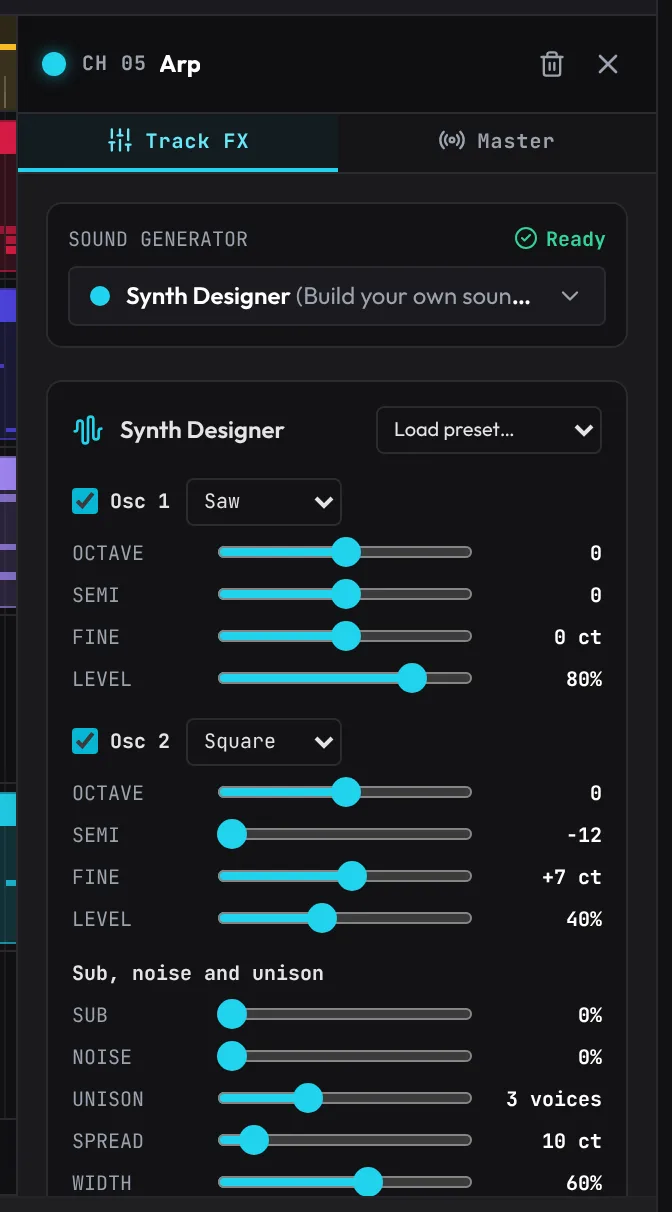
- Load preset… starts from a sound: Init saw, Supersaw lead, Wobble bass, Growl bass, Sub bass, Angelic pad, Warm pad, Glass pad, Halo pad, Sweep pad, Polysynth, Soundtrack pad, Pluck, Bell, Brass, 8-bit lead, Riser noise, Analog poly, FM bell, FM electric piano, Organ, Vowel lead, Pulse bass, Rave hoover (three saws slightly out of tune with a saw an octave under, gliding between notes; add the Scoop tool for the classic swoop), Reese bass (detuned saws beating slowly over a sine sub, a warm filter drifting open and closed over each bar), Dark reese (heavy) (wider detune, harder drive, the filter moving every half bar) or Formant growl (a vowel wave bent by FM through a resonant band-pass that talks in time). The bass presets keep their low end centred.
- Osc 1 and Osc 2: a wave each (Saw, Square, Triangle, Sine, Pulse (narrow, nasal and hollow), Organ (drawbar harmonics) or Vowel (an "ah", vocal)), tuned by octave, semitone and cents, with a level. Sub adds a sine an octave down, Noise adds white noise.
- Unison stacks up to 7 copies of each oscillator, detuned across Spread and panned across Width, for big wide leads and pads. Unison saws start at different points of their cycle, as analog oscillators do, so a stack doesn't sweep ("zip") as it opens up.
- Filter: Low-pass, High-pass, Band-pass or Ladder (a warm 24 dB low-pass, driven a little and resonant, as on classic analog synths), with Cutoff, Reso(nance), how far its own envelope opens it (Env amt, in octaves), how much it follows the note (Key trk) and Drive for grit (shaped at four times the sample rate from 20% up, so it doesn't fizz). Drift makes each note's oscillators a few cents off from each other and its filter a little brighter or darker, as no two notes on an analog synth are quite alike. FM lets Osc 2 bend Osc 1's pitch at audio rate, for bells, electric pianos and metallic basses (Osc 2's own level can be at 0: it still bends Osc 1).
- Filter envelope and Amp envelope: Attack, Decay, Sustain, Release.
- LFO: wobbles the Filter, adds vibrato to the Pitch or tremolo to the Volume, in sync with the tempo (1/1 to 1/32, triplets too) or free in Hz. Each note restarts it, so a synced filter LFO is a dubstep wobble locked to the beat.
- Mono plays one note at a time and Glides between them; Level sets the output.
Every change is one Undo step (a whole slider drag is one), is saved with the project and plays from the next note. Double-click a slider to reset it.
808 designer
Select an 808 Bass track: the Track Inspector shows the 808 designer. Off, the track plays the original 808. Switch it ON to shape it (one undo step; switch it off to go back):
- Load preset…: Clean deep (a pure, long sine sub), Punchy (a hard pitch drop and a short tail that hits like a kick), Distorted (warm saturation that growls on small speakers), Blown-out (clipped flat and loud), Long slide (a long tail with slow, wide slides) or Dark (room for cowbell) (folded grit kept dark, under the cowbell, with a tight tail).
- Drive takes it from a clean sine (0%) to clipped and distorted (100%); Character is how: Warm tube, Hard clip, Fold (the wave folds back on itself, a buzzier growl) or Bitcrush. Turning the drive up adds grit rather than level. Tone is a low-pass after the distortion: lower is darker. The distortion is worked out at four times the sample rate, so it stays clean instead of fizzing.
- Top layer adds the distortion's harmonics above the sub (200 Hz to 4 kHz), so the 808 is heard on phones and laptop speakers that can't play the sub itself.
- Punch starts each hit up to 36 semitones above the note and drops it to the note over Punch time: the knock at the front of an 808.
- Glide: how long a slide takes. A note that starts before the previous one ends slides to its pitch instead of hitting again.
- Decay: how long a held note takes to die away (0.1 to 8 s). A note also stops where it ends.
- Level: the 808's output.
- Tune to key snaps every note to the nearest note of a key while it plays, so a stray note can't clash with the song (your notes aren't changed). It starts on the song's key, worked out from its other parts; change the key and scale beside it.
The 808 is mono (the same in both speakers), and its whole sound starts a few milliseconds early to make up for the distortion's delay, so it lands on the beat. Every setting is saved with the project and plays from the next note. (With the designer on, Expressive playing doesn't change the 808: the designer's settings are its sound.)
Kick and bass: on bass tracks, a panel says how many of the song's kicks land on a low note of the track (a low bass hitting with the kick hides the kick's punch). Duck under the kick fixes it in one click (one undo step): it switches on the track's Pump, following the kick, deep and quick (80%, 150 ms), so the bass dips at each kick and swells straight back. On the demo beat, that took the 808 down 10 dB in the first 60 ms of each kick and less than 1 dB overall.
Heavy bass tools
- Glide (Slap Bass, Sub-Bass, Analog Lead, Wobble, Growl and Reese Bass): switch it on in the Track Inspector and notes that overlap (as the Legato tool draws them: each runs a little into the next) slide into each other over Time (5 ms to 1 s) without a new attack; notes that only touch or have a gap start fresh, so a bassline of repeated notes keeps its rhythm. On the Slap Bass it also stops the pluck on joined notes. Off, each instrument keeps its own slide (the Lead's short glide, the EDM basses' slides). The Synth Designer has its own Mono and Glide.
- Sub enhancer (bass instruments, the Synth Designer, the Sampler, Multi Sampler and plugins): a clean sine under every note, centred, for a thin bass. Where: An octave below (a new, deeper floor; below about 28 Hz it plays on the note instead, since lower is felt, not heard) or On the note (reinforces a weak fundamental). Level, and Decay (Hold for the whole note, or a time to die away, for plucky basses). It follows the notes, so it's always in tune and in time, live and exported. In a chord it plays under the lowest note.
- Bass Drive (an insert, after Distortion): the heavy bass trick of distorting only the mids and highs. Below the Crossover (60 to 300 Hz, 120 to start) the sound stays clean and is made mono; above it, Drive with a Character (Warm tube, Hard clip, Fold, Bitcrush), a Tone low-pass on the distortion and a Mix with the clean highs. The two parts add back up exactly (at 0% mix the track sounds as it did). On a reese it leaves the sub where it was and brings the mids up about 6 dB: much louder on a phone, a little louder overall.
Drum Designer: your own hard drums
Designed Kit (Drums & Percussion, or Tools > Drum Designer) is a drum kit you make yourself, synthesized in the browser: every drum row (kick, snare, clap, closed and open hat, three toms, perc, crash and ride) plays the sound you design for it. Its controls appear in the Track Inspector:
- Pick a row (clicking it plays it), then load a Preset or shape it. Kicks: Punch kick, Hardcore kick, Deep tail kick, Club kick, Crunch kick (a hard-driven body whose pitch drop you can hear and a loud click, its tail short so a kick a 16th later stays clear: for dense, syncopated drops), Zap kick (a longer, rubbery drop), Hard drop kick (for future-bass drops: a loud click and a driven knock you hear on small speakers too, falling onto a tuned sub that carries the low end for about a quarter of a second before the bass takes over), Drop impact (one deep boom with a burst of noise over it that rings on for a second or two: put it on the first downbeat of a drop) (layered, see below), Hard hitting kick, Punchy short kick, Distorted boom kick, Tight kick, Clicky sub kick, Dusty lo-fi kick. Snares: Big snare, Gated snare, Tight snare, Crunch snare (tight and driven hard) (layered), Punchy snare, Crisp snare, Fat layered snare, Tight dry snare, Dusty lo-fi snare. Claps: Crack clap (layered), Crisp clap, Big room clap, Snappy short clap, Clap and snare stack. Hats: Tight closed hat, Sharp tight hat, Bright hat, Dark closed hat, Open hat, Short open hat (open and bright but gone before the next beat: the off-beat hat of house), Long sizzling open hat. Cymbals: Washy crash, Ping ride. Percussion: Wood rim, Sharp rim, Low, Mid and High tom, Shaker, Double shake, Cowbell.
- A new Designed Kit starts on the Punch kick and the Big snare: a short, clicky kick whose low end is gone in about a seventh of a second, so it leaves the sub to the bass, and a big snare that hits a little over it as you hear them. Its other rows, and the rows of a kit from before, play a hard modern kit until you design them (the bold rows are your own). Reset row puts a row back to where a new kit starts.
- Each layer is one voice with its own knobs. Kick: Punch (the click), Pitch, Sweep (how far above its pitch the body starts, in semitones) and Sweep time, Decay, Noise, Distortion. Snare: Tone, Body, Body decay, Noise, Noise color, Decay, Snap, Sweep, Distortion. Clap: Bursts (1 to 6 slaps), Spread (the time between them), Color, Tail, Snap. Hat / cymbal: Metal (six detuned square waves, as on analog drum machines), Color, Decay (short for a closed hat, long for an open one or a crash), Noise, Click. Rim, Tom, Shaker (with an attack and up to three shakes) and Bell / cowbell have theirs.
- Layered kick: three parts in one voice. The Click (a few milliseconds of noise; Click tone 1 to 5 kHz, Click length 3 to 15 ms), the Body (a sine, or a saw as you turn up Body wave, falling from its Punch pitch onto the tail pitch over the Pitch drop time; Body decay), and the Sub, a clean sine on the tail pitch that rings for Tail (the time it takes to fall 20 dB). Body drive distorts the body only (Drive type: Soft, Hard or Fold), through a Cabinet low-pass, so the sub under it stays clean. Hardcore tail keeps the driven body going through the beat at the Tail's length (at 163 BPM: a few dB down through the beat, about 20 dB down by 290 ms), so the kick is the bass. Tail note: Song key puts the tail on the song's key root (the octave nearest 45 to 66 Hz) and keeps it there when the notes change; or pick a note.
- Layered snare: a Transient (a crack that falls 12 dB in about 10 ms), a tuned Body (Body note: the song's key, near 120 to 170 Hz, or a note), the Noise of the wires (Noise color where it sits, Noise tone how bright, Noise decay), a Clap layer and a Room that rings for Room length. Gated room is the 80s snare: the room holds for an 8th at the song's tempo, then stops dead (with tempo changes, at the tempo most of that kit's snares play at).
- Every drum sits under a fixed peak, and the drives are levelled, so no setting can make a hit jump out.
- Add layer stacks a second voice on the drum (a clap on a snare, a rim click on a sub kick), with its own Level and Delay (up to 40 ms after the first).
- Level moves the whole drum up or down from where it sits. Every drum is made to its row's loudness, near the other kits' (a kick about as loud as the Drum Machine's, the snare and clap a couple of dB under the kick as you hear them, hats as the recorded kits'), and turning up Distortion makes it denser and harder, not louder, so switching presets never jumps out of the mix.
- The closed and open hats are one hi-hat: a hat hit cuts an open hat still ringing.
- Hats, cymbals and shakers play a little wide, as a real kit sounds through a pair of microphones: their sizzle is a little different on each side, while the kick, snare, claps, toms and everything else in the kit under 1 kHz stay in the middle. In mono (a phone speaker) the hit is exactly the same sound, a dB or so quieter; in stereo it is as loud as before. This is the Designed Kit's and the synthesized kits' own sound, so songs you already have get it too.
Synthesized kits: Techno Kit (a driven kick, a bright snare and clap, tight hats), Retro Drum Machine (an 80s-style machine: a round kick, a snare with some room), Rhythm Box (a vintage rhythm box: a soft thump, ticking hats, bongo-like toms) and Break Kit (crunchy break-style hits) are Drum Designer kits ready to play, on the usual rows (C1 kick, D1 snare, and so on). Edit in Drum Designer in the Track Inspector turns the track into a Designed Kit starting from that kit's sounds. Switching a Designed Kit of your own to another instrument and back to Designed Kit gives you your own design back. They took the place of the recorded Acoustic Kit, Breakbeat Kit, 80s Drum Machine, Rhythm Box, Techno Kit and Bongos, whose recordings came with no licence: a song or link that used one opens and plays on its replacement (the 80s Drum Machine on the Retro Drum Machine, the old Rhythm Box, Techno and Breakbeat kits on the new ones, the Acoustic Kit on the Studio Kit (Real) and the Bongos on Latin Percussion (Real)), with its notes on the same rows.
Each change plays the drum so you hear it, is one Undo step (a whole slider drag is one) and is saved with the project. The sounds are rendered once and replayed, so the kit costs next to nothing to play, sounds exactly the same live and in an export, and an export repeats sample for sample. Expressive playing makes every hit a hair different in pitch and level, the same way on every play.
EDM instruments
- Wobble Bass: the dubstep wobble, a filter sweeping in time with the beat. Growl Bass: the talking riddim growl, a vowel filter ("oo", "ah", "eh") swept the same way. Reese Bass: detuned saws that beat slowly, for drum & bass and dubstep.
- These three play one note at a time (the loudest wins). A note that starts before the previous one ends, or right where it ends, slides to its pitch without re-attacking (the same pitch carries on as one note, the wobble starting again with it). Leave a gap to hit a note again.
- WOBBLE in the piano roll header (Wobble and Growl only) sets the wobble rate for the whole clip: 1/1, 1/2, 1/4, 1/8 (default), 1/8T, 1/16, 1/16T or 1/32. Each note restarts the sweep, so wobbles stay locked to the beat. Different clips can use different rates; the rate shows as a small tag on the clip, is saved with the project, and travels with copies. Changing it is one undo step.
- Supersaw: seven detuned saws per note, spread wide (with everything under about 180 Hz kept in the middle), for house and trance chords, with a release that carries one chord into the next (about 1.5 s). Pluck: a short, bright pluck for melodies and arps. Both play chords. The Wavetable Synth is widened to stereo too and fades over about 1.5 s; the Analog Lead is gently widened, with a short tail between phrases. (The retro synth pads, synth strings and synth leads are widened the same way.)
- FX has fixed rows like a drum kit: Riser, Noise Sweep, Reverse Crash, Impact, Sub Drop and Downlifter. Every effect except Impact lasts as long as the note you draw: draw a 4-bar note for a 4-bar riser, and end a Reverse Crash on the drop. Impact is a one-shot boom of about 3.5 s. In an FX clip, NEW NOTE starts at 1 bar, and clicking a row's name previews it. FX clips only go on FX tracks.
- Drop Pad (in FX) plays no sound of its own: each of its rows does something to the whole mix for as long as a note on it lasts. Stutter repeats the 16th that was playing; Filter sweeps the mix down to a muffle over a bar (and opens again over two 16ths after); Tape stop slows it to a halt over a beat; Crush makes it gritty and lo-fi; Gate chops it into 16ths; Echo throws what's playing into an echo that rings on after the note ends. Draw notes on its rows like any part, record them by holding the pads in Pocket, or play them from a MIDI or computer keyboard on an armed Drop Pad track (C4 is Stutter and each key up is the next effect, round again after F4). They play the same in exports, after the master's OTT and width and before its limiter. Drop Pad notes play exactly on the beat (swing and Human don't move them), a key change leaves them where they are, and muting the track stops its moves from the next one on (one already going finishes). One Drop Pad track is enough for a song. A track with clips can't be switched to the Drop Pad or from it (its notes would change meaning): add a new track instead.
- Right-click an empty spot on a lane of these instruments for ready-made parts: Wobble Riff, Growl Riff, Reese Line, Trance Chords, Pluck Arp, and for FX a Build-Up and a Drop Hit.
Chiptune
The sound of 8-bit game consoles, for retro games:
- Chip Lead: a 25% pulse wave, the classic 8-bit lead. Notes start and stop hard, and a vibrato comes in after a note has sounded a moment. It plays chords, so it does arpeggios too: fast 16th notes cycling through a chord are the chip way of playing one.
- Chip Bass: the stepped triangle wave those consoles played bass on. Like the real thing it has no fade: notes are on or off.
- Chip Drums: a noise kit on the same eleven rows as the other kits (its clap, toms and cymbals are the shared synthesized hits): a pitch-swept kick, a noise snare, short noise hats, and a metallic open hat and cowbell from the noise channel's "short mode".
For the authentic mono sound, switch the master's Stereo Width on and drag Width to 0 (Mono).
The Sampler: your own sound
- Add a track with Your Sounds > Sampler (or switch a track to Sampler).
- In the Inspector, click Load a sound… and pick an audio file (WAV, MP3, OGG and most others) up to 50 MB.
- Under ORIGINAL PITCH ON, choose which C (C2, C3, C4, C5 or C6; C4 by default) plays the file at its normal pitch. Higher notes play it faster and higher, lower notes slower and lower.
- Write notes for it in the piano roll like any other instrument.
The sound is kept in this browser and saved inside the project file (see Where your sounds live below). It plays only as long as each note lasts (then fades out quickly), so draw long notes for long sounds. The play button previews a half note at the original pitch; the trash button removes the sound (Ctrl+Z brings it back).
Drum Rack: your own drum sounds
Add Track > Your Sounds > Drum Rack gives 16 pads, each playing a sound of your own, laid out like a pad controller (pad 1, C2, bottom left; pad 16, D#3, top right).
- Kit folder… (or drop a folder on the pads) loads a kit from a folder of drum sounds, each on its pad by what it is: kick on pad 1, snare 2, clap 3, rim 4, closed and open hat 5 and 6, toms 7 to 9, crash 10, ride 11, perc 12, shaker 13, 808 14, snap 15, FX 16. What a sound is comes from its name ("Kick 01", "BD_3", "HH Closed", "OpenHat") or the folder it's in ("Kicks", "Hats"); pads the folder has nothing for get spare kicks, snares and hats.
- Load sounds: Load sounds… in its Inspector panel fills the pads in order with the files you pick (up to 16). Drop files on a pad to load them from there on, or select a pad and click Load…. Each pad is named after its file (rename it in the name box above its settings).
- Each pad's own effects: select a pad (clicking it plays it) for its Level, Pan, Pitch (±24 semitones), Decay (how long it rings before fading; "full" plays the whole sound), Low-pass, High-pass, Drive (saturation) and reverse.
- Choke groups: pads in the same group cut each other off, as a closed hi-hat stops an open one ringing. Put the open and closed hats in group 1.
- Chops: Chop sample… on an audio clip fills a new rack with chops of one sample (see Flipping a sample); a chop's pad also has Start, End and Fade.
- Bounce to a pad (resampling): turn part of your song into a new sound to play. Set the loop's In and Out around it, select a pad and click From loop: everything playing there becomes one sound on that pad, as loud and at the same pitch as the song plays it (a very loud mix plays a little quieter, never louder). Then pitch it, reverse it, shorten it with Decay, or play it in a new rhythm. Track › Bounce bars … (In → Out) to a Drum Rack pad does the same onto the first empty pad of the selected Drum Rack (or of any, or a new Bounces track), and a track's right-click menu has Bounce In → Out to a pad for that track alone (as it sounds in the mix, with its level, pan and sends). The bounce is exactly the bars, so it loops in time with them; it leaves out the master section, which the pad plays through again. One Undo takes it all off (the sound, the pad and any new track). A pad at its neutral settings plays its sound exactly as it is: its filters and drive only come in once you turn them.
- In the piano roll each pad is a row, named as you named it, with the STEPS step sequencer. A MIDI keyboard plays the pads on C2 to D#3, and any other octave lands on them too.
- The rack's sounds are kept like the Sampler's (see Where your sounds live) and saved inside the project file. The whole track also has the usual mixer, inserts and sends.
Loading a sample pack
Add Track > Sample pack (folder)… (or drop the pack's folder in the space under the tracks, or search "sample pack") sorts a whole downloaded pack into tracks:
- Drums (kicks, snares, hats… by their names or folders) become Drum Rack kits, laid out as above: the first kick, snare, hat… of the pack in the first kit, the next ones in a second, up to four kits.
- An instrument's notes (a folder of at least three files named by their notes, "Keys C3.wav", "Keys C4.wav"…) become a Multi Sampler.
- Loops (named "loop", "break", or with a tempo like "140 BPM") go end to end on an Audio track, muted so they don't play over your song: unmute it to audition them and drag the ones you want onto your tracks.
- Other one-shots (a vocal "hey", a synth stab) go on the pads of a Drum Rack of their own (up to 32).
Up to 400 sounds are loaded from one pack; a message says what was made, and what was left out and why (files that aren't audio, files over 50 MB, sounds past the first 400). Each sound file can be up to 50 MB because the sounds are kept in this browser and saved inside the project file; drum hits and samples are far smaller, and a long recording saved as MP3 is a tenth of the size of a WAV.
Multi Sampler: an instrument from your own recordings
Add Track > Your Sounds > Multi Sampler plays several of your sounds across the keyboard: record or collect a few notes of an instrument (a C every octave, or every few notes) and it becomes a playable instrument, each key using the nearest recording, played higher or lower.
- Add sounds… (or drop files on the panel, or Folder… / drop a folder for every sound in it). Each sound's own pitch is read from its file name ("Piano C4.wav", "Strings A#2.flac") or, if the name doesn't say, worked out by listening to it. Each then plays the keys nearest it.
- Velocity layers: sounds of the same note marked by loudness in their names (pp, p, mp, mf, f, ff, soft, hard) become layers: soft playing uses the soft recording, hard playing the hard one.
- The table lists each sound's Root (the key it plays at its own pitch), Keys (the lowest and highest it plays) and Vel (the softest and hardest velocity), all editable. Click a sound's name to hear it. Re-map by root lays them out again from their roots. Attack and Release shape every note.
- Pitch bend and per-note expression (see the piano roll) play on each note's own voice.
Audio tracks: your own recordings
An Audio track holds sound files as clips instead of notes. Add one with Add Track > Your Sounds > Audio.
- Getting a file in (WAV, MP3, OGG, FLAC, M4A and anything else your browser can play, up to 50 MB each): drag files from your computer onto an Audio track's lane (it snaps; hold
Shiftfor no snap), or onto the strip under the tracks to make a new Audio track. You can also click Load audio… in the Inspector (clips go at the playhead), or double-click an Audio lane or right-click it > Load audio file… (clips go at that bar). Several files land end to end. - A clip is as long as its sound, is named after the file, and plays it as recorded. It keeps its start bar and its length in seconds when you change the tempo, so its length in bars follows the tempo, unless it follows the tempo (below).
- Follow tempo (in the clip editor): tick it for a loop or a recording made at a set tempo, and the clip is time-stretched with the song's tempo: it keeps its pitch and its length in bars, playing faster or slower. Set recorded at to the tempo it was made at; the buttons beside it suggest tempos at which the clip lasts a whole number of bars. ×1.20 and so on shows how fast it's playing; past about 30% faster or slower (amber) drum hits start to smear. The stretch listens to the clip first: a drum loop is stretched hit by hit, each hit kept sharp and on the beat; anything tonal (chords, pads, keys, a voice, a whole mix) goes through a phase vocoder, which keeps every note of a chord clean (no buzz or wobble between them), with the attacks and the drums in it kept sharp and on time. Held chords get the cleanest, longest analysis; a voice's vibrato a quicker one that follows it. While a new tempo's stretch is being made (a moment, after you stop dragging the tempo; the work happens in the background, so the page doesn't stall), the clip plays sped up like tape, in time but a little off pitch.
- Crossfades: overlap two audio clips on a track (drag one over the end of another) and they crossfade across the overlap: the earlier fades out as the later fades in, with equal-power curves so the level holds through it. The overlap is drawn as a yellow X. A clip lying wholly inside another plays on top of it instead (a layer). A crossfade longer than a clip's own fade replaces that fade.
- Tune vocal (right-click an audio clip, the clip editor, or Tools › Tune vocal): pulls a recorded voice (or any instrument playing one note at a time) onto the notes of a key, keeping its timing. Pick the key (it starts on the key the song's notes are in) and the scale: major, minor, harmonic minor, phrygian, the pentatonics or chromatic (any note); Strength is how far onto the note (100% lands right on it), Speed how fast it gets there, from natural (slides and vibrato kept) to instant (the hard tuned sound). Natural and Hard tune set both at once. The graph shows the pitch sung (grey) and tuned (colour) against the key's notes. Hear tuned and Hear original compare them; Apply makes a tuned copy for the clip (one Undo step). Each cycle of the voice is found and moved to a fraction of a sample, so the tuned voice keeps a clean top, with no hiss or grit added over the highs. The original is kept: Untune in the same dialog goes back to it.
- Editing works as for note clips: move, trim, razor, copy and paste, duplicate, Repeat, Fill to loop Out, Insert/Delete bars, undo. Trimming the left edge makes the clip play from further into the sound. Audio clips only move between Audio tracks.
- Fades: drag the small square at either top corner of a clip (shown when the clip is wide enough).
- Gain and fades: double-click a clip (or right-click > Gain and fades) for the clip editor under the timeline: the waveform, GAIN (-24 to +24 dB), Fade in, Fade out, the sample's tempo and key, and Chop sample… (see Flipping a sample).
Esccloses it. - Warp markers (the clip editor's Warp tool): pin a moment of the sound (a drum hit, a word) and move it in time; the audio either side stretches to fit, at the same pitch. Double-click the waveform to add a marker, drag one sideways to move that moment (it snaps to 16ths; Shift for anywhere), right-click to remove it. Markers work while the clip follows the tempo: adding one to a clip that doesn't sets Follow tempo at the song's tempo, so nothing else changes. Clear warp removes them all.
- Quantize audio: finds the hits in the clip and pulls each onto the chosen grid (1/4 to 1/32) with warp markers, at 25 to 100% strength. Tighten a loose drum take or a strummed part; drag any marker to adjust, or Undo.
- Gain envelope (the Gain envelope tool): draw the clip's level over its sound, on top of its gain and fades: click to add a point, drag points up and down (-60 dB, silent, to +12 dB), right-click to remove one. Duck a breath, lift a quiet word. Clear envelope removes it.
- Reverse: plays the clip backwards (a reversed copy of its sound, the same stretch of it mirrored). Click Reversed to go back.
- Normalize: sets the clip's gain so its loudest moment peaks just under full scale.
- The track's mixer, effects, sends and automation all work on Audio tracks. Swing never moves audio clips. Pressing Play in the middle of a clip plays it from the right place, and exports are sample-accurate.
Rap vocals
Tools for recording and mixing rap and sung vocals over a beat. They work on Audio tracks.
- Vocal chain (in the Inspector of an Audio track): one click puts a ready vocal chain on the track's inserts, with settings, as one Undo step. It replaces only that track's inserts (its fader, sends, plugins and clips stay); you can then change any insert as usual. The lit button shows which chain is on until you change one.
- Clean lead: clear and upfront. Low cut, a little presence and air, steady compression, a de-esser, a short room.
- Aggressive lead: in your face. Hard compression, bright, a little saturation (Bass Drive on the mids and highs), a tight slap echo, almost no room.
- Ad-lib: thinner and off to the side (it pans the track a little right), with a bouncing delay. For the shouts and answers around the lead.
- Phone / radio: squeezed into the middle band, gritty and crushed. For an intro, a skit or a hook that cuts through.
- Dark and wide: warm, top rolled off, chorus width, long ping-pong echoes and a big dark room.
- Backing stack: doubles and harmonies tucked behind the lead: thinner, glued, chorused, in the room.
The chains are levelled against each other: on a test voice they all come out within about 2 LU of each other (Aggressive the loudest), and the S band (5 to 10 kHz) no more than half a dB stronger, against the rest of the voice, than it was dry: the brightening is kept off the S's.
- Ad-lib track (under the chains): a new Audio track called Ad-libs under this one, with the Ad-lib chain on, selected so the microphone records onto it. One Undo step.
- Hard tune (right-click an audio clip): the fast, robotic pitch correction. It opens Tune vocal at full strength and instant speed, on the key the song's notes are in; pick another key or scale, or slow the Speed towards natural. It holds a note while your voice hovers between two, so it steps cleanly rather than warbling. Like Tune vocal, Apply makes a tuned copy of the clip's sound: it's a processing step, not a live effect, so what you hear is exactly what exports play. Tune a take folder after flattening it.
- Double this take (right-click an audio clip): makes a new track under the take's with a double of it: two new performances, one left and one right, each phrase a little early or late (5 to 22 ms) and a few cents sharp or flat (3 to 9, the two sides opposite ways), playing 7 dB lower through the same chain. It sounds like the line was recorded again, not copied. The same take always doubles the same way, and the double plays the same in every export. One Undo step takes it away. Flatten a take folder first.
- Chop my voice (right-click an audio clip: a take you recorded with the mic, or a vocal you imported): cuts it into its syllables (where its level drops or jumps, and where a sung tune moves to a new note), tunes each onto the nearest note (keeping a little of its natural wobble, so it sings rather than going robotic), and makes a new Multi Sampler track with every syllable on its own key, playing up to 6 semitones either side. Breaths and S's go on the keys under the lowest, as they are. A clip on the new track plays the syllables where you sang them, in tune, to start from: move its notes to make a new hook. Each goes on the nearest note of the song's key when its notes say one (else the nearest semitone). Up to 16 syllables; two on one note, the later moves to a free note next to it. The take itself is left as it was; one Undo step takes it all away. Flatten a take folder first.
- Loop-record takes: tick Loop passes are takes in the recording settings (the arrow next to Record), set the loop round the bars and record from the microphone: every pass round the loop becomes a take of one clip, ready to comp (see Takes and comping).
The Slicer: vocal chops
The Slicer (Add Track > Your Sounds > Slicer) cuts a sound into slices and puts one on each key from C3 up (Slice 1 on C3, Slice 2 on C#3, and so on, up to 64).
- In the Inspector, click Load a sound…. CUT: Auto cuts where it hears a new word or hit (SENS sets how faint a hit still starts a slice); Equal cuts the sound into 4, 8, 16 or 32 equal slices.
- On the waveform, drag a marker to move a cut, double-click to add one, and right-click a marker to remove it. Click a slice to hear it.
- In the piano roll the rows read Slice 1, Slice 2 and so on. A note plays its slice from the start, for the note's length or the slice's length, whichever is shorter.
- Pitch mode: every key plays the slice you last clicked, pitched from its own key, so you can play a chop as a melody.
- Chop sample… (right-click an audio clip, or in the clip editor) has To a Slicer instead: a Slicer track from that clip's sound, cut where the dialog's markers are, with a clip that plays the slices in order, ready to rearrange. The audio clip stays.
- Backwards: click a slice, then Backwards to play it reversed (its end first); reversed slices are shaded amber. Adding or removing a slice, or cutting them again, keeps the same stretch of the sound backwards. Live and in exports alike.
- WRITE Stutter or Shuffle puts a new 2-bar clip at the playhead that plays the slices with repeats and 1/32 rolls, or a random slice on each 16th (a new one each press; Undo takes it away).
- Slices play at the sound's own level; use the track fader to balance it.
Flipping a sample
Tools for making a beat from a sample: a loop or a recording of your own (or one you have the rights to), dropped on an Audio track.
- Its tempo and key: the clip editor (double-click the clip) shows the tempo and key the app hears in the sample, each with how sure it is (amber when it's a guess; a key it isn't sure of shows the next likeliest too, often the relative major or minor). Once heard, the clip shows them too (bottom left: 88 · D min), and the Audio track's panel lists each sound on the track with them. A sample's answer is worked out once and remembered in this browser.
- Song to 88 sets the song's tempo to the sample's; the button beside it is the same beat counted the other way (half or double). Stretch to song makes the clip follow the song's tempo (time-stretched, same pitch; see Follow tempo above). Into E min (+2 st) moves the sample into the key the song's notes are in, by the nearest way (a minor sample in a major song goes to its relative minor), allowing for a sample that sits a few cents off: it makes a re-pitched copy, the same length and timing, as one Undo step; a chord stays a clean chord, even moved an octave. Original key goes back. Clips moved into a key before this re-pitch was made better are made again from their original by themselves, in the background, when the song is open (no Undo step: it's the same clip, cleaner).
- Chop sample… (right-click the clip, or in the clip editor) cuts the part of the sound the clip plays into up to 16 chops:
- At the hits: a chop starts at each drum hit, chord stab or word (SENS: how faint a hit still counts; the strongest 16 are kept). Equal: 4, 8, 12 or 16 equal parts (beats or bars of a loop). By hand: double-click the waveform to add a marker, drag one to move it, right-click to remove it. Dragging or adding a marker in the other modes takes them over by hand.
- Click a chop to hear it. Fade (0 to 50 ms) smooths each chop's edges. One at a time (on): a chop cuts off the one playing, as on a classic sampler; off, they ring over each other.
- Chop to 16 pads puts them on a new Drum Rack track under the sample's (chop 1 on pad 1, C2), so the pads, the computer keyboard and a MIDI pad controller play them, with note repeat, and the piano roll shows a row per chop. One Undo step takes it all away. To a Slicer instead puts the same chops on a Slicer.
- Chop and play (on by default) writes a 2-bar starting pattern on the Drum Rack track that plays the chops in a new order on the beat grid: the same chop on each downbeat, the others shuffled, a stutter here and there. Off, the clip plays the chops in their own order and time, as the sample did. New idea (in the Drum Rack's panel) writes another pattern into the track's selected clip; the same sample always gives the same ideas in the same order, and the pattern is plain notes, so exports play exactly what you hear. Undo goes back to the last idea.
- Each chop is a pad: select it for its Start, End and Fade (where in the sample it plays), and the usual Level, Pan, Pitch, Decay, filters, Drive, Choke group and reverse (the chop played backwards).
- Filter out the bass (in the chop dialog, and on the Audio, Drum Rack and Slicer panels) turns the track's Filter insert into a steep low cut at 180 Hz: the sample's bass and kick go (about 22 dB less under 100 Hz) and its chords stay, so your own 808 has the low end to itself. Untick it to turn the filter off.
Fledge Synth
Fledge Synth is Fledgetone's own synthesizer, made for modern electronic music: dubstep, riddim and tearout basses, wobbles, growls and "yoi" talking basses, supersaw leads, future bass chords, keys, pads and risers. Add it with Add Track → Fledge Synth (it's also under Plugins › Browse plugins… › Instruments).
Hear it first: the ▶ beside Fledge Synth in Add Track (and in the plugin browser) plays a bass, a lead and chords from its presets, about seven seconds, without adding a track. Press it again to stop. It's made the first time you press it (a moment), then plays straight away, at about the level of the instrument menu's ▶ previews.
Presets and macros (always at the top):
- Preset: 57 sounds in groups (Bass, Lead, Keys, Chords, Pad, FX), with ‹ › to step through them. They're all about as loud as each other, so flicking through causes no jump in level. The basses Talking Growl, Riddim Cell, Colour Chord Stab, Neuro Reese and Dive Screech change with every note (each note picks its own vowel, grit, comb or dive) rather than wobbling at one rate, and come back alike each bar, opening and closing a little over two; they're bright on top, so they cut through the mix. Clean Sub is a plain mono sine to lay under them; there's also Hardcore Supersaw, Wide Wash (a wide, slow pad with some air on top, its low notes kept in the middle) and Bright Pluck. For a loud, crunchy modern drop: Crunch Formant (a talking growl hard-clipped before its vowel filter), Resample Chop (as if resampled and chopped: every 16th a new slice of the sound, crushed), Clipped Square (a square under a saw, clipped flat, jumping and gliding across two octaves), Hard Clip Stab (one key plays a short fifth-and-octave stab, clipped) and the lead Chip Crunch (a narrow, bit-crushed square with a short glide and a slap of echo). Like the other movement basses, each note gets its own sound and they come back alike each bar. Driven Legato is the other way round: one gritty, clipped saw-and-square voice that holds through a run of notes, gliding into each one that overlaps the last (draw them with the piano roll's Legato tool), with no new attack and no per-note change, so a riff leaping octaves stays one sound; its brightness sweeps slowly over two bars. Lay Clean Sub under it, or keep its own clean sub. For melodic songs (piano-led artcore, future bass): Soaring Saw (a wide supersaw lead with a gentle vibrato that comes in on held notes), Silk Stack (dark held supersaw chords to sit under a lead), Silk Wash (a brighter, further-away Wide Wash), Round Root (Driven Legato tamed: a bass that holds a chord's root under piano and pads, no glide, no sub of its own), Vowel Chop (short notes like a chopped vocal), Glass Pluck (a clear, bell-like pluck, every partial in tune, for doubling a tune high up) and Reverse Swell (a bar-long swell like a reversed cymbal that stops dead at the end of the note, for the beat before a drop).
- ▶ Hear, beside the preset: plays a short phrase of the sound on this track, as it sounds now (its preset, macros, volume and effects): a low riff on a bass (its last two notes overlap, so a sound with glide slides), a short tune on a lead, an arpeggio on keys and plucks, two held chords on chords and pads, one long note on an effect. Press it again, or choose another preset, to stop it. Tick Hear on change to hear each preset as you choose it or step to it with ‹ › (this browser remembers it; it's off to start with). A muted track stays silent.
- Macros: four knobs that each move several settings at once, named for what they do in the preset (on Wobble: Speed up, Squelch and Grit; on Growl: Open, Growl and Grit). Every Bass preset has three. Under each is what it moves; on your own sound, or a macro you've rerouted, the name is what it moves. Automate a macro to change a sound across a song with one lane.
- Wobble rate (or Pulse rate for a gate or a pump, Sweep rate for a sweep that runs once per note), beside the macros when the sound has an LFO in time with the song: the wobble's speed as a note length (1/4, 1/8, triplets, dotted…), so it stays locked to the tempo. It's the same setting as that LFO's rate on the Modulation tab.
- Undo takes back a turn of a knob or a change of preset, like any other edit (a drag is one step).
- Knobs: drag up or down (hold Shift for fine steps), or click one and use the arrow keys. Double-click a knob to put it back. Each shows its value under its name.
Sound tab:
- Oscillator A and B: each plays a Table of 32 shapes that Position moves through. The 16 tables run from Basic shapes (sine → triangle → saw → square) and Pulse width to the talking and growling ones (Vowels, Growl FM, FM 1:2, Screech), Sync sweep, Organ, Octave stack, Digital, Resonant and Random harmonics. The picture shows the wave as you change it. Every table is kept in fine enough detail that high notes and glides play clean, without a digital fizz under them.
- User table is a table made from a sound of your own: select an audio clip of a held sound (a pad, a vowel, a sung note, a chord), choose User table, pick 8, 16 or 32 cycles and press From the selected clip. Single cycles are cut at the pitch it finds in the sound (2048-sample cycles where it finds none), spread from the sound's start to its end, so Position travels through it as the sound changes; each is levelled and band-limited like the built-in tables. Remove takes it away (until there is one, User table plays Basic shapes). Resample can make one too (see Resampling). The table is saved with the song and your sounds and goes into freezes and exports; a share link carries a lighter copy (8 cycles of 256 samples, about 2 KB of the link), which sounds a little duller.
- Warp bends the wave: Sync (the classic sync sweep), Bend, Squeeze, Mirror, Quantize (lo-fi steps), Fold, and Ring (times the other oscillator), by its Amount.
- Unison stacks up to 16 copies, spread by Detune; Blend moves weight from the centre copy to the detuned ones, and Width spreads them across the stereo field. Stack tunes the copies in turn up an octave, a fifth or the notes of a chord (with Unison 2 or more).
- Octave, Semi, Fine and Pan; Phase and Random set where each note starts in the wave (0 Random gives every note the same punch); On turns an oscillator off.
- The menu at the top right sends it to Filter 1, Filter 2, Both filters, or Straight out past them.
- Filter 1 and Filter 2: low pass (12, 24 and a ladder), band pass, high pass, notch, Comb (metallic, pitched to the note) and Formant (vowel sounds as Cutoff moves). The two run side by side, or Filter 1 into 2 one after the other. Key track makes a filter follow the note (at 100% it keeps the same harmonics on every note; the presets use 85% on basses, leads and keys and 75% on chords and pads, so the tone stays itself from low notes to high); Envelope opens it with the filter envelope.
- Sub, noise and FM: a clean sine an octave or two below (kept in the centre), noise (with its own route), and FM B→A, where oscillator B bends A for growls and bells. Sub goes is Clean, after effects on new sounds: the sub joins the mix after the drive, the OTT and the effects, so a growl can be crushed while the sub stays solid and mono. Sounds saved before keep With the voices, as they had it.
- Drive, in up to three places: Before the filters, After the filters (with Cab tone, a speaker-cabinet-like tone that takes the lows and the fizz off), and Mids and highs after the voices (split at Lows below and Highs above: the lows stay clean; Highs sets how much of the highs it drives). Each has soft, warm, hard clip, fold, asymmetric, Tube, Bitcrush and Downsample (with Crush for the bits or the rate) and a Mix; each is levelled so turning it up adds grit, not volume. The shapes are worked out at twice the sample rate, so a hard drive stays clean on high notes and the top stays as bright as it went in.
- Envelopes: Volume and Filter attack, decay, sustain and release (each drawn as you set it), and a Pitch drop for punchy starts: set Amount to +12 st, Time to 50 to 150 ms and Curve to Linear for a dive into each note.
- Playing: Voices is Poly (chords), Mono or Legato (notes that overlap slide into each other, with Glide, and the same pitch holds on). With Restart each note on (as in the new presets), a Mono or Legato note that doesn't overlap the last starts afresh, the last one fading out under it in 3 ms, so a riff that repeats sounds the same each time round; off (as older sounds have it), each note carries on from where the last one's oscillators were. Glide can be Always or Legato only (only between notes that overlap), take a constant time or a Constant rate (the Glide time per octave, so small steps are quick), and be exponential or linear. Bend sets the pitch bend range, Velocity how much louder harder notes play. Even keyboard (on in new sounds and every preset) keeps a note sounding alike wherever it is on the keyboard: no jump in brightness where the wavetable changes octave (the two levels fade into each other), a note's random start from its step rather than its pitch, and a chorus that leaves the lows alone; sounds saved before it came have it off and play exactly as they did. Detune key narrows the unison's detune above middle C (at 50% a note three octaves up beats under three times as fast instead of eight; 0% keeps the cents everywhere, as older sounds do).
Modulation tab:
- LFO 1 to 4: Sine, Triangle, Saw, Square, Wobble, Steps, Drift, Pump (the sidechain duck: set a target of Volume at +100%), and Drawn 1 and 2. Sync to song locks the rate to the tempo (straight, dotted and triplet values from 1/64 to 4 bars), so a wobble stays in time when you change the tempo. Mode is Free (one LFO for every note, following the song: the same place in the song is the same point of its cycle, live and in an export), Retrig (from the top with each note), Envelope (once per note, then it holds where it ended) or Sustain env (runs to Hold at and stays there while the key is down, then finishes once it's let go). For Mono and Legato sounds, Retrigger says which notes restart it: as the voices do, Always, Legato continues (only a note after a gap) or Never. Phase sets where it starts, Delay waits before it starts, Rise brings it in slowly, Smooth rounds off its corners, and Key track runs it faster on higher notes. Each moves up to two Targets by its Amount, which can go either way.
- Mod envelope: a third envelope for anything (the Yoi preset sweeps its vowel with it; into Pitch in the matrix at +100% it's a 12-semitone dive).
- Chaos and random: Chaos is a source that steps to a new random level at its Chaos rate (in time with the song), slid by Smooth; Note random (0 to 1) and Note random ± (either way) pick a new value at each note. They follow the song, so a song plays the same every time and its export matches; Repeats every (1 bar at first) brings the same values round again, so a riff that repeats sounds alike each time. The value goes with the step in the bar, not the pitch: the riff played over the next chord's root has each step sound as it did (the notes of a chord each get their own, from the lowest up, whatever order they're played in). By step, not pitch is on in new sounds; sounds saved before it came have it off and keep their values by pitch, exactly as they played. Set Repeats every to 2 or 4 bars for a riff that varies over a longer stretch, or Never for new values every time.
- Matrix: 16 slots (9 to 16 open with Slots 9 to 16, and show by themselves when used), each a Source (the LFOs, the three envelopes, velocity, the note, mod wheel, aftertouch, pitch bend, a random value per note, note random, chaos, release velocity, note pressure, the macros) moving a Target (pitch, either filter's cutoff and resonance, table positions, warps, levels, detune, FM, each drive, crush, noise, pan, the LFOs' rates, the effects' mix, width) by an Amount, bent by its Curve (linear, exponential, logarithmic or S) and scaled by an optional Via source (for example velocity, so harder notes move it further). The presets keep their macros in slots 5 to 8.
- Drawn shapes: drag across the 16 bars to draw a rhythm or a curve; Smooth slides each step into the next. Choose Drawn 1 or 2 as an LFO's shape to use it (gates, stutters, custom wobbles).
Effects tab (part of the preset, each with On): EQ (low, mid and high, each with its frequency), Chorus, Phaser or Flanger, Delay (in time with the song or in ms, Ping-pong, Tone) and Reverb (size, decay, tone, pre-delay). Output has OTT (the squashed, up-front sound of modern bass music), Width, Mono below and Level. Everything under Mono below stays in the middle, whatever the unison, the chorus and the width do, so the bass stays solid and a wide chord with low notes doesn't smear the low end: 180 Hz in new sounds (250 Hz in Wide Wash), 120 Hz in older ones. A safety limiter keeps every note under −1 dB.
Every knob can be automated (a lane per setting, like any plugin), learned to a MIDI controller, frozen, bounced and exported, and the settings are saved with the song. On a phone, Pocket plays Fledge Synth too, with its presets, its macros as big sliders and the wobble rate in its Sound tool (see Fledgetone Pocket: on a phone). It's light on the computer: an 8-note chord on the heaviest presets takes about a tenth of one core.
Plugins
The Plugins menu holds hundreds of built-in effects and instruments: Fledge Synth (above), open-source plugins from Airwindows, MDA, Mutable Instruments, Faust and Open303, plus the Surge XT synth, the Dragonfly and Plateau reverbs and the setBfree tonewheel organ, compiled to run in the browser (see Credits for who made them). They need no address and nothing to allow.
- Plugins › Browse plugins… opens the plugin browser: search by name or by what it does ("tape", "warm", "bell", "granular"), or pick a group down the side: Instruments, Recommended and Basic (the Airwindows picks), then each kind of effect (Reverb, Saturation, Dynamics, Filter, Lo-Fi and more). Effects go on chooses the track. Add puts an effect on that track; an instrument's New track makes a track that plays it. The menu also has shortcuts straight to the reverbs, delays, saturation, tape, dynamics, filters and others.
- Effects go after the track's instrument and before its own inserts, in the order you add them, like the web plugins below. Right-click a track's name for Add plugin effect…, and to open or remove each one.
- Instruments become tracks you write notes for, record onto and play from a MIDI keyboard, like any other: an acid bass line synth; electric piano, piano, FM and analog poly synths; 22 synthesis engines (analog, FM, wavetable, chords, speech, swarm, drums and more); resonators, modal voices, bells and physical models of brass, woodwinds, strings, guitars and percussion.
- Its window opens when you add it, with what it does and a slider for each setting, showing the value as the plugin does. Double-click a slider to put it back; Reset all puts them all back. Plugins that come with presets have a Preset list at the top.
- GPL: Surge XT, the Dragonfly and Plateau reverbs and the Tonewheel Organ are under the GPL, a free-software licence; a small GPL tag beside their names in the browser, the menu and their windows says so. That changes nothing for your music and its exports. It matters only if a web runtime kit carries one into a game (see The web runtime kit).
- ★ a plugin in the browser to keep it under Favourites, and on the Plugins menu (added to the selected track in one click). Recently used lists the last ones you added.
- Everything works as for any plugin: automation lanes for every setting, MIDI learn, freezing, bouncing, exports, and the settings saved with the project.
- Effects that make their own sound (Shepard's tones, the noise sources, click tracks) play while their track plays: a few seconds after the track goes quiet they fade out, and they come back with its next sound, so they can't drone on through the song or while it's stopped. Reverb and delay tails fade by themselves as usual; Infinity and Infinity2, made to hold a sound forever, still do.
- The plugins download the first time you open the browser or use one (about 9 MB in all, in a few files) and are kept in this browser. Master tab › Instruments offline › Download all includes them, for working offline.
Plugins from the web (Web Audio Modules)
The app can also load Web Audio Modules (WAM 2): instruments and effects other people make for the web, each at its own address. Look for them in the WAM community's plugin lists; you need the address of the plugin's module (usually ending index.js), and its site has to let other sites load it.
- A plugin instrument: Add Track → Plugin instrument (WAM)…, paste the address and press Load plugin. It becomes a track you write notes for, record onto and play from a MIDI keyboard like any other (notes, velocity, held keys, pitch bend and the expression lanes go to it as MIDI).
- A plugin effect: right-click a track's name (any but a bus), Add plugin from a web address (WAM)… (or Plugins › Effect from a web address (WAM)…). Effects come after the track's instrument and before its own inserts, in the order you add them. Right-click the track to open or remove each one.
- Its window: the plugin's own controls open when you add it. Reopen them with the plug icon on the track's header, or from the right-click menu. Drag the window by its title bar; BYPASS (effects) lets the sound pass it by; closing the window leaves the plugin playing.
- Its settings are read from it every few seconds and when its window closes, and saved with the project, so exports, freezing and reopening the project hear it as you set it.
- Addresses you've used are listed under Used before in the dialog.
Plugins are programs from their sites, so only load ones you trust. A project you open that uses plugins plays without them at first, and a bar at the top names the sites: Load plugins allows them (remembered in this browser). Plugins need an internet connection (the site they come from), and a plugin that fails to load says why and stays silent (an effect lets the sound through). A plugin is only as good as its maker made it: one that's slow can make playback stutter, and freezing its track helps.
Where your sounds live
Sound files (audio clips, the Slicer and the Sampler) are kept in this browser, once each, shared between tracks and projects, so a big file doesn't fill up autosave. Save puts the sounds inside the .fledgetone.json file, so a saved project opens complete on any computer, and opening it puts the sounds back into the browser. The Audio, Slicer and Sampler panels show how much the browser holds, and Free unused deletes the sounds no project on screen (or in another tab), restorable session or kept version (File › Versions…) uses. If a sound a song uses isn't in the browser any more when you Save, the message says how many couldn't go in the file. A clip whose sound was freed shows "Sound not in this browser" until you load the sound again or reopen the project file.