
Guide Automation
Automation
Automation makes a track setting change over the song: a filter opening during a build-up, a fade-out, a pan sweep, an echo on one word. You draw a line, and the setting follows it every time the song plays and in every export.
Opening a lane
Click the curve button in a track header ("Show automation"; it's tinted amber when the track has automation). The track's lane switches to automation view: its clips are dimmed and can't be edited there, and the header shows LANE, the number of points and the value at the playhead. Use LANE to pick the setting. Almost anything can be automated:
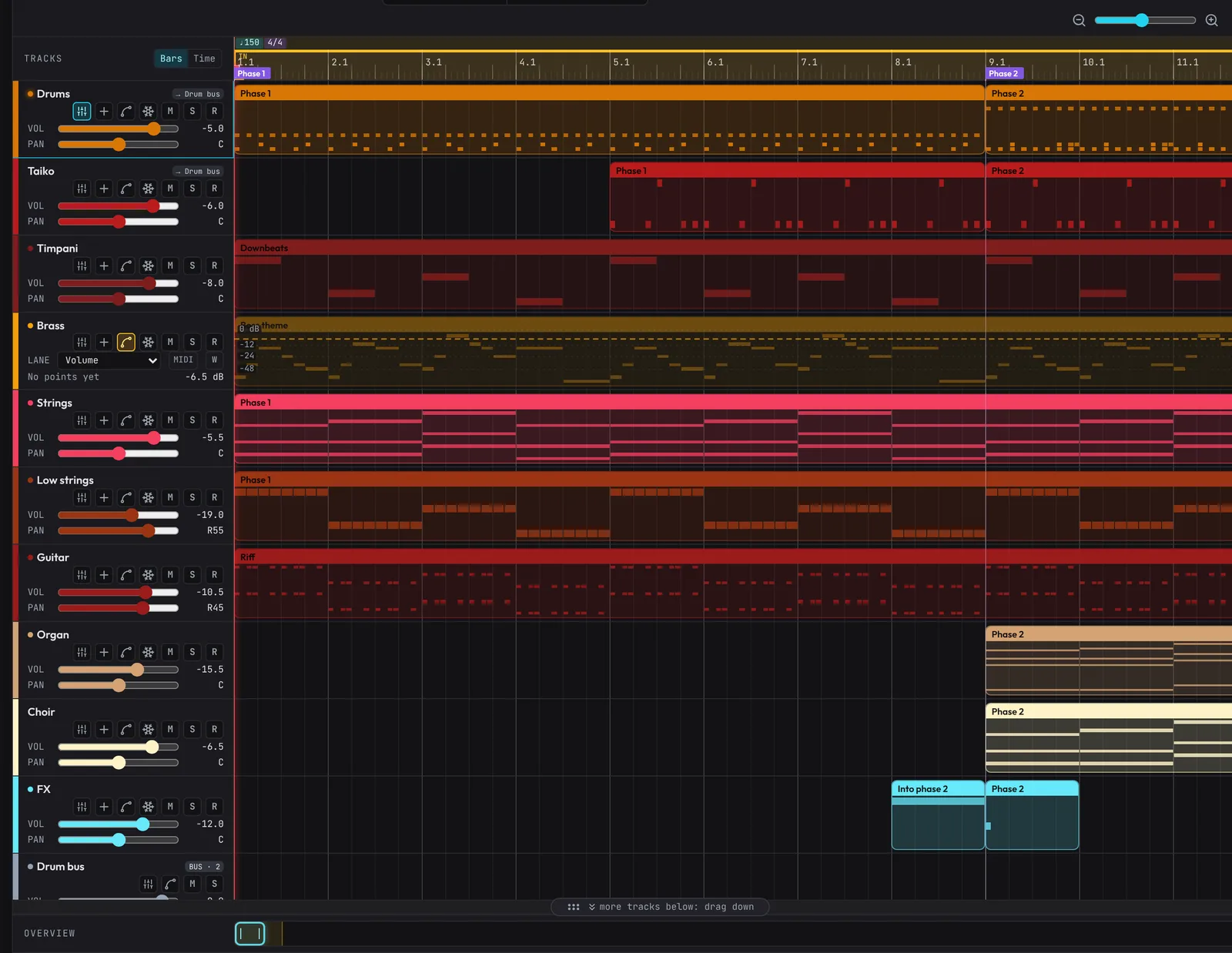
- Track: Volume, Pan, Filter Cutoff, Filter Resonance, Reverb Send, Delay Send, EQ Low, EQ Mid, EQ High.
- Sends: the send to each return track.
- Effects: these insert settings: Distortion drive, Compressor threshold, ratio and makeup, Chorus rate, depth and mix, Lo-fi tone, wow and mix, Delay feedback, tone and mix, Reverb pre-delay, tone and mix, Gate depth and length, Pump depth and release. A lane for an effect that's off is marked (off); drawing its first point switches the effect on.
- Plugins: each parameter of the track's plugins (instrument and effects), named as the plugin names them, over its whole range.
A ● marks settings that already have points. Click the curve button again to go back to the clips.
Drawing
- Click empty space to add a point (time snaps to the SNAP grid; hold Shift for free time), or click the line to add a point on it.
- Drag a point to move it: time snaps, the value is free, and Shift during the drag stops snapping. Points can't pass their neighbours, but two can share a bar for an instant jump. Alt+drag leaves a copy behind.
- Drag the line between two points to move both up or down.
- Alt+drag the line between two points to bend it: up or down pulls its middle that way. A line that starts slow and rushes in at the end makes a build feel like it's taking off; one that falls away fast then settles makes a natural fade. A tooltip shows the bend. Right-click a line for Bend: slow start, Bend: fast start or Straighten line.
- Drag a box on empty space to select points (Shift or Ctrl adds).
Deletedeletes them;Escclears the selection. Double-click or right-click a point to delete just that one. - Right-click the lane for Ramp up In → Out and Ramp down In → Out (a one-click build-up or fade over the loop region), Delete selected points, Clear lane and Remove lane. Ramps go from silence to the fader level for Volume, 200 Hz to 20 kHz for Filter Cutoff, -24 dB to 0 dB for EQ, and over each setting's usual range for the others (Compressor threshold 0 to -40 dB, for example).
- Every gesture is one undo step.
How it plays
- Lanes run between their points in straight lines (or bent ones, as drawn); before the first point and after the last they hold that point's value. Volume works like a mixing fader (-60 dB silent to +6 dB; 0 dB is about 84% up); Cutoff (20 Hz to 20 kHz) and Resonance (Q 0.5 to 15) are logarithmic; Pan runs L100 to R100; sends 0 to 100%; EQ -24 to +12 dB.
- While a lane has points it owns that setting: its control shows AUTO, follows the lane and can't be moved (click AUTO to open the lane). Clear or remove the lane to get the control back.
- Filter lanes only sound while the track's Filter is on. Drawing a Filter lane's first point turns it on; if you switch the Filter off later, the lane is kept, dimmed, with a Turn filter on button.
- Exports (mixdown and stems) follow lanes to within a millisecond. While playing, an edit, seek or undo is heard on the new line within about a tenth of a second; jumps glide over 4 ms so they don't click.
- Insert and Delete bars on the ruler move points with the music, deleting a track deletes its lanes (Undo brings them back), and lanes are saved with the project.
MIDI learn: knobs and faders, and writing automation
Any setting a lane can drive can also be moved by a knob or fader on a MIDI controller:
- Open the track's automation and pick the setting in LANE.
- Click MIDI beside it (it pulses), then move a knob or fader on your controller. The button now shows its number (CC74 and so on).
- Moving that knob now moves the setting, over its whole range. Each burst of movement is one Undo step.
Right-click the button to forget the knob (or use the list in the MIDI popover, which shows every mapping). A knob moves one setting; learning it for another moves it there. Mappings are saved with the project.
Write automation: switch on W (beside the MIDI button, or Write automation from knobs while playing in the MIDI popover). While the song plays, moving a mapped knob writes its setting's lane at the playhead, replacing what the lane had there, so you can perform a filter sweep or a fade and keep it. Stop playing (or switch W off) to just move the setting again.