
Guide Mixing and effects
Mixing and effects
The Mixer
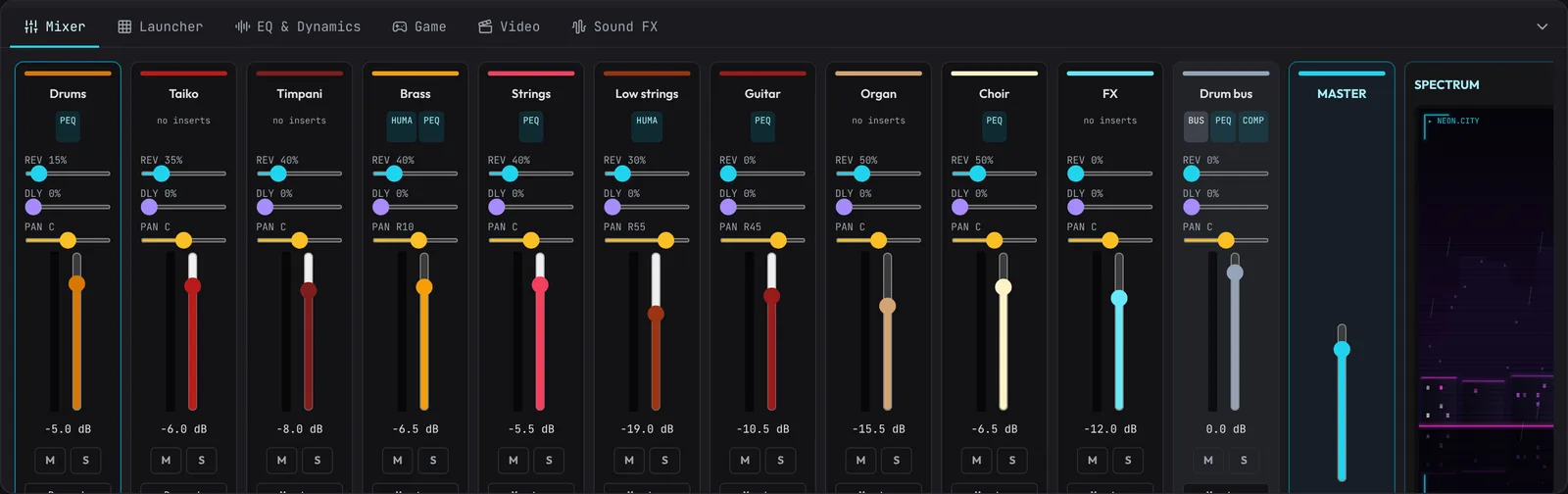
The Mixer tab of the bottom panel shows every track side by side as a mixing desk: a level meter (after the fader: green, amber near the top, red at the very top), a fader, pan, the reverb (REV) and delay (DLY) sends, Mute and Solo, and which inserts are on. The master fader is on the right. These are the same settings as the track headers and the Inspector; each drag is one Undo step and a double-click resets. Click a track's name to open it in the Inspector for its inserts, EQ and automation.
Make space (under the strips) carves room in the mix the way a mix engineer does, with small moves on each track's Pro EQ: every part above the bass loses the rumble under its lowest note (a low cut), parts reaching down into the bass's octaves are thinned there by 2 dB, parts playing in the lead melody's range give way 2.5 dB where the lead's presence is, so the melody comes through without being turned up, and the lead itself gets 1.5 dB more from 5 kHz up. It also clears the low mids, where mixes most often get boomy and boxy: chords, pads and stabs that reach under middle D give 2 dB at 280 Hz, and a bass playing over a sub (a lower bass part holding the root) gives 3 dB where its harmonics thicken the sound (about two and a half times its middle note, 160 to 320 Hz), since the sub carries its weight. A bass playing alone is left as it is. It works out the bass, the lead and the rest from the notes. A band you've already moved is left alone; drums, sound effects, audio and buses aren't touched. One Undo takes it all back.
Glue (the switch under Make space) is for when a song sounds like instruments playing side by side rather than one record. Switched on, it makes space as above, puts the drums on a drum bus and the other music parts on a music bus (each glued by gentle compression, the music bus breathing a little with the kick), ducks the bass under the kick, sends every part a little to the shared reverb so they sit in one room, and spreads the parts left in the middle a little apart (never the lead, the bass or the drums). Switch it off at any time, even after saving and reopening the song, and everything it changed goes back: only what's still as Glue left it, so a pan or EQ you've changed by hand since stays yours. Its buses go too. Undo works on it as well. Pick its style beside it first: Clean (future bass, artcore: light compression, a touch of warmth), Bass music (the kit hitting as one, the music held together) or Pumping (house, darksynth: harder bus compression and more saturation, the music pumping with the kick). Each bus's gain is set so switching Glue on doesn't make the song louder (on the test loops it came out between 0.5 dB quieter and 0.1 dB louder), so you hear how the parts sit together, not just more level. A song with one drum track still gets its drum bus.
Group and glue (a track's right-click menu, on the tracks whose clips are selected) does the bus part of Glue on just those tracks in one step: the drums onto a drum bus, the bass onto a bass bus (its low end kept) and the others onto a music bus, each with the same gentle compression and saturation, level-matched. Undo takes it back.
Duck to kick (under Glue) makes the whole song breathe with the drums, as dance music does, in the style picked beside it (it starts on the style the Does it hit? check is set to). The bass parts get a Hole for drums on the kick and the snare, so both punch through the low end; the chords, pads and leads pump on the kick and are back within 130 to 230 ms at the song's tempo:
| Style | Bass and sub (kick and snare) | Chords, pads and leads (kick) |
|---|---|---|
| Pumping (house, darksynth) | 14 dB hole, 150 ms | 6 dB, back in half a beat |
| Bass music (dubstep, drumstep) | 18 dB hole, 150 ms | 5 dB, back in 0.45 of a beat |
| Future bass / artcore | 12 dB hole, 140 ms | 2 dB, back in 0.4 of a beat |
Those are for drums with room between the hits. When the kicks and snares come half a beat apart or closer (a syncopated drop, say, with six or more kicks a bar), full holes would chop the bass up ten times a bar, so the holes get shallower and shorter the denser the drums: at that density about 5 dB, over within 60 % of a 16th, and the chords, pads and leads pump only about 2.5 dB, back within a 16th. With a sub part of its own (a Sub-Bass, a track named sub, or Fledge Synth's Clean Sub) the sub takes the hole and the bass over it gets a hole a third as deep, since the room the kick needs is in the lows.
Drums, vocals and sound effects are left alone. It needs a drum track; one Undo takes it all back, and each track's Pump stays yours to change. Glue gives the bass a 12 dB hole on the kick and snare too (if it has no Pump yet), and its music bus pumps on the kick only when the parts on it don't pump already. On the bass-music demo drop, the sub went from 3.7 dB under the snare to 21 dB under it, the chords still pumping about 5 dB.
Spectrum: right of the master fader, the live spectrum of everything you hear, drawn as a neon display: magenta for the lows, through purple and cyan, to yellow for the highs, with scanlines, a readout of the loudest frequency and the level, and a glitch on hard bass hits. Pick its style from the menu above it, and it's remembered:
- LED bars: segmented bars (lows on the left) with peaks that fall slowly.
- Neon city: a rainy skyline. Each tower rises with its part of the sound and more of its windows light up, reflected in the wet street.
- Grid terrain: the spectrum scrolls toward you as a wireframe landscape (lows in the middle, highs out to the sides).
- Radar HUD: the spectrum round a sweeping radar (lows at the top, highs at the bottom), with blips where it's loud, the level in the middle and, when there's room, low/mid/high meters and readouts.
- Data rain: streams of glyphs that fall faster, longer and brighter where the sound is loud, with a line tracing the spectrum.
- Holo pigeons: the workshop's two pigeons as holograms on projector pads, one faceted and one in pixels. They bob their heads on the beat and flicker.
Track headers
Right-click a track's name for its colour, Move up / Move down, New folder…, Move into a folder or Take out of one, its Output (the master, or Play into a bus), Send to a new bus (or Group N tracks into a new bus with clips selected on several tracks), Send to each return or Stop sending, Send to a new return, plugin effects (Add plugin effect… from the built-in plugins, Add plugin from a web address (WAM)…, and Open or Remove each one), Freeze, Bounce in place and Delete track.
Folders: a folder groups tracks under a row of its own. Its arrow folds them away (they still play, and the folder's row shows their clips in miniature, so you can see where the music is); double-click the folder's lane to fold or unfold too. Its M and S mute or solo every track in it, the folder icon sets a colour for it and its tracks, double-click its name to rename it, and × ungroups it (the tracks stay where they are). Tracks in a folder show a thin stripe of its colour. Moving a track up or down past the edge of its folder takes it out; a track outside folders hops over a whole folder. Folders are saved with the project and every change is one Undo step (folding isn't).
Each track header has VOL (-60 to +6 dB) and PAN sliders (double-click either to reset), and buttons for M (mute), S (solo) and R (record arm: takes go on this track, one track at a time; arming also selects it). If any track is soloed, only soloed tracks play. Muted and un-soloed tracks are also left out of exports.
Tracks are stereo, so wide sounds keep their width all the way to the master: the Supersaw, Space Clav and Mandolin, the noise in the FX instrument, the Chorus effect, recorded instruments with stereo samples, and stereo files in the Sampler. Most synths and mono samples are mono and sit in the middle, and so are the drum kits, effects included (a Chorus on a kit doesn't widen it), except that the Designed Kit and the synthesized kits (Techno Kit, Retro Drum Machine, Rhythm Box, Break Kit) keep their width above 1 kHz: their hats, cymbals and shakers play a little wide (see Designed Kit). PAN works as a balance: in the middle both sides play, and turning it towards one side fades out the other, so at full left you hear only the left channel. For a mono sound that's the same as moving it across.
Buses (group channels)
A bus is a track with no clips of its own that other tracks play into, so they share one fader, one set of inserts and EQ, and one pair of sends: put all the drums through one compressor, or turn every backing part down together.
- Make one: Add Track → Bus (group channel), or select clips on each of the tracks you want, right-click one of those tracks' names and choose Group N tracks into a new bus (for just the track you right-click, Send to a new bus).
- Route a track: right-click its name and pick Play into “Bus name”, or Output: back to the master; or use the output menu at the bottom of its Mixer strip. The track's header shows → Bus name, and the bus shows bus · N (how many tracks play into it).
- A bus has a fader, pan, every insert and the EQ, sends, mute, solo, automation and a meter, like any track. At 0 dB, centred and with nothing on, it leaves the sound exactly as it was.
- Mute a bus and its tracks go silent; solo it and you hear it with everything playing into it. Soloing a track in a bus keeps the bus playing.
- Buses can play into other buses (a drums bus into a music bus). A route that would come back round to itself isn't offered.
- Deleting a bus sends its tracks back to the master. Buses can't hold clips, be armed or be frozen. Exports, stems and freezing play through them as you hear them.
- Bus presets set a bus up for its job in one click. Select a bus and pick one under Bus preset in the Inspector, or use Track › Bus presets to gather the right tracks (those playing straight to the master) into a new bus with it:
- Drum bus: glue compression and a little saturation, so the kit hits as one.
- 808 / bass bus: Mono bass keeps everything under 120 Hz in the middle, saturation adds harmonics small speakers can play, and gentle compression evens the notes.
- Vocal bus: a low cut, a little less boxiness at 300 Hz and more air on the Pro EQ, compression, and a de-esser (the multiband compressor squeezing only the "s" range, over 5.5 kHz).
- Music bus: a low cut at 80 Hz that leaves the bottom to the bass, a gentle dip in the mud and light glue. A preset only sets the effects it uses; change any of them afterwards. One Undo takes it back.
- Two inserts made for buses show on every bus (and on any track where they're on): Saturation rounds off the peaks like tape or a warm desk, thickening and gluing without losing the lows (unlike the Distortion, which tightens the bass); Drive is how hard and Mix how much. Mono bass puts everything under its Crossover (40 to 300 Hz) in the middle.
Return tracks (effect returns)
A return is a track for a shared effect: put a reverb, a delay or any effect on it, and send as much of any track to it as you like. Many tracks share one room or one echo, and each decides how much of itself goes in, without changing its own sound.
- Make one: Add Track → Return (effect return), or right-click a track's name and choose Send to a new return (that track starts sending to it at 50%).
- Put effects on it: select the return and turn on its inserts in the Inspector, usually the Reverb or Delay (on a return they start at 100% mix, since the dry sound already plays from the tracks), or any plugin effect.
- Send to it: every track's Inspector has a slider for each return under the sends (and + Send to a new return), each track's Mixer strip has one too, and the track menu has Send to “Return name” and Stop sending. pre takes the send before the track's fader, so the return keeps going as the track fades (or is turned all the way down); otherwise the send follows the fader.
- A return has a fader, pan, every insert, plugin effects, mute and automation like any track, and can play into a bus. It shows return · N (how many tracks send to it). Returns are solo-safe: soloing a track keeps the returns playing, so you hear it with its reverb.
- Send levels can be automated (pick Send → Return name in a track's automation LANE). Deleting a return removes the sends to it (Undo brings them back). Exports, stems and freezing play through returns as you hear them; a frozen track still feeds its returns live.
The Track Inspector (FX Rack)
Click FX Rack in the toolbar, or the sliders icon on a track header (or Track › Inspector & FX rack), to open the Inspector on the right. Click another track's header to switch to it. The Track FX tab, top to bottom:
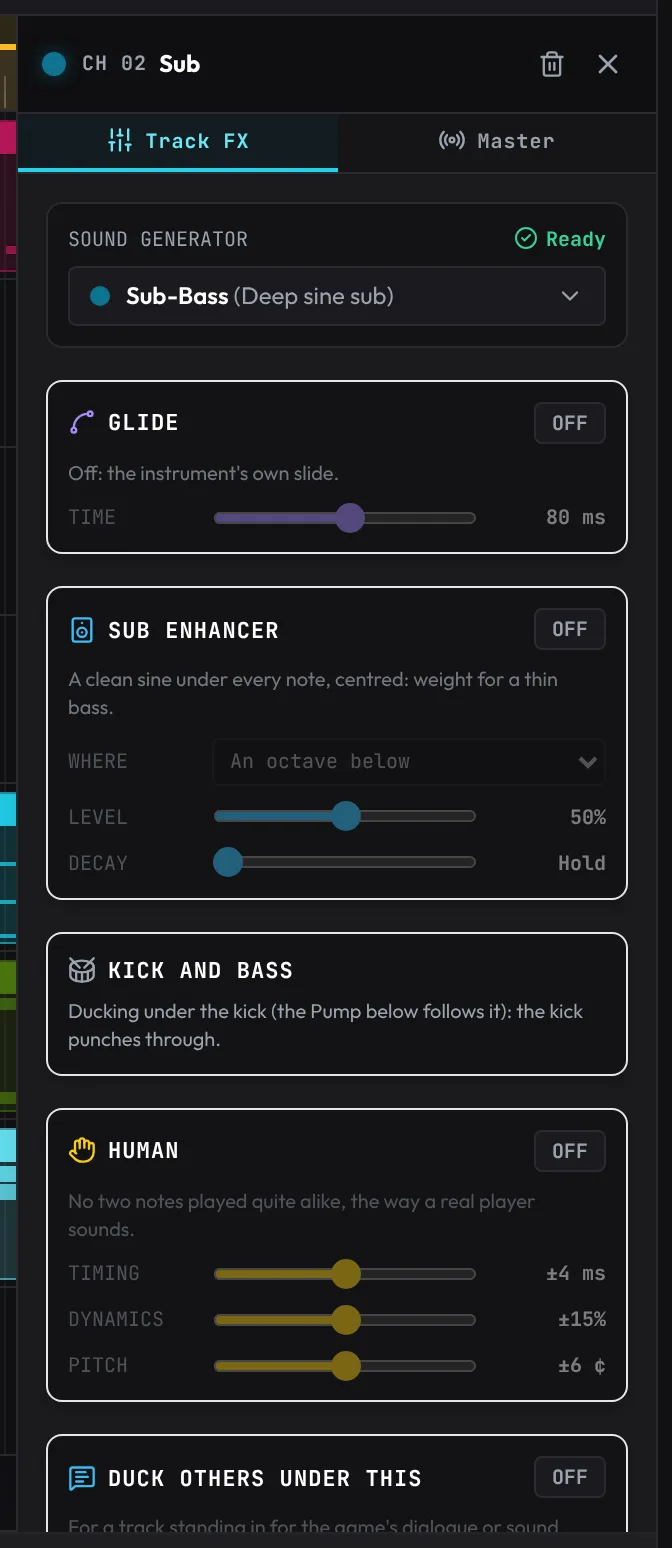
- SOUND GENERATOR: the track's instrument. Changing it renames and recolours the track but keeps its clips. Under it, the instrument's own panel where it has one (the Synth Designer, the 808 designer, the Drum Designer, the Sampler, Drum Rack, Multi Sampler, Slicer and Audio panels, an Audio track's Vocal chain, a bus's Bus preset), Glide, Sub enhancer and the kick and bass check on the bass instruments (see Heavy bass tools), and Expressive playing on the recorded instruments and drum kits.
- HUMAN: makes the track sound played rather than programmed. A real player never hits the same note quite the same way twice, so with Human on every note comes out a little different: Timing puts notes a few milliseconds either side of the beat (up to ±8 ms), Dynamics plays them a little softer or harder (up to ±30%), and Pitch leaves them a hair sharp or flat (up to ±12 cents, like a string player or a slightly loose guitar; only on instruments that play pitches, so drum kits don't show it). The notes of a chord land a hair apart, like fingers. Each note's variation is worked out from the note itself, so the song sounds the same every time you play it and in your exports, while no two notes are alike. Your notes aren't changed: switch it off and they play exactly as written. Start around 30 to 50% for a natural feel; turn Timing right up for a loose, laid-back one. (The piano roll's Humanize tool is different: it moves the notes themselves, once.) A new track on a recorded instrument starts with Human on at a player's feel for it: an orchestra's players a little loose in time and touch, a band's a little less, keyboards and mallets tighter, a drum kit tight in time with only its hits' strength varying. Synths start exact, as a machine plays.
- DUCK OTHERS UNDER THIS: for a track that stands in for the game's dialogue or sound effects (a voice line, placeholder effects). Switch it on and every other track dips by Dip (2 to 24 dB, 8 to start) wherever this track sounds: a moment before each note or audio clip (so the first syllable isn't masked), holding while it sounds, and back up 0.4 s after; gaps under about a third of a second are bridged. It follows the track's clips as you edit them, plays live and in every export, and isn't written as automation. Muting the proxy stops the ducking. The Mixer marks a proxy track PROXY. (To dip under a reference video's own dialogue instead, use the speech bubble on the video lane.)
- DISTORTION: Drive, from clean at 0% through overdrive to fuzz at 100%. It's a pedal-style overdrive: the lows are tightened, the very top going in is softened the harder you drive (so bright notes don't turn to fizz), the top is rolled off after it, and the level stays about the same, so turning it up changes the tone rather than the volume. The drive itself goes no further than it reaches at about 75%; the last stretch of the knob darkens it.
- BASS DRIVE: distortion on the mids and highs only, the sub kept clean and mono (see Heavy bass tools).
- 3-BAND EQ: three bands split at 400 Hz and 2.5 kHz: LOW (below 400 Hz), MID (400 Hz to 2.5 kHz) and HIGH (above 2.5 kHz), each -24 to +12 dB. At 0 dB the bands add back up to exactly the sound that went in. Reset flattens them.
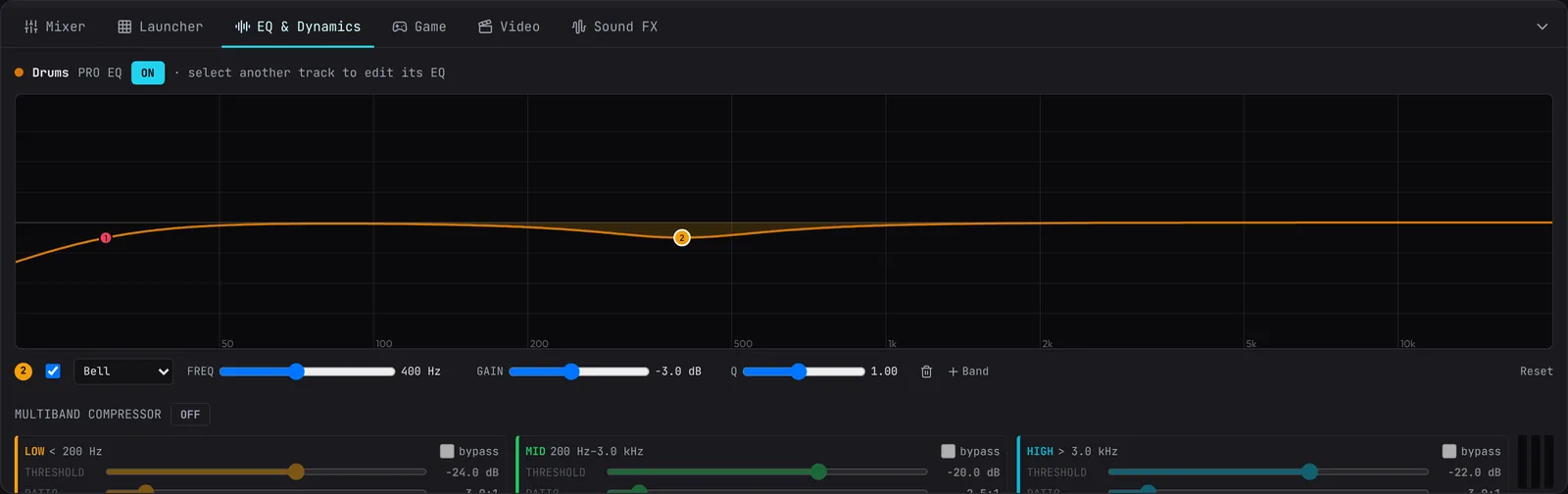
- PRO EQ: a parametric EQ you draw. Up to six bands, each a Low cut, Low shelf, Bell, Notch, High shelf or High cut. Drag a numbered dot sideways for its frequency and up or down for its gain (Shift: fine); the mouse wheel over the graph changes the selected band's width (Q); double-click empty space to add a band there; double-click a dot to switch it off or on; right-click a dot to remove it. Under the graph: the selected band's shape, frequency, gain and Q. The curve is exactly what the filters do, and while the song plays the track's own sound is drawn behind it, so you can see what you're cutting. Open big shows it in the EQ & Dynamics tab of the bottom panel. It starts flat, with a low shelf, two bells and a high shelf ready to drag (and a low cut and high cut, off).
- COMPRESSOR: Threshold, Ratio and Makeup gain.
- CHORUS: Rate, Depth and Mix. It stays clean on bright sounds (hats, plucks, airy keys) rather than adding a grainy hiss to them.
- MULTIBAND: a compressor in three bands, Low, Mid and High, split at Low / mid and Mid / high (the bands add back up exactly, so with nothing squeezing the sound is unchanged). Each band has its own Threshold, Ratio and Gain, or bypass; Attack and Release are shared. Meters show how much each band is turning down. Tame a boomy low end without dulling the top, or squash a harsh top only when it gets loud. (The Master's OTT is a ready-made multiband for the whole mix.)
- SATURATION and MONO BASS: on buses (and on any track where they're on); see Buses.
- LO-FI: Crush rounds the sound to fewer bits (16-bit is clean, 3-bit a buzzy 8-bit crunch), Tone darkens the top (1 to 20 kHz), Wow wobbles the pitch slowly like a worn tape, and Mix blends it with the clean sound. For lo-fi keys, dusty drums, chiptune grit and cowbell beats.
- FILTER: Low-pass, High-pass or Band-pass; Cutoff (20 Hz to 20 kHz); Resonance (Q 0.5 to 15: high values boost a narrow band at the cutoff, up to about +23 dB, so turn the track down when you push it); Slope 12 or 24 dB. It comes after the other effects, so it sweeps everything on the track. Moving Cutoff or Resonance while playing glides smoothly.
- DELAY: echoes in time with the song. Time is a note value (1/32 to 1/2, dotted and triplet ones too) of the tempo; ping-pong bounces the echoes left and right; Feedback (how many repeats), Tone (darkens each repeat) and Mix.
- REVERB: a room of the track's own (apart from the shared master reverb), built like a real chamber: a few early reflections, then a tail whose highs die sooner than its middle. Decay (0.3 s for a small room to 12 s for a huge hall), Pre-delay (a gap before the room answers, which keeps a voice clear), Tone (darker is warmer) and Mix. On a return track, run it at 100% mix.
- GATE: chops the track's volume in time with the song (a trance gate, or a stutter before a drop). Rate 1/8, 1/8T, 1/16, 1/16T or 1/32; Depth (how far it closes: 100% is silent between chops); Length (how much of each step it stays open). The chops line up with bar 1, in playback and exports alike. Try it on a held pad or supersaw chord.
- PUMP: sidechain-style ducking. The track's volume dips and swells back on what TRIGGER is set to: every Kick (any drum-kit track's kick that is actually playing), every Snare (its snares and claps; a recorded kit's rimshot counts as a snare; a percussion kit's rows, such as Latin Percussion's tumba, conga and claves, aren't kicks or snares and don't trigger it), Kick+snare (both: a hole in the bass for every drum hit), every Beat, every 1/8, or every note of a Track you pick under Follows (a sidechain from any part: duck the pads under the bass, or the chords under a lead; the followed track can even be muted, as a silent trigger). The shape is how it dips and comes back, drawn under the buttons: Smooth (down at once, then a smooth swell back: the classic pump, and how every Pump sounded before there were shapes), Hard cut (cut right down, held, then straight back), Short tick (a quick dip that's back almost at once), Long swell (creeps back over the whole length) and Hole for drums (down within about 20 ms, held while the drum hits, back by about 150 ms: for basses under the kick and snare). Drag a point of the curve to draw your own (Drawn), click the curve to add a point, double-click one to take it away; it always starts and ends at full volume, and no edge is quicker than 3 ms (even Hard cut at a short Length, or two points on top of each other), so it never clicks; each drag is one undo step. Depth (how far it ducks, shown in dB) and Release (50 to 600 ms, how long it takes to come back; with a shape other than Smooth it's called Length, the whole duck's). A muted or soloed-out kick track doesn't pump, so if you solo the pumped track, solo the drums too. It plays the same live and in exports.
- POST-FADER AUX SENDS: how much of the track goes to the shared reverb and the ping-pong echo, and to each return track (see Return tracks), each before or after the fader. A new track starts with the sends its kind of part usually has: pads and chords about 22% to the reverb, leads 18% and their own Delay insert on at a dotted eighth, low in the mix; drums and basses dry; anything else 10%. The shared reverb's send goes up to 200% for a very wet sound; click 300% beside it to let it go to 300% (drenched, for washes and effects). An automation lane for the reverb send runs from 0 to 100%.
- CHANNEL FADER: the same volume and pan as the header, and DIST, which sets how far back on the stage the track sits, from Front (as recorded, up close) to 100% (the back of the hall). Further back, a part is a little darker, a little quieter and more of it reaches the reverb, as a far instrument sounds in a real room. New orchestral tracks take their usual seat in an orchestra, seen from the audience: first violins to the left, cellos and basses to the right, woodwinds in the middle behind the strings, horns behind them on the left, trumpets, trombones and tuba to the right at the back, timpani at the very back (double-click DIST to put a track back in its seat). Band instruments, synths and your own sounds start up front.
- Delete this track (also the trash icon at the top). It asks first if the track has clips;
Ctrl+Zbrings the track and its clips back.
Human, Duck others under this, Distortion, Bass Drive, Pro EQ, Compressor, Chorus, Multiband, Saturation, Mono bass, Lo-fi, Filter, Delay, Reverb, Gate and Pump each have an ON / OFF switch and start off (except Human on a new recorded-instrument track, above). An effect that's off is taken out of the sound completely, so it costs nothing. You can switch effects on and off while the song plays without a gap, a click or a doubled sound, however busy the computer is: the change crossfades over 10 ms, about 20 to 30 ms after the click. A Compressor switched on comes in about 0.2 s later, once it has settled, and any other switch on that track in the meantime waits for it. A compressor holds the sound back by a few milliseconds (it looks ahead), so while any track, bus or return has a Compressor or Multiband on (or plays an electric guitar amp, or has Bass Drive on, which holds its track back 4 ms), the other tracks are held back by the same amount and everything stays in time: a compressed kick still lands with the bass. When that amount changes while the song plays, the other tracks slide to it over about a second, too gently to hear, so a held bass note doesn't dip. Playback then runs those few milliseconds later, recording allows for it, and exports start exactly on time. Turning a control while the song plays glides to the new value in a few milliseconds, so mute, solo and dragged sliders don't click. The EQ is on whenever any band isn't at 0 dB. Double-click any insert's slider to reset it to its starting value (EQ bands go back to 0 dB). The send sliders and the Master Reverb and Ping-Pong Echo sliders don't reset on double-click (the master OTT, Stereo Width and Level sliders do).
Master
The Inspector's second tab, Master, works on the whole mix. At the top:
- Loudness: how loud the song is, measured the way streaming services measure it (LUFS). Now (3 s) is the last three seconds, Since Play the whole stretch since you last pressed Play, and Peak the highest true peak (dBTP). A line under them says what the level means: quiet, about streaming level (around -14 LUFS), loud like a club master, or very loud. The peak turns red above -1 dBTP, where a song can distort once a streaming service converts it. Reset starts measuring again. The header shows the Now reading too, from the moment audio is running, and turns red with the peak.
- Glue: the master compressor that holds the whole mix together, in five styles. Standard (how every song sounded before there was a choice), Gentle (barely touches it: acoustic, orchestral, jazz), Punchy (a slower attack lets each drum hit through before it holds the rest: rock, hip-hop, pop), Tight (firm and loud: dubstep, EDM, drum and bass) or Off. The starters pick one for their genre. Standard and Tight take 20 and 15 ms to grab and let go over 150 and 120 ms, slow enough not to follow each wave of a bass, so the low end stays clean and the drums keep a little more of their snap (they once grabbed in 5 and 3 ms; songs that use them sound a touch cleaner, at the same loudness).
- OTT: the multiband compressor of bass music. It splits the mix into lows, mids and highs, turns each band's loud parts down and its quiet parts up, and adds back the level it takes, so the mix gets denser, brighter and louder. Depth is how much (start around 20 to 40%), Time how fast it reacts (snappy to slow), In gain drives it harder and Out gain turns the result up or down.
- Stereo Width: makes the mix wider (up to 200%) or narrower (0% is mono). Keep the bass in the middle (on by default) leaves everything below about 120 Hz centred however wide the rest goes, so the low end stays strong on club systems and phones.
- Mono below 120 Hz: everything under 120 Hz in the middle whether the Width is on or not (a wide pad's low notes, a stereo bass). On for new songs; songs made before it keep their sound until you tick it. The Loud master always has it on.
- Level: turns the whole mix up or down (-24 to +12 dB) after the OTT and Stereo Width, just before the limiter. Turning it up pushes the mix into the limiter, which is how you make a master louder; the limiter keeps the peaks down. It works whether the OTT is on or off. Double-click it to go back to 0 dB.
- Loud master: makes the song as loud as its style for an export, without blasting your ears while you work. The lows go in the middle (Mono below 120 Hz), an optional Sub tilt (a low shelf at 90 Hz, -4 to +4 dB) gives more or less sub, then the mix is pushed into a soft, oversampled clipper (the Clipper's own settings if it's on) that shaves the drum and sub peaks, and the limiter holds the rest under -1 dBTP. Target is how loud: Streaming (-14 LUFS), Loud (-9 LUFS: future bass, house, pop EDM) or Club (-6 LUFS: dubstep, drumstep, hardcore). Match (and switching it on, or a new target) plays the song through the master faster than real time and finds the Push (the gain into the clipper and limiter) that gets there, measuring and adjusting a few times; you then hear what will export (level-matched: see Playback). Every export with it on finds the push afresh, so the file lands within about half a LU of the target; an export of the whole song at the Loud master's own target also keeps that push for what you hear (a loop, a version without drums or another target leaves it as it was). It won't push past what's clean: once the clipper and limiter would change the waveform by more than about 6% (-24 dB of distortion, measured on the left and right channels each, before the mids start to fizz), it stops short and says how far. On the bass-music demo drop, Club landed at -7.0 LUFS (peaks about 6.6 dB over the body, as finished drops are); a future-bass drop at Loud reached -9 LUFS with hardly any clipping. Crunch (0 to 100%) is for going further on purpose: the clipper's knee goes hard (flat at 100%), and the push may change the waveform by up to about 42% (-7.5 dB of distortion; at 40% Crunch about 13%, -17.4 dB), so a dense drop reaches Club loudness and the clipping is heard as crunch on the kick, bass and snare. With Crunch each export also tries clipping only the sound under 3 kHz, the hats, cymbals and air passing by the clipper and meeting it again in a soft clipper just under the ceiling, and keeps whichever way is cleaner at the same loudness (and what you hear plays the same way): on a song like Night Rails the top comes out far less fizzy; on a very dense, very loud drop clipping everything is the only way to Club loudness, so it stays as it was. With Crunch the whole sound goes through the clipper oversampled and is clipped twice, a little under the limiter's ceiling, so even bright hats and crunchy snares driven hard come out with their peaks (between samples too) near where it clips: the limiter after it has next to nothing to do, and the mix, the bass with it, doesn't pump with the drums. (Before, the limiter pulled the whole mix down 2 to 5 dB after every kick and snare of a busy drop.) It gets as loud with a few dB less push, so a song with Crunch may now reach its target where it stopped short before; for a steadier drop with less clipping, turn Crunch down. Moving it matches again once you let go. The -1 dBTP ceiling stays and what you hear stays level-matched. Clipped waves overshoot more once encoded, so an MP3, Ogg or video of a crunchy drop is usually turned down a little after encoding (about a dB on the demo drop) to keep it under -1 dBTP; the clipping itself isn't made harder for it. Off for every song until you switch it on.
- Clipper: shaves the tallest peaks (mostly drum hits) flat just before the limiter, the way loud rap and electronic masters get their level: the limiter then has less to do, so the mix gets louder with less squashing. Drive pushes more of the mix into it (0 to +18 dB), Character goes from Hard (a flat top: loudest, most bite) to Soft (bends from 6 dB under the ceiling: rounder, warmer), and Ceiling is where it clips (-12 to 0 dBFS). It's oversampled four times, so the clipping stays clean instead of fizzy. While the song plays, its meter shows how many dB it's taking off the peaks and how often; past about 3 to 4 dB it starts to sound crunchy. It sounds the same in exports.
- Reference: load a finished song you'd like yours to sound like (Load a reference song; it stays in this browser for next time, and is never saved in the project or exported). Measure mix renders your song (up to two minutes) to measure its loudness and tonal balance; the reference then plays at exactly your mix's loudness, so you compare the sound, not the level (measure again after changing the mix). Press Play and the big A / B button flips between your mix and the reference, at the same point in the song, without a gap; the Loudness meter and spectrum show whichever you hear. Under it, a spectrum shows both (your mix solid, the reference dashed), smoothed, and a line says where yours has more or less: the sub, bass, low mids, mids, upper mids, presence or air.
- Mix check: Check the mix renders the song and each track (up to two minutes) and tells you, in plain words, what to look at, with buttons that select the track to blame: bass that isn't in the middle (sound under about 120 Hz that differs left and right), the kick and the bass fighting (the same low notes, as loud, at the same time: a Pump on the bass following the kick fixes most), muddy low mids (too much 200 to 500 Hz), harsh upper mids (too much 2 to 5 kHz), parts covering each other (two parts in the same range at the same level), a level too quiet or too loud for where the song is going (Going to picks the same loudness targets as the Export dialog), and peaks hitting the limiter or the clipper hard. Problems are marked red, things worth a look amber; a clean mix gets a green "nothing to flag". It was tuned on the starter songs, which it passes, and on the same songs spoiled on purpose.
- Does it hit? (under the Mix check): holds the loop, or the song (up to 64 bars), against finished songs of a Style: Bass music / dubstep, Drumstep, J-core / hardcore, Darksynth / pumping or Future bass / artcore. It renders the stretch (and, for how the bass moves, the bass parts alone, still ducked by the drums as in the mix), measures it off to the side so the page keeps responding, and shows each measurement as a meter with the style's range in green and what to change when it's outside: the loudness and how far the peaks stand over the body; the balance of sub, low end, low mids, mids, presence and air; whether the sub and the low end are in the middle and how wide the mids are; between the hits (whether the sound drops out after each drum, how much the level jumps within a 16th, how quiet the quietest part of each beat gets); bass movement (whether the bass's tone changes from 16th to 16th, or only wobbles at one steady rate, the 2000s sound, and whether its pattern comes back each bar); the pump (how far the chords and pads dip with the beat and come back); and, from the song's drum notes, how far the kick and snare stand out of the mix and whether the sub ducks under the snare (measured on the snares that aren't on a kick; with four on the floor, where every snare lands on one, it says it's not measured). The ranges come from measuring the drops of finished songs in each style.
- Playback: Listening level-matched (on by default; the header shows Level-matched and how many dB it's turning the song up or down, a click opens this panel): you hear every song at about -15 LUFS, however loud its master is, so switching the Loud master to Club doesn't blast you and a quiet mix isn't buried. It follows the song slowly: it never turns up faster than 1 dB a second (a quiet intro comes up gently), turns down faster, and at once if a loud part arrives; in silence it holds still. It changes only what you hear, never an export or the Loudness meter (which shows what the file will measure). Off, you hear the master as loud as it is. Either way a safety limiter at the very end keeps anything from reaching your speakers louder than -1 dBFS. Where the browser can't run it (an address on plain http rather than https, other than this computer's own), the header shows Not level-matched instead: nothing is matched or limited, so keep the volume down, and the Loud master's push isn't heard (the export is still loud). It's a setting for this browser, like the buffering. Below it, how this browser buffers live audio. Responsive (the default) has the least delay between a key you play and its sound. Stable gives the audio a bigger buffer and more time to schedule notes, so busy moments in big songs play through instead of crackling; Play then starts about a quarter of a second later, and live playing has a few hundredths of a second more delay. It's a setting for this browser, not the project, and takes effect after a reload (the panel offers one; your song opens again after it). Below the choice, Delay from a key to sound is the delay the browser measures between a note leaving the app and you hearing it (its audio buffer and your sound device), in milliseconds; keys you play, from a MIDI keyboard, the computer keyboard or the screen, start at once, so this is the delay you feel. Some browsers don't report it.
- Instruments offline: recordings are kept in this browser once an instrument has downloaded them, so a song opens at once the next time and the instruments you've used work without an internet connection. The panel shows how many are kept. Download all fetches every instrument's recordings and the built-in plugins now (about 650 MB, a few minutes on a fast connection) so they all work offline: a bar shows the progress and Stop pauses it (what's done is kept; Download all carries on from there). Remove frees the space; instruments download their recordings again when next used. Under it, Storage says whether the browser has agreed to keep Fledgetone's storage (your autosave, sounds and recordings) when the disk gets full, with Protect to ask, and how much space Fledgetone uses in this browser (see Working offline).
OTT and Stereo Width sit between the master compressor and the limiter, are off in a new project, are saved with it, can be undone, and switch on or off while the song plays without a gap. The Level (0 dB in a new project), Mono below 120 Hz (on in a new project), the Loud master (off) and the Clipper (off in a new project, after the Level) are saved and undone the same way (a Match's push goes with the switch or target that asked for it). All of them are in exports too.
The limiter at the very end looks 5 ms ahead and keeps the true peak (including the peaks between samples that a converter or an MP3 encoder rebuilds) under -1 dBTP, live and in every export. It finds those peaks as the Loudness meter does, at 8 times the sample rate, so they read as ffmpeg and other true-peak meters read them. It turns down smoothly before a peak arrives instead of clipping it, and holds its gain through a bass note's cycles, so loud drops stay clean instead of crackling or pumping.
Under them are the two effects every track shares through its sends:
- Master Reverb: Room Decay Time, from 0.8 s (tight) to 12 s. Changing it, or the room, while the song plays never cuts off what's already ringing: the new room takes over smoothly, and the long rooms ring all the way down to silence. Room picks the kind of space it is: Concert hall (warm and wide, its lows ringing a little longer), Chamber (a smaller room: close, clear, a quick bloom), Church (stone and height: long, dark, slow to bloom), Studio room (short, tight and natural, for drums and bands), Plate (dense, bright and smooth at once, for vocals and snares) or Lush (a smooth, dense tail that shimmers gently, with no hard echoes, for pads, ballads and ambient). Each of the first five is built the way a real room answers: a few distinct early reflections off the nearest walls, then a tail whose highs die sooner than its lows, and different in each ear. Each also soaks up the very top where its walls would: the plate keeps the most shine (from 11 kHz), the studio room and chamber a little less, the hall from 7.5 kHz and the church the least, at the same loudness as before; a recorded room keeps its own top up to 10 kHz. Lush is made differently: instead of a room's answer worked out in advance, a set of echoes feeding each other makes the tail as it plays, so it takes far less of the computer's power, even with a long decay, and none when nothing is playing: a good pick for long tails on a slower computer. It's about as loud as the concert hall at the same decay, so switching between them keeps the mix in balance, and it fades over without a gap. (If your browser can't run it, the concert hall plays in its place.) The starters pick one for their genre. One click picks a space: Room (1 s), Studio (1.8 s), Hall (3.2 s, for an orchestra), Cathedral (7 s, for choir and organ) or Heaven (11 s, for angelic pads and ambient). Use a recorded room… loads a recording of a real space instead (an impulse response: a WAV of a clap or sweep dying away in a hall, church or studio; free ones are shared online, often under Creative Commons, so credit the recordist as their licence asks). The reverb then sounds like that room, its tail as long as the recording (up to 12 s), and the recording is saved inside the project file. The × next to its name goes back to the generated hall.
- Ping-Pong Echo Delay: Echo Subdivision (1/4, 1/8, dotted 1/8 or 1/16, locked to the tempo) and Echo Feedback (0 to 80%).
Tempo, swing and listening volume
In the header:
- TEMPO: the song's starting tempo (tempo changes later in the song are on the ruler: see Tempo changes and time signatures). Click the number to type a tempo from 40 to 240 BPM, with up to two decimals (
115.25); Enter sets it, Esc cancels.-and+change it by 1 BPM, and the slider moves in whole BPM. TAP sets it from your clicks: tap at least twice; it averages your last few taps and starts over if you pause for more than 2.5 seconds. - FIT: sets the tempo so part of the song lasts a given time. Choose Loop In→Out, Whole song or a number of Bars, then type the Target length in seconds (
25.5) or as a timecode (0:25:00). It shows the new tempo and the resulting length as you type; Apply (or Enter) sets it, to 0.01 BPM, picked so the part ends in the frame you typed. Over long stretches at slow tempos it can land a frame either side, and the panel shows the exact result first. - SWING: delays the off-beat 16th notes (the second 16th of each 8th) for a shuffled feel, from 0 to 50%; at 50% they land on the 1/8-triplet line. Downbeats, 8ths, triplets and 1/32 notes stay on the grid. In an 8th where a clip has a 1/32 roll or triplets, that clip plays the whole 8th straight, so rolls stay even (other clips keep swinging). A clip moved off the 16th grid (Shift-drag, Frame snap) swings on its own 16ths. A clip cut off the grid (the razor with Shift, Snap Off or Frame snap, a start trimmed off the grid, or Insert bars at an off-grid point) keeps the swing it had: its notes go on swinging on the song's 16ths. New blank projects start at 20% (the demo song uses 15%). Double-click it for 0% (straight).
- LISTEN: the listening volume (-30 to +6 dB): how loud you hear the song, after the level matching (see Playback in the Master tab). It never changes an export (files are made at 0 dB, with the master as it's set) and isn't saved with the project.
Every track goes through the master compressor (unless Glue is Off) and a limiter that holds peaks just under full scale, so playback never clips and sounds the same as your exports, only level-matched. A safety limiter after the listening volume keeps even +6 dB from clipping your speakers.
FEEL (in the piano roll's toolbar) gives one clip its own swing instead of the song's: Straight, Swing 8ths (light, a triplet shuffle, or a hard dotted lilt: jigs, shuffles, big band) or Swing 16ths. It plays the same in playback, exports and the game kit. In a drum clip, GROOVE… beside it swings each drum on its own (the hats swung, the kick and snare straight; see the piano roll's helpers). GROOVE gives any clip a feel measured from real music, or the groove of an audio clip in the song, in place of the swing (see the piano roll's helpers).
Mixer and effect changes, tempo changes and time signatures can be undone with Ctrl+Z; the starting tempo, swing and listening volume can't.
When playback lags: the performance badge and Clear memory
While the song plays, the app watches for three signs that the computer isn't keeping up: notes reaching the sound engine too late, the page freezing for a moment, and the sound engine itself falling behind (it can't make the sound as fast as it plays, which you hear as crackles). A few of the first two in a few seconds, or the engine running behind, turns the badge in the header (next to LUFS) into an amber LAG, and a warning appears at the top with Clear memory. Close the warning with × (it stays away until you next press Play). When all is well the badge shows how much memory the page is using (in Chrome).
Clear memory (in the warning, or from the badge at any time) lets go of what the app holds but isn't using: downloaded recordings of instruments no track plays, decoded sounds no clip uses, the instrument menu's preview players, and any notes left hanging. Everything comes back by itself if needed (an instrument re-downloads when you use it again). Tick Also empty the undo history to free the most on a long session, but then earlier edits can't be undone.
The app also steps in by itself. At the first late note or freeze of a playback, it hands notes to the sound engine further ahead of time (0.4 s instead of 0.1 s) until you press Stop, so the next busy moment is absorbed instead of heard; once a playback has needed that, later ones start with it. The only cost is that a fader, a mute or a jump you make while it plays takes a moment longer to be heard; playing your keyboard or MIDI keyboard isn't affected. And while it lags, the meters and the spectrum draw less often, to leave the computer's time to the music.
If you press Play while instruments are still downloading their recordings (a song just opened), the Play button spins until they're in (ten seconds at most; click it to cancel), so the song doesn't start with them missing.
Big songs also get help without asking. While a song plays, a track with nothing to play for a while rests: it's switched off until just before its next note, so thirty tracks waiting for their entry don't cost what thirty playing ones do (an orchestral test song needed about a third less of the sound engine). Tracks scrolled out of sight in the timeline and the mixer aren't drawn, and the spectrum moves at half speed in songs with more than 16 tracks. The badge's details show Notes sent ahead: further while this is on.
Click the badge for the details, including Audio engine speed while playing (100% is keeping up). When the engine is what's behind, the warning offers Use Stable playback directly; it takes effect after a reload. If playback lags a second time in a session even after notes are sent further ahead, the app switches to Stable playback for next time by itself and tells you so, unless you chose a Playback setting yourself (then yours is kept).
Recordings of instruments no track (stinger or costume) has used for three minutes are let go while the song is stopped, so trying many instruments in a long session doesn't fill the memory; they download again (from this browser's store, at once) if you use them again.
If it still lags: Freeze the busiest tracks (below), turn on Stable playback (Master tab › Playback), and close other tabs and programs. Auto-freeze (below) does most of the freezing for you.
Freezing tracks
Big songs can ask more of the computer than it has, and playback starts to crackle or skip. Freezing a track fixes that: click the snowflake in its header and the app renders the track's instrument, effects and EQ to audio once (a second or two), then plays that recording instead. A frozen track costs about as much as one audio clip: on a 36-track test song, freezing everything cut the playback work to about a quarter.
- A frozen track's snowflake is lit. Its volume, pan and sends (and their automation) stay live, so you can keep mixing it.
- Change anything that went into the recording, such as its notes, instrument, effects, EQ, filter automation, the tempo or the swing, and the freeze is out of date: the snowflake turns amber and the track plays live again, so you always hear the real thing. Click the snowflake to freeze it again. Undo the change and it's frozen again.
- A track's Pump that follows the kick is frozen ducking to the drum tracks that were sounding. Mute those drums, or solo another track, and it plays live until you put them back.
- An armed track plays live while it's armed, so you hear what you play into it.
- Click a lit snowflake to unfreeze. Freezing and unfreezing can be undone.
- Exports always render every track from its instrument, frozen or not, so they sound exactly the same either way.
- The frozen audio stays in this browser, as 24-bit sound (about 16 MB per minute of track in storage, and about 20 MB per minute in memory while the project is open). It isn't saved inside project files: open the project in another browser and frozen tracks play live until you freeze them again. Free unused in the sound panels keeps the frozen audio of this project and your last session.
- Audio tracks can't be frozen: they already play recordings.
Auto-freeze does this for you in big songs. Once a song has 6 or more instrument tracks, the tracks you haven't changed for a few seconds are frozen in the background while the song is stopped (never while it plays, so nothing changes under you). Their snowflake shows a faint ring. Change one and it plays live again at once, then is frozen again a few seconds after you leave it alone. A track whose plugin window is open plays live and isn't frozen while the window is open, so the plugin's settings are always there to change. On a five-song test mix it cut the playback work by more than half.
- Auto-frozen audio is kept in memory only, never in the project or the browser's storage, and stops at a limit set by the computer's memory (the busiest tracks go first). A track too long to fit is left live. A freeze already under way pauses while the song plays.
- Click a ringed snowflake to freeze that track for good (a normal freeze).
- Turn it off in Master tab › Playback › Auto-freeze big songs; it shows how many tracks are frozen and the memory they use. It's a setting for this browser, on by default.
Bounce in place
Right-click a track's name and choose Bounce in place (or Track ▸ Bounce in place) to turn it into audio for good: its instrument, inserts and EQ are rendered to one audio clip on a new Audio track right under it. The new track takes over the original's volume, pan, sends, output and their automation, so the mix sounds the same. The original is muted and kept, so you can go back to it. Unlike freezing, the bounce is an ordinary audio clip: cut it, reverse it, warp it, chop it into the Slicer. One Undo step undoes it all.
Resampling
Resampling is printing a sound to audio and then playing with the audio: chopping it, reversing it, stretching it, mangling it, or turning it into a wavetable.
- Resample…: right-click a clip, or Tools › Resample…, or the button in an audio clip's editor. What: the selected clips (each through its own track: its instrument, effects, level and sends), the mix between the loop's In and Out (every track that plays there), or the selected track between In and Out. It's rendered before the master section (tick Through the master section too for its glue, OTT, width and limiter), exactly the bars so it loops in time (or tick Let reverb and echo ring out). What it came from keeps playing unless you tick Mute the track it came from.
- Onto a new audio track: an audio clip in the same place, as loud as the music was.
- Onto a new Slicer, chopped: cut At its hits or into 8 or 16 equal slices, with a clip that plays them In order, as a Stutter (beats repeated and rolled at 1/32, a roll to end on) or Shuffled (a random slice each 16th); tick The last slice backwards for a reversed tail. Rearrange them by drawing notes on the Slicer's rows.
- Onto a Fledge Synth wavetable: a new Fledge Synth track that plays the sound as its User table (8, 16 or 32 cycles, cut at its pitch or at 512, 1024 or 2048 samples), as a Bass, Lead or Pad, with LFO 2 sweeping the table's Position over each note. A held, steady sound works best.
- Mangle… (in an audio clip's editor) makes a new sound from what the clip plays: Tape speed (half speed, down 5, up 7, double speed: pitch and length change together), Pitch (up or down, same length), Stretch ×2 or Squeeze ×0.5 (same pitch), Stutter 1/8, 1/16, 1/32 (the start of every beat repeated through it), Shuffle 1/8s or 1/16s (the same cells in a new order; the first stays first), Gate (trance, offbeat, chop or half bar patterns on the 16ths), Crush (fewer bits and a lower rate), Formant (the voice bigger or smaller at the same pitch: only the voice's resonances move, its harmonics stay exactly where they were). Pitch, Stretch, Squeeze and Formant use the same clean phase vocoder as Follow tempo. Each comes back about as loud as it was and never peaks louder. Each is an Undo step, and Back to the original puts the first sound back whatever was done since (once a mangled clip is split or its start trimmed, Undo does: a part of it has no whole original to go back to). A mangled sound is a sound like any other: exports play exactly what you hear.
- In Pocket: a section's ⋯ has Resample it into a Slicer: the section (or only the track you have open) chopped into 16 slices on a new Slicer track, with a stutter pattern and a reversed tail.