
Guide Playing a MIDI keyboard
Playing a MIDI keyboard
Click the MIDI button (the keyboard icon) in the toolbar, then Connect MIDI devices. Chrome and Edge connect at once; Firefox asks for permission first; Safari has no MIDI support (use the computer keyboard piano instead). The app reconnects by itself next time.
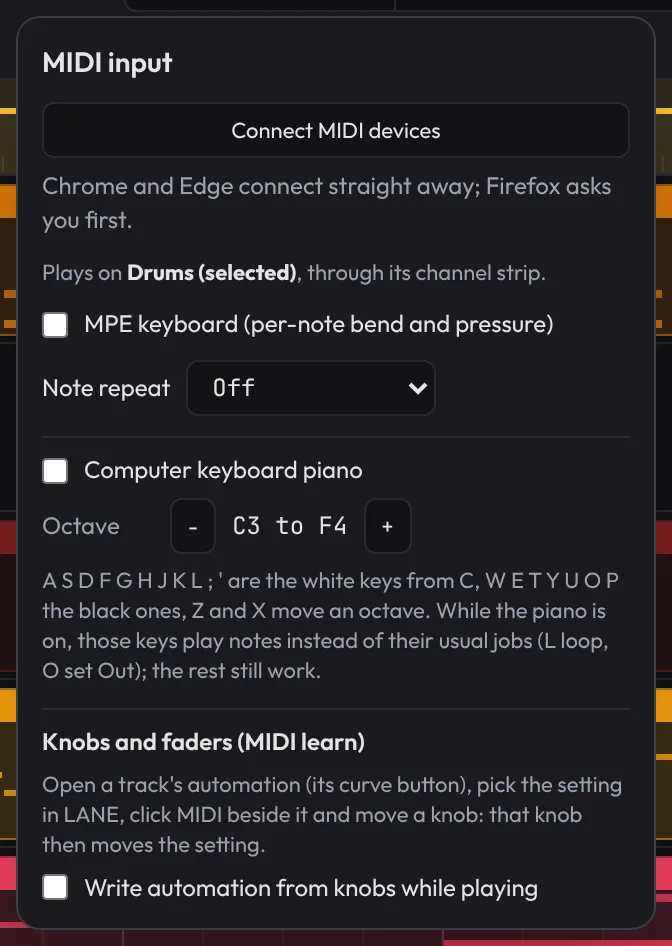
- Input picks one device or All inputs. The light and readout show the last thing played.
- Your playing goes to the armed track if one is armed, otherwise the selected track, through its instrument, mixer and effects, so you hear what you'll record.
- Velocity, note-off, the sustain pedal and all-notes-off work on every instrument. The pitch bend wheel (±2 semitones) works on the recorded instruments, Slap Bass, Sub Bass, 808, Lead, Space Clav, Brass Stabs, Pad and plugin instruments. When you record, the bend and mod wheels go into the clip's Pitch bend and Mod wheel (dynamics) lanes (see Expression lanes), and the sustain pedal into how long the notes ring.
- On a drum kit, the standard General MIDI drum pads (kick 36, snare 38, hats 42 and 46) play the kit's sounds.
- Knobs and faders move the settings you map them to (see MIDI learn, under Automation). Knobs that aren't mapped go to plugin instruments as MIDI, and when recording go into the clip's controller lanes.
- Note repeat (in the MIDI popover), for finger drumming: pick a rate (1/8, 1/16, 1/32, or their triplets) and a pad held down on a drum kit, the Drum Rack or the Slicer plays again at that rate for as long as you hold it. While the song plays the repeats land on the song's grid (struck just before a grid line, the first repeat waits for the next one, so it doesn't flam); stopped, they keep the tempo. A pad that sends pressure (aftertouch) sets the repeats' loudness as you press harder or lighter; otherwise they play as hard as you struck. It works on the computer keyboard piano too (at its fixed velocity), and recording keeps every repeat as a hit of its own, on its grid line. Off turns it off; the choice is kept in this browser.
- MPE keyboards (each note on its own channel, with its own bend and pressure): tick MPE keyboard in the MIDI popover. A note's own bend (±48 semitones, the MPE standard) and pressure then move only that note, and recording puts them into the note (its Note bend and Note pressure lanes). The Multi Sampler plays them per note; other instruments bend as a whole.
The computer keyboard as a piano
In the MIDI popover, tick Computer keyboard piano. A S D F G H J K L ; ' are the white keys from C, W E T Y U O P the black keys, and Z / X move an octave down or up. Notes play at a fixed velocity. While it's on, those keys play notes instead of their usual jobs (L, O); Space and the other shortcuts still work. It's off by default.
Tools › Piano (or search piano) opens the on-screen piano: the same keys drawn as a keyboard, each with its letter, lit as you play them (from the computer keyboard, a MIDI keyboard or a click). Opening it turns the computer keyboard piano on; closing it turns it off again (unless it was on before). Its Z and X buttons change the octave. Drag it by its top row to move it out of the way.
Typing notes in (note entry)
Placing notes one by one with the mouse is slow. Instead, open a clip in the piano roll and click Type notes at the top of it (or tick Note entry on the on-screen piano). A cyan cursor appears in the grid, after the clip's last note:
- Where it will go is shown before you play: a faint band runs the length of the next note from the cursor, and pointing at a key on the on-screen piano outlines that note's row in it.
- Each key you play goes in at the cursor, and the cursor moves on by the New note length (or the Grid, if that's longer). You don't have to play in time: one key after another writes a melody.
- Keys held down together make a chord: they all land at the same step, and the cursor moves on once you let go of them all.
- → leaves a gap (a rest) and ← steps back, while no notes are selected.
- Backspace takes the last step out again (and puts the cursor back there); Ctrl+Z undoes as usual.
- Past the clip's end, the clip grows to fit.
It works with the computer keyboard, a MIDI keyboard and clicks on the on-screen piano, on drum tracks too (each key is a drum, as when playing them live). The notes sound on the clip's track as you play them. To change the length of the next notes, change New note in the piano roll; for a different loudness, play softer or harder on a MIDI keyboard, or change the notes' Vel afterwards.