
Guide Getting started
Getting started
Fledgetone is a music maker that runs in your browser. You build a song on the Arrangement Timeline out of tracks (one instrument each) and clips (blocks of notes on a track), mix it, and export it as a WAV file.
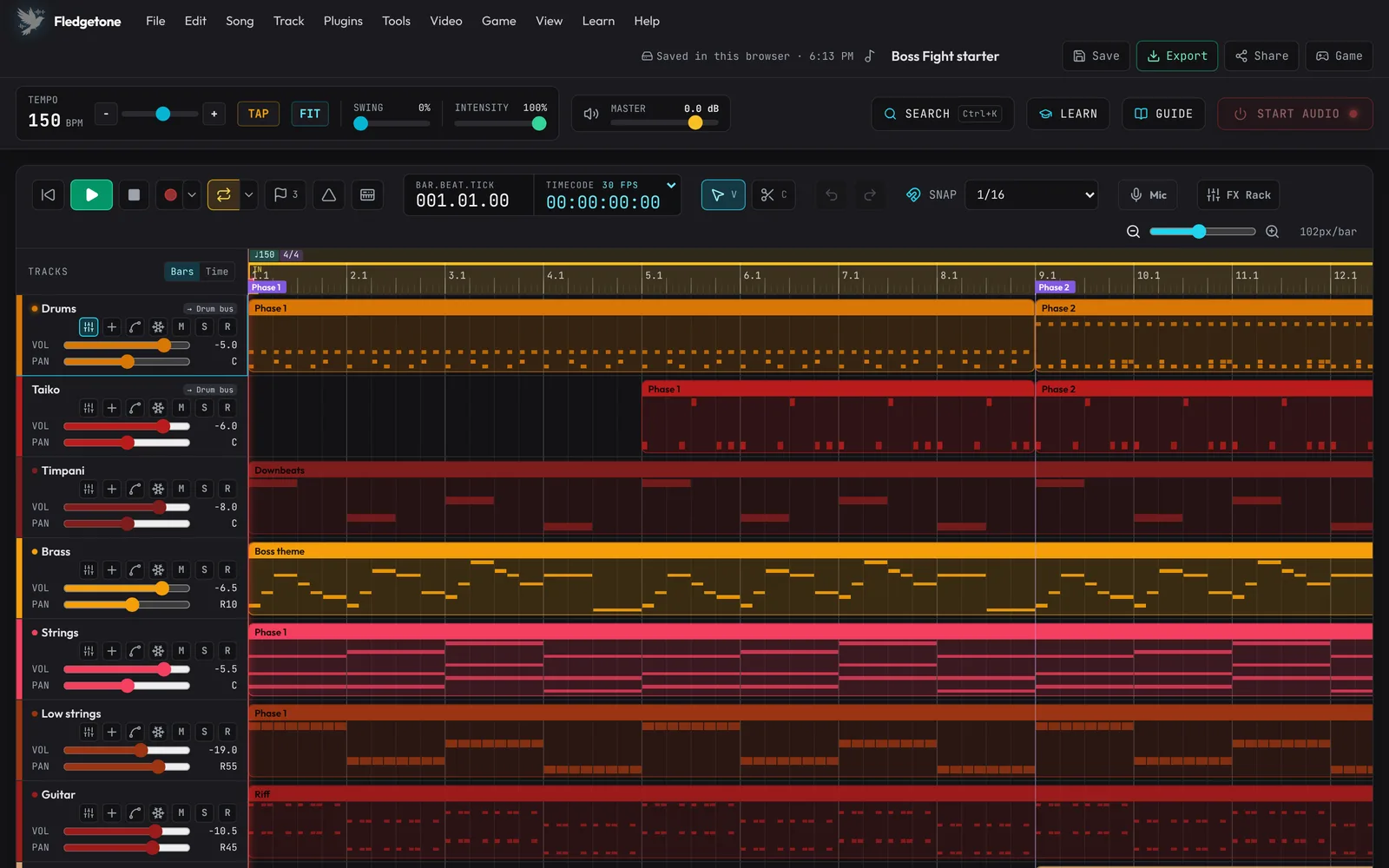
The studio is made for a computer: a PC or Mac with a mouse, a keyboard and a wide screen. On a phone, Fledgetone opens Pocket, a simpler version made for a phone, instead (see Fledgetone Pocket: on a phone).
- Click START AUDIO in the top-right corner. Browsers only allow sound after you click something, so the button glows red until audio is running. Pressing Play also starts it.
- To hear an example, open the File menu at the top, choose New… and pick one of the eight starters (chill and world music like Lo-Fi, Celtic, Plaza and Eastern).
- Press Space (or the green Play button) to play, and Space again to pause.
- Double-click a clip to open its notes in the piano roll under the timeline.
At the very top is the menu bar: every tool in the app, where a desktop DAW keeps it (see The menu bar below), with the project's name, Save, Export, Share and Game (the Game tab, one click away) on the right. Under it is the header: TEMPO, TAP and FIT, Swing, Intensity, the LISTEN volume, the Level-matched mark and the loudness reading (once audio runs), SEARCH, LEARN, GUIDE and START AUDIO. Under that, top to bottom:
- Arrangement Timeline: the toolbar, the ruler, your tracks (in folders, if you make some), the Overview strip and the piano roll or audio editor.
- The bottom panel: tabs for the Mixer, the Launcher (see Clip launcher), EQ & Dynamics, Game, Video and Sound FX. Click a tab to show it; click the open tab (or the arrow on the right) to fold the panel away. Drag its top edge to make it taller or shorter (double-click the edge to reset). The tab and height are remembered in this browser.
The menu bar
- File: New…, Open… (
Ctrl+O), Save (Ctrl+S), Save As… (Ctrl+Shift+S), Versions… (see Versions: go back to earlier), Save my sounds to a file…, Open a my sounds file…, Share this track’s sound…, Open a sound file…, Export audio / video… (Ctrl+E), Showcase video (YouTube, TikTok)…, Channel kit (streams, videos)…, Beat store package…, Share…, Cut song to length…, Export markers for video editors…, Game kit (Godot, Unity, web)…, FMOD / Wwise package… - Edit: Undo, Redo, Cut, Copy, Paste at the playhead, Duplicate, Delete, Select all, Select nothing, and the Selection and Razor tools.
- Song: Add marker at the playhead, Add hit point, the Markers list, Fit tempo / tempo finder, Tap tempo, Breathe (see Tempo changes), Insert 1 or 4 bars at the playhead, Delete bars In → Out, Build-up & drop at the playhead, Arrange a beat… and Dark melody… (see Arranging a beat), the three key changes from the playhead, Play bars In → Out backwards (see Play backwards), Cut song to length…
- Track (the selected track): Add track…, Delete, Freeze, Bounce in place, Bounce bars In → Out to a Drum Rack pad, Move up / down, New folder with this track (or Take out of its folder), the four Bus preset items (see Buses), Mute, Solo, Arm for recording, Inspector & FX rack, EQ, Pro EQ (big), Multiband compressor, Human feel, Duck others under this track, Automation.
- Plugins: Browse plugins…, Add effect to the selected track…, shortcuts into the plugin browser (Instruments, Reverbs, Delays and ambience, Saturation and warmth, Tape, Dynamics, Filters, Lo-fi, Amps and distortion, Stereo, Console and mix bus, Recommended), your ★ favourites, Open for each plugin on the selected track, and Instrument / Effect from a web address (WAM)… (see Plugins).
- Tools: Mixer, Sound effects maker, Generate variations of the selected clip…, Tune vocal…, Synth Designer, Drum Designer, Record from the microphone, MIDI keyboard…, Metronome, Performance & memory.
- Video: Load reference video…, Show preview window, Find cuts, Dip music under dialogue…, Tempo finder for hit points…, Cut song to length…, Export markers for editors…, Export music onto the video…, Remove the video.
- Game: the Game panel and its parts (Transition matrix, Intensity & stem groups, Stingers, Loop variations), Try it in a game…, Sound effects maker, Generate variations…, and the game kit, web runtime kit and FMOD / Wwise exports.
- View: the bottom panel's Mixer, Launcher, EQ & Dynamics, Game, Video and Sound effects tabs, show or hide the panel, Inspector & FX rack, zoom in and out, and bars or timecode on the ruler.
- Learn: Tour & tutorials…, then the tour and each tutorial to start straight away (one you left part-way says resume; finished ones are ticked), and the Guide.
- Help: Guide, Tour & tutorials, Search everything, Keyboard shortcuts, Install Fledgetone… (until it's installed, see Installing Fledgetone), Pocket, the phone version, Report a problem…, Source code, What's new, Terms of use.
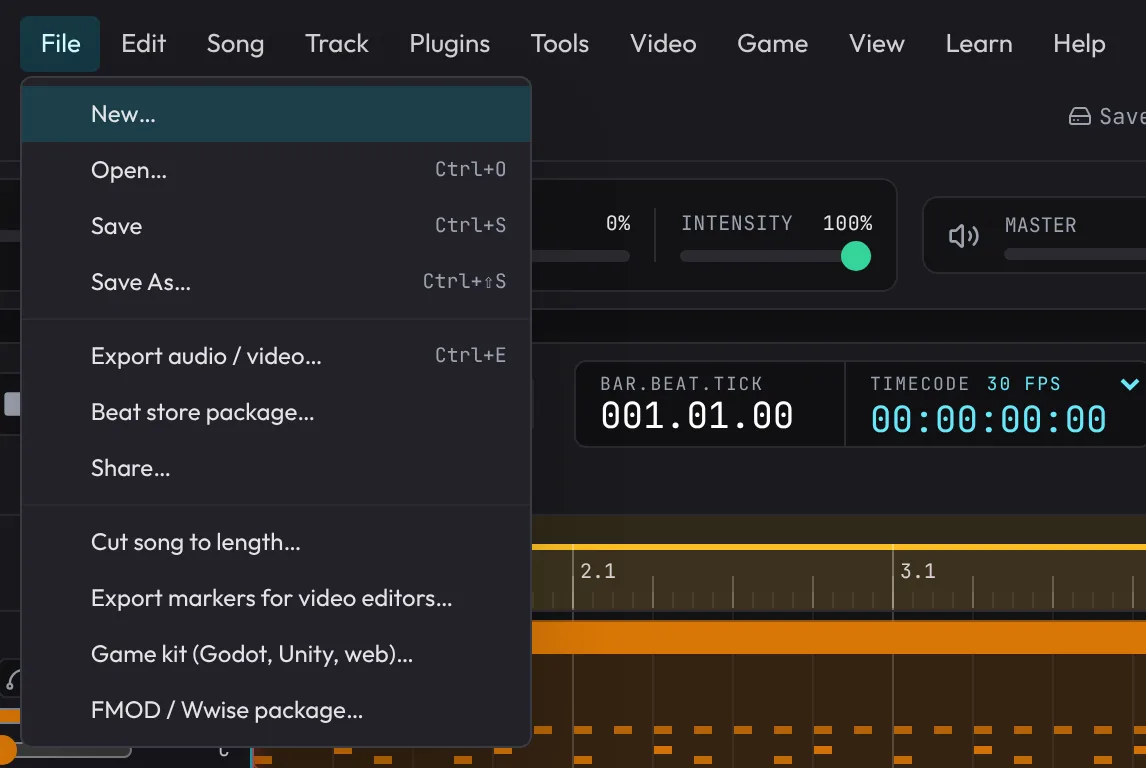
Hover across the bar while a menu is open to move between menus; the arrow keys work too, and Esc closes.
Tour and tutorials
The first time you open Fledgetone it offers a one-minute tour and nine hands-on tutorials. Find them again any time in the Learn menu at the top (every tutorial is listed there, ticked once finished), with the LEARN button in the header, or by searching for tutorial. They're listed in this order:
- Quick tour: points at each part of the screen and says what it's for. Just read and click Next.
- Beginner: Your first song: open a starter, play it, mute a track, swap an instrument, change the tempo, write a note, undo, and export.
- Beginner: Make a showcase video: File › Showcase video (YouTube, TikTok)…, tall for phones, 60 fps, your title and marks, and which tracks show.
- Beginner: Find and keep your sounds: search the instruments, star a favourite, save a sound to My sounds, and keep them in a file.
- Intermediate: Shape and mix a song: add an instrument, use the Filter, Pump and reverb, draw automation, use the Mixer, add markers, a build-up and drop, and the loop.
- Intermediate: Write with the helpers: a chord progression in a key, an accompaniment for it, the Drummer, melody variations, and a clip's own swing (FEEL).
- Intermediate: Make it expressive: a Swell from the piano roll's TOOLS, the mod wheel as dynamics, a Vibrato lane, Breathe (a tempo that eases into phrase ends) and Play backwards.
- Intermediate: Game music that reacts: a song with sections as states, switch states in the Game tab, the transition matrix, a written bridge, switching on the phrase, and Audition like the game.
- Expert: Pro techniques: search, the Synth Designer, sidechaining from any track, the Gate, key changes, freezing, the Game tab and game-ready exports, and the fastest shortcuts.
- Expert: Make it react: parameters the game sets, costumes, shuffled pieces and silences, effects and parameter sliders in Audition, Try it in a game, and what the game kit carries.
A tutorial puts a glowing ring round the part of the screen to use, and its card sits in a corner out of the way: it moves only if a menu, picker or dialog you open would end up under it. Drag the card by its top row to put it anywhere, or shrink it to one line with – (the line still shows what to do). Steps marked Your turn wait for you to do it and move on by themselves once you have (with a tick); everything else just needs Next. The app works normally the whole time, shortcuts included. Back goes to the previous step, Skip moves past a task you'd rather not do, and the X closes the tutorial: LEARN (or the Learn menu) then offers to Resume where you stopped. Finished tutorials are ticked. Progress is remembered in this browser.
Search
Press Ctrl+K (Cmd+K on a Mac), or click SEARCH in the header, and type what you're after: a tool (export, mixer, mic), a setting (swing, reverb, stable playback, count-in), an instrument (violin, 8-bit, angelic), a starter (celtic) or anything in this guide (frame rate). Results are labelled Tool, Setting, Instrument, Starter or Guide; the best match is first. A word with one letter wrong still finds it when nothing matches as typed (viloin). A result too long for its row shows its whole name and description when you point at it or reach it with the arrow keys.
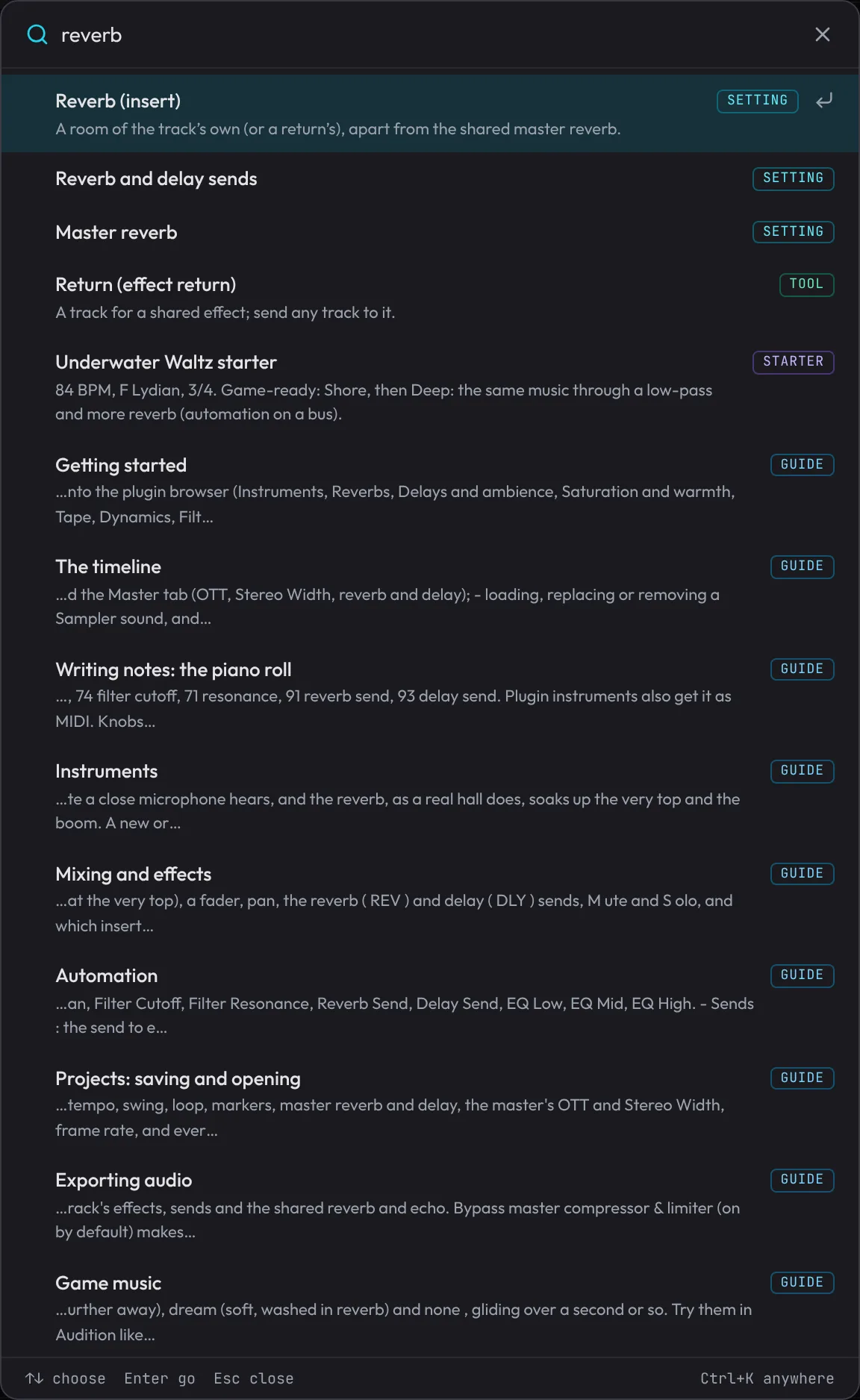
Up and Down choose, Enter goes: a tool opens (Export, the Mixer...), a setting is scrolled into view and ringed in blue (opening the Inspector or the recording options first if it's in there), a guide result opens the guide at that section, and a starter shows it in the New dialog. On an instrument, Enter adds a track with it and Shift+Enter puts it on the selected track. Piano roll tools (scale, chords, arpeggiate...) need a clip open in the piano roll; search says so if none is. Esc closes search.