
Guide Projects: saving and opening
Projects: saving and opening
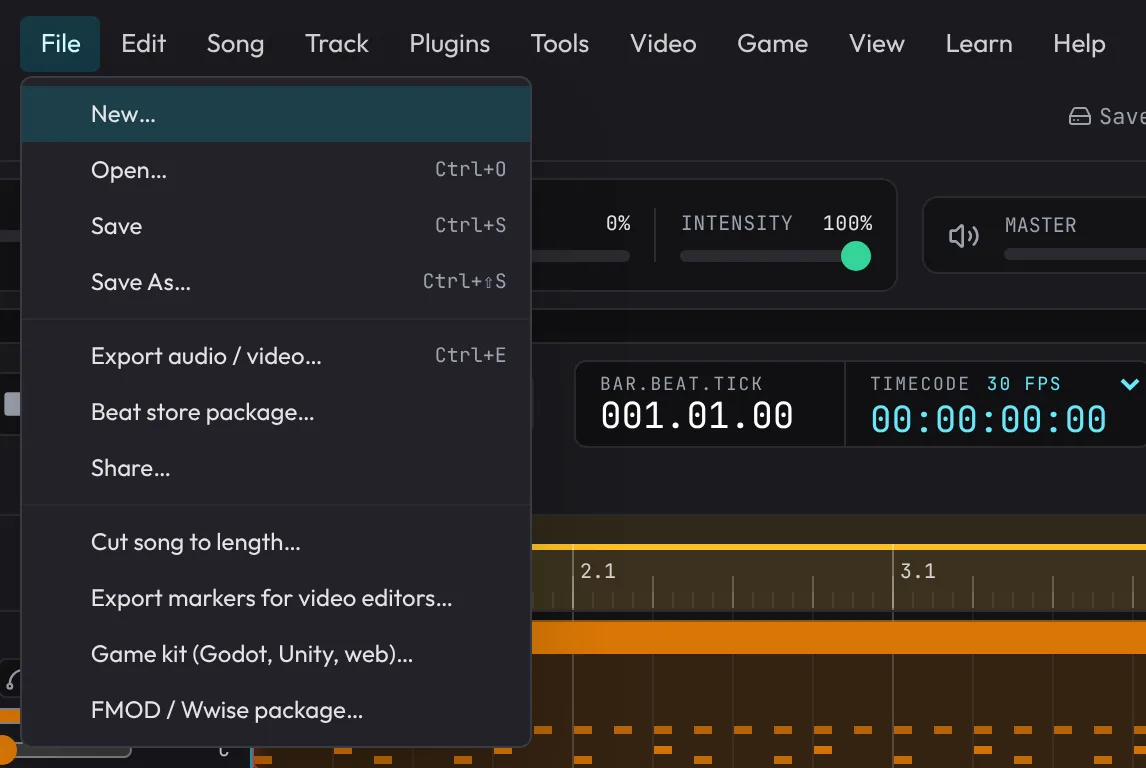
The project's name, Save, Export, Share and Game sit at the right of the menu bar; New and Open are in the File menu.
- Project name: click it to rename. It's used for the file names when you save and export.
- New (in the File menu) replaces what's on screen and clears undo (the song it replaces is offered back by the Restore banner). It offers:
- Blank timeline: four empty tracks.
- Starters: eight songs to start from, all chill and world music: Lo-Fi (82 BPM, electric piano, a dusty breakbeat, upright bass, flute and rain), Ambient (70 BPM, warm and glass pads, kalimba, crystal sparkles), Celtic (112 BPM, a fiddle reel over guitar and bodhrán, tin whistle, pipes), Fantasy Tavern (110 BPM, a jig on dulcimer, lute, hand drum, accordion and recorder), Latin (130 BPM, bossa nova: nylon guitar, upright bass, bongos, agogô, flute), Plaza (104 BPM, son clave on Latin percussion, a nylon guitar montuno, upright bass, trumpet), Mbira Morning (96 BPM, interlocking mbira over a didgeridoo drone, folk harp, balafon, hand chimes) and Eastern (84 BPM, koto, shakuhachi, taiko and shamisen over a drone).
- Each starter is 16 bars with its sections marked and the loop around the whole song, so Play goes from the start to the end, then round again (drag the loop's In and Out on the ruler to repeat just one part). Its held strings, pads and voices swell with each phrase. Its tracks are mixed and the master set for the style, and its level is set on the master's Level: about -15 LUFS, and about -19 for the gentle Ambient, so switching between starters doesn't jump in loudness. Change anything; it's an ordinary project.
- Game music from a starter: each section between markers is a state in the Game tab, so any starter (or your own song with markers) can be wired into a game: set the transitions between states, put tracks in stem groups for Intensity, add stingers, then export a game kit. See Game music.
- Open (
Ctrl+O): load a.fledgetone.jsonproject file. Like New, it replaces what's on screen straight away and clears undo (the Restore banner offers the replaced song back). If the file can't be read, a red message explains why and nothing is replaced. You can also drop a.fledgetone.jsonfile anywhere on the page: a drop onto an empty timeline opens it at once, and when there's work on the timeline a dialog asks before replacing it. - Share: three ways to send the song to someone:
- A link to this song: the whole song travels inside the link (nothing is uploaded anywhere), and opening it opens the song in Fledgetone, ready to play and change. Copy link, or Share… for your device's share menu. Sound files (audio clips, and Sampler, Slicer, Drum Rack and Multi Sampler sounds) can't go in a link, so the dialog says which tracks would be silent; frozen tracks just play live. Links are packed tight (less than half the length they used to be), but a very long one can be cut off by some chat apps: the dialog warns when it's long. Links made before still open.
- The song as an MP3: the whole song mixed, handed to your share menu where the browser can (phones, Windows, Safari on a Mac), or downloaded.
- The project file: everything, sound files included, shared or downloaded the same way.
Opening a shared link on a page that already has work on its timeline asks first.
- Save (
Ctrl+S): the first time, choose the folder and the file name; after that, Save writes straight back to that same file, as a desktop DAW does (the Save button's tooltip names it). A project you opened with Open saves back to the file it came from. - Save As… (
Ctrl+Shift+S, in the File menu): save to another folder or under another name (a copy, a version); from then on, Save writes there. The picker opens in the folder you last saved a project to. - Choosing where to save needs Chrome or Edge on a computer. Other browsers (Safari, Firefox, phones) save the file to their downloads folder instead.
- New, a shared link or Restore starts a song that isn't that file: its first Save asks where again, so nothing overwrites the file by mistake.
- Keep your project files: they're the only way to move a project to another browser or computer.
A project file holds the tracks, clips, mixer and effect settings, tempo and its changes, time signatures, swing, loop, markers, the whole Master tab (Glue, OTT, Stereo Width, Mono below 120 Hz, Level, Loud master, Clipper, master reverb and delay), the game setup (states, transitions, Intensity, stingers, game sounds), frame rate, and every sound it uses (audio clips, Slicer and Sampler sounds). It doesn't hold the listening volume, zoom, snap or ruler setting. Your saved sounds and stars aren't in project files: keep them with File › Save my sounds to a file… (see Favourites and My sounds).
Whether it comes from New, Open or Restore, a project opens showing the start of the timeline, with the playhead at its loop's In point; if that's off the first screen, the view scrolls to it instead. It never keeps the previous project's scroll position.
Autosave
The app also saves your work in this browser half a second after every change. The project bar shows Saved in this browser · <time>. Next time you open the app (or reload the page), your last song opens again, as you left it. Pocket does the same.
- When New, Open or a shared link replaces a song, a banner offers the replaced song back: Restore brings it back (and offers the one on screen in its place), Dismiss forgets it. The offer stays across reloads until you choose; it says how many clips the song has (or markers, when it has no clips yet) and when it was saved. Only the most recently replaced song is kept.
- If autosave fails, the project bar says why in red: the project is too big for browser storage (about 5 MB per site, usually because of big Sampler sounds), storage is full (Dismiss the old session to make room), or the browser blocks storage for this site. While it's failing, closing or reloading the tab asks first, so you can Save.
- If your last session can't be read (it may be damaged, or from a newer version of Fledgetone), a banner says so and it's kept apart in this browser, so nothing overwrites it. If there's no room to keep it apart, the app stops autosaving rather than write over it, and the project bar says so: use Save.
- Autosave is per browser and per site, and private windows don't keep it. Use Save for anything you care about.
Versions: go back to earlier
File › Versions… lists earlier versions of your songs that this browser keeps, the song open first, each with when it was kept ("10 min ago", "yesterday 14:02"), how many tracks and bars it has, and why it was kept when it wasn't just while you worked. Click one to go back to it: after you confirm, it opens as the song, and the song you had open is kept as a version first, so going back can itself be undone from the same list. Under the list: Your songs are files. If this app disappeared tomorrow, they would still open at fledgetone.com.
- While you work, a version is kept every couple of minutes (with autosave), and one just before New, Open, a shared link or going back to a version replaces the song. A song that hasn't changed isn't kept twice.
- Old versions thin out: every one from the last hour, then one per 10 minutes for the last day, then one a day for 30 days. Each song's newest version stays however old it is (a song you replaced may be nowhere else), and at most 300 versions are kept in all.
- Versions keep the song, not its sound files: those stay in the browser's sound library, and Free unused leaves every sound a kept version uses.
- With the app open in two tabs (they share one autosave), each tab keeps the other tab's song as a version ("from another tab") before its autosave writes over it, and the project bar says so: nothing either tab did is lost.
- Versions are kept per browser, like autosave. Where the browser blocks storage (some private windows), the list says so, and autosave and Save work as before.