Guide Writing notes: the piano roll
Writing notes: the piano roll
Double-click a clip with the Selection tool (or right-click it and choose Edit notes, which works with either tool) to open it in the piano roll under the timeline. Drum kits show a row per drum (Kick, Snare, Clap, the hats, toms, crash, ride and cowbell); other instruments show a keyboard covering the instrument's range.
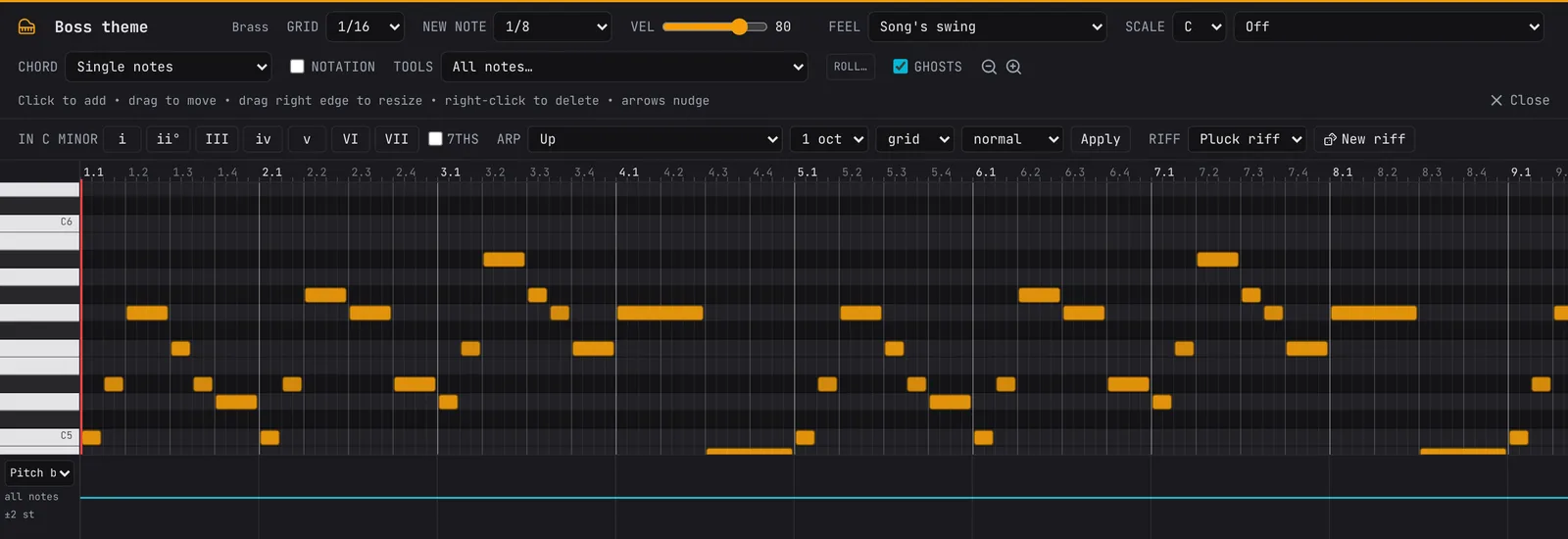
- Add a note: click empty grid. Keep the button down and drag right to stretch it, to the grid line past the pointer. Before you click, a dashed outline shows where the note (or the chord, with Chord set) will go and how long it will be.
- Move: drag a note sideways (time) or up and down (pitch). Selected notes move together.
- Length: drag a note's right edge.
- Delete: right-click a note, or select notes and press
Delete. - Select: click a note. Shift, Ctrl or Cmd-click adds notes;
Ctrl+Aselects them all;Escclears the selection. - Nudge: arrow keys move selected notes by one grid step or one semitone; Shift with up and down moves an octave.
- Copy and paste:
Ctrl+Ccopies the selected notes andCtrl+Xcuts them;Ctrl+Vpastes them at the playhead when it's inside the clip, else where they were copied from, keeping their timing and pitches (into this clip or another one: the copied notes stay until you copy others).Ctrl+Dduplicates the selected notes straight after themselves. Pasted and duplicated notes are left selected, ready to nudge, and each is one undo step. In the piano roll these keys work on notes only; the timeline's clips are copied and pasted with it closed. - Hear it: click the keys on the left. Adding or clicking a note plays it, and so does dragging it to a new pitch.
The header has the clip's name (click to rename), GRID (1/32, 1/16T, 1/16, 1/8T, 1/8, 1/4), NEW NOTE length (it starts at the length you last drew, stretched or picked for that kind of part in this session: a quarter note for pads and chords, an eighth for other notes, a 16th for drums, a bar for FX; Pocket's piano roll shares it), VEL (velocity: how hard new notes are played; with notes selected it changes those notes), PLAYS (how often the selected notes play: see below), FEEL (this clip's own swing, in place of the song's) and zoom. Click the piano roll's ruler to move the playhead. Close it with Close or Esc (when no notes are selected).
Fine grids and triplets. T means triplet: three in the space of two, so 1/16T puts six notes in a beat and 1/8T three. Clicking places a note on the grid line at or before the pointer. Dragging a note, or its right edge, snaps it to the grid, and the arrow keys move notes one grid step. Changing the grid never moves existing notes. Zoom in (the magnifier) for comfortable 1/32 editing. Swing leaves triplets and 1/32 notes on the grid, and an 8th with a 1/32 roll or a triplet in it plays straight, so rolls stay even with Swing on.
Step sequencer (drum clips): with STEPS ticked (the default for drum kits), a click puts a hit in that GRID step of the row, and a click on a hit takes it out, like a drum machine. Shift-click adds an accent (full velocity). Alt-click (or STEPS off) adds, selects and drags notes as usual.
Notes that don't play every time (PLAYS, with notes selected), as on a drum machine's step conditions, so a repeated section keeps changing a little without writing it out again. 75%, 50% or 25% of the time: each time round, the note plays that often. 1st of every 2, 2nd of every 2, 1st of every 4, 4th of every 4: the note plays only on that pass (an open hat on the 4th of 4 lands every fourth time; 1st of 2 and 2nd of 2 on two hats swap them over). Always puts the note back to normal. Such notes are drawn fainter, dashed and marked (50%, 1:2), and fainter on the timeline too.
What a pass is: the copies of a clip side by side on its track (linked copies, Duplicate, Pocket's section copies, the launcher's repeats) count 1, 2, 3...; a different clip in between starts the count again, so in A A B A the last A is on its first pass. With the loop on, each time round the loop counts on as if the loop were written out as copies (a loop over one clip: pass 1, 2, 3...). It's not random as it plays: whether a note plays on a pass is worked out from the note, its clip and the pass, so the song sounds the same every time you play it from the start, and the WAV export sounds like the first time round. An export plays the arrangement once; a seamless loop export plays its loop as the first pass every time, so the file loops cleanly. Each copy of a clip makes its own 50% choices.
Roll beat (drum clips) rolls the beat again in the style it sounds most like: the kick, snare and clap (and the crashes and tom fills) stay, the hats, rides and percussion are new, with a soft extra here and there that often plays only half the time. Press it again for another roll; each is one Undo step. Roll the beat again in a drum clip's right-click menu does the same.
Composing helpers (in the piano roll's header):
- SCALE: pick a key (root and scale: Major, Minor, Harmonic minor, Dorian, Phrygian, Lydian, Mixolydian, the two pentatonics, Blues, Japanese, and the colours game music leans on: Hirajoshi and Yo (Japanese), Phrygian dominant and Double harmonic (desert), Hungarian minor (gothic), Harmonic major, Melodic minor, Lydian dominant, Locrian, Whole tone (dreams, magic), the two Diminished scales (menace, horror) and Chromatic). The CHORD stamps also have Min6, Min(maj7), 6/9, Dim7, Augmented and a 3-semitone Cluster; on the Chromatic scale, "Triad in key" stacks semitones, a cluster too. Rows outside the key are shaded dark and the root's rows lit, and a click lands on the nearest note of the key, so nothing sounds wrong.
- CHORD: a click adds a whole chord from the note you click. Triad in key and 7th chord in key build the right chord for that place in the scale (in A minor, a click on D gives D minor); the others are fixed shapes (Major, Minor, Sus2, Sus4, 7, Maj7, Min7, Add9, Diminished, Power, Octave). The chord drags as one.
- TOOLS changes the selected notes, or the whole clip with nothing selected, in one Undo step: Quantize (starts, or starts and lengths, to the GRID), Humanize (small random shifts in timing and velocity), Strum (a chord's notes a moment apart, low to high or high to low), Arpeggiate (each chord becomes a broken chord at the GRID's speed: up, down, up and down, or random), Legato (each note lasts until the next: on the one-note-at-a-time synths they then glide into each other, and a repeated pitch holds on as one note), Ratchet x2 / x3 / x4 (each note split into equal repeats, getting louder), Roll (each note repeated at the GRID's speed for its length, rising: set GRID to 1/32 for a snare or hat roll), Semitone up / down, Octave up / down, Fit to scale, and the tools under Swells, bends and playing backwards. Drum clips have Quantize, Humanize, Ratchet, Roll, Reverse notes and Stutter build.
- ROLL… (the hat roll painter) turns the selected notes, or every note with none selected, into rolls: each note becomes a roll over its own length, so select one hat (Alt-click it in STEPS) or draw one long note over the span you want rolled. Rate: 1/16, 1/16 triplet, 1/32, 1/32 triplet, 1/64, Stutter (2 to 16 hits spread evenly over each note, whatever its length), or Accelerating (the snare build into a drop: 8ths, then 16ths, 32nds and 64ths, a quarter of the note each; a note too short for the 8ths starts on 16ths). Velocity: rising (into the next bar), falling, swell (up and back down) or even. Pitch: even, rising (+2, +3, +5, +7 or +12 semitones over the roll, the climbing hats of rap beats) or falling. On a drum kit the pitch is each hit's own (every kit plays it); on other instruments the notes move by semitones. The hits sit exactly on the rate's grid from the note's start (a triplet roll on the triplet grid), and swing leaves an 8th with a roll in it even. One Undo step.
- GROOVE… (drum clips): swing per drum. Pick a template, Straight, Light swing (hats), Heavy swing (hats), Lazy (snare and clap a hair late, the hats swung and late) or Pushed (the hats rush ahead of the beat, off-beats accented), or set each row in use on its own: its Swing (0 to 75%, its own in place of the clip's), Timing (early or late by up to a quarter of a 16th), Velocity and Off-beats (the velocity of its notes between the 8ths). The templates keep the kick, and but for Lazy the snare, straight and on time, so the hats swing over a straight kick and snare. A row's swing counts only its own notes, so a hat roll keeps just that 8th of the hats even. It plays the same live, in exports, frozen and in the game kit, and FEEL then reads Per-row groove.
- GROOVE (every note clip): a feel measured from real music, so the parts stop sitting dead on the grid with even velocities. Each feel says, for every 16th of the bar and for each part (kick, snare or clap, hats, percussion, bass, chords or keys, lead), how many milliseconds early or late that part played there (as a share of a 16th, so it follows your tempo) and how hard. Only what was clear in the music is in it: the rest plays as written. Bass music, tight (on the grid, the accents of a bass-music drop), Four on the floor, tight, Future bass, laid back (the bass a little behind the kick), House shuffle (the second 16th of every beat swung late on the hats and shaker), Hardcore push (the bass jumps ahead on the 16th after the beat), Artcore breathe, Artcore bounce (every off-beat hat swung about a fifth late) and Synthwave drive. The button beside it shows the Amount (0 to 100%) and opens the details: Plays as (the part the notes take; found from the track and the notes unless you pick one: drum clips read each row's own part, a bass track the bass, a clip of chords the chords, else the lead) and Take from audio: pick an audio clip of the song (a loop or a track that starts on a bar line) and its own groove is measured, the same way the built-in feels were, and put on this clip. A feel taken from audio is saved in the clip (and so in the project) and is offered for the song's other clips too. A feel plays in place of the clip's swing; notes off the 16th grid (triplets, 32nds) lean with the beat rather than the swing. It plays the same live, in exports and frozen, and in a share link.
- GHOSTS (pitched clips) shows the other tracks' notes over the same bars as faint outlines in their colours, so a melody can follow the chords.
Chords, arpeggios and riffs (the row under the piano roll's header, on pitched clips):
- IN (key) I ii iii IV V vi vii°: the seven chords of the key, named as musicians name them (upper case major, lower case minor, ° diminished; in a minor key i ii° III iv v VI VII). The key is the SCALE when it's set to a seven-note scale, else the song's key as heard. Click one to add that chord at the playhead, NEW NOTE long: the playhead then moves on by that much, so clicking I, V, vi, IV writes a whole progression, each chord voiced close to the one before as a keyboard player would. Hover a button for the chord's name; 7THS makes them four-note 7th chords.
- ARP: turns each chord (notes starting together) into an arpeggio for as long as it lasts: Up, Down, Up and down, Down and up, Converge (outside in), Pinky (the top note between the others) or Thumb (the bottom note between), Random; over 1, 2 or 3 octaves; at the GRID's speed or 1/8, 1/8T, 1/16, 1/16T, 1/32; and staccato to legato. Apply changes the selected chords, or every chord in the clip with none selected. (The four quick arpeggios in TOOLS are still there.)
- RIFF: New riff writes a riff in the key over the whole clip, replacing its notes: a Pluck riff (short, syncopated 16ths), a Lead line (longer notes that sing) or a Bass line (low, on the chord roots with passing notes). It's a one-bar rhythm played as a call and an answer, with its strong beats on the chords your other tracks play there (the track with the most chords over the clip), within the instrument's range. Press it again for another riff; each press is one Undo step, and the same clip gives the same riffs in the same order.
Expression lanes (at the bottom of the piano roll, for every instrument except the drum kits and FX): what a keyboard's wheels, pedal and knobs would play over the clip, and each note's own expression. Pick the lane in the menu at the left of the lane.
- Pitch bend: every note bends together. Click to add a point, drag one to move it (it snaps to the grid; Shift for none), and right-click or double-click a point to remove it; the bend glides from point to point. The lane shows ±2 semitones; ±2 st switches the view to ±12, then ±24 (the Note bend's full range). Bends reach up to an octave either way.
- Mod wheel (dynamics): how loud and how bright, from soft (bottom) to full (top), on every instrument, as orchestral sample libraries use it. Instruments recorded soft and loud and held (the Violins, Violas, Cellos, Tremolo, Solo Violin, Violin, Viola, Cello, Contrabass and Double Bass, Oboe, Clarinet, Bassoon, French Horn, Trumpet, Trombone, Tuba and the saxes, all (Real)) crossfade from the soft recording to the loud one while the note plays; every other instrument gets louder (about 18 dB from bottom to top) and brighter. A held note can swell and fade: draw a rising line for a crescendo, or let Swell draw it (below). A clip without a mod wheel lane plays as it always did, each note's velocity setting its loudness. A MIDI keyboard's wheel does the same live, and is recorded into this lane.
- Vibrato: vibrato, deeper as it goes up (at the top, half a semitone either way, about five and a half times a second). Drawn like the bend. (In songs saved before the mod wheel became dynamics, the mod wheel lane was vibrato: opening one moves it to this lane, so it sounds as it did.)
- Sustain pedal: drag along the lane to hold the pedal down there; notes let go while it's down ring on until it comes up. Click a held stretch to lift it.
- Controller lanes (CC): any MIDI controller by number (choose one under Add a controller lane). Drawn like the bend, from 0 at the bottom to 127 at the top. A controller lane moves the track setting it's mapped to with MIDI learn, or else the usual one: CC 7 volume, 11 expression (also volume: a string or wind player's swell within a phrase), 10 pan, 74 filter cutoff, 71 resonance, 91 reverb send, 93 delay send. Plugin instruments also get it as MIDI. Knobs on your controller that aren't mapped are recorded into controller lanes.
- Note bend and Note pressure (select one note): that note's own expression, as an MPE keyboard plays it. Note bend slides just that note away from its pitch and back (up to 24 semitones either way); Note pressure swells and fades it (its level, from silent at the bottom to full at the top). The lane covers the note's length. The Multi Sampler plays these on each note on its own; other instruments bend as a whole while the note plays.
A ● in the lane menu means that lane has something in it. The lanes travel with the clip when it's moved, copied, split or trimmed, and play the same live and in exports. Bends and vibrato play on the recorded instruments, Slap Bass, Sub-Bass, 808 Bass, the Wobble, Growl and Reese basses, Analog Lead, Space Clav, Brass Stabs, Wavetable Synth, the Synth Designer and plugin instruments; the sustain pedal works on every instrument.
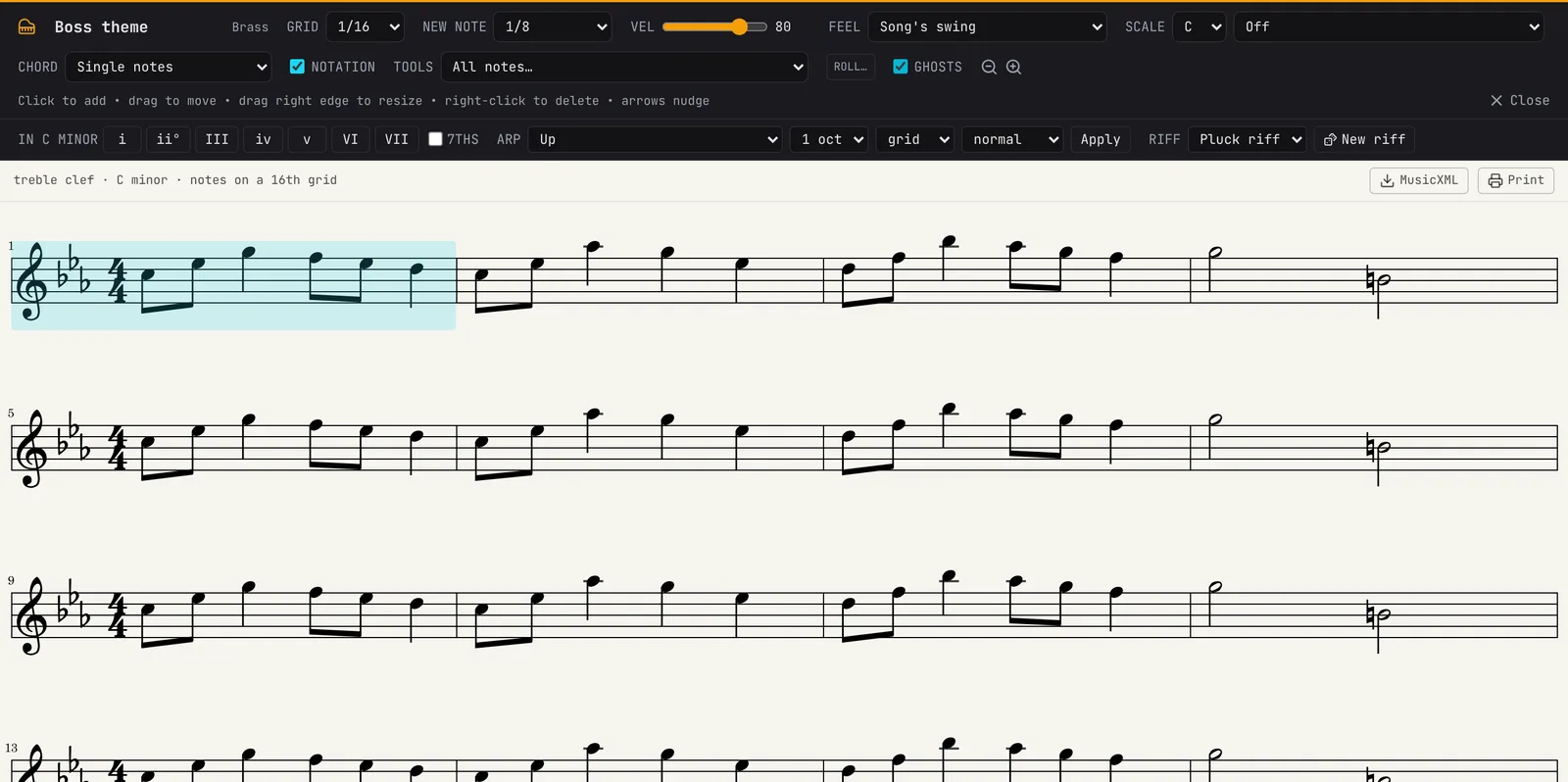
Notation: tick NOTATION in the piano roll's header to see the clip as sheet music: a staff (a grand staff when it spans both clefs; drum clips on a percussion staff) in the song's key and meter, with chords, rests, ties over bar lines, beams and accidentals. Notes are put on a 16th grid and each staff reads as one voice (notes that start together are a chord, held until the next one starts). The measure the playhead is in is lit. MusicXML saves the clip for notation programs (MuseScore, Sibelius, Dorico and others), and Print prints it or saves it as a PDF. Untick NOTATION to edit the notes again.
Swells, bends and playing backwards
Tools that shape a performance. All but Play backwards are in the piano roll's TOOLS menu, and each is one Undo step.
- Swell, Crescendo, Diminuendo: the mod wheel drawn for you over the selected notes (all of the clip's with none selected). Notes that touch or overlap are one phrase, and each phrase grows to its middle and fades (Swell), grows (Crescendo) or fades (Diminuendo). The mod wheel lane opens to show it; edit the points as you like, and one Undo takes it out.
- Stutter build, Spring bounce, Tritone slide, Scoop: Stutter build retriggers whatever is on each bar's last beat 2, 4, 8, then 16 times, bar by bar, tightening into the next phrase (on drums too). Spring bounce draws each note's own bend so its pitch boings like a weight on a spring and settles (an 808 favourite). Tritone slide holds each note, then slides it up half an octave (the "devil's interval"). Scoop starts each note a little flat and swoops up into it, the rave hoover's move. They're drawn as each note's Note bend, so you can reshape them.
- Shape dynamics: makes a line's loudness rise and fall the way a player phrases it, without drawing anything. The notes are split into phrases at each rest (or every two bars); in each, the loudness grows to the phrase's highest note and falls away after it, higher notes leaning a little louder and the last note easing off. Each phrase keeps its average, so the part's level and its accents between phrases stay as you wrote them. It changes the velocities, once (Undo to take it back).
- Play backwards: a block of music turned round, as a tape played backwards: notes swell in from nothing and their echoes and reverb come before them. Song › Play bars … backwards (In → Out) does everything between the loop's In and Out; right-click a clip of notes and choose Play backwards for that one clip, through its own track. The music is rendered (instruments, inserts, sends and reverb, the master section left for the way back) and reversed, and comes back as an audio clip on a new track in the same place, while the notes it came from leave that stretch (clips crossing its edges are cut there and keep their outside parts). One Undo brings the notes back; the audio clip's own Reverse button (in its audio editor) plays it forwards again. Reverse notes in TOOLS is the composer's kind instead: the notes stay notes, mirrored in time, the last first.
Step lanes: the sound changing on every step
Modern bass music doesn't wobble at one speed: its bass changes colour on nearly every 16th (open, closed, growling, gritty), in a pattern that repeats with small changes. Step lanes write that. Click Step lanes in the piano roll's header, then + Lane: a row of steps appears under the notes, each step holding a value for one of the track's settings, from the bottom (0%) to the top (100%).
- What it moves (the menu at the left of the lane's tools): on a Fledge Synth track its macros, named for what they do (on Bass/Growl, Open, Growl and Grit), and any other of its settings by name; on a plugin, its settings; on every track the Filter cutoff and resonance (drawing switches the Filter on), the inserts' settings (Distortion drive, Chorus, Lo-fi, Delay, Reverb, Gate), volume, pan, EQ and the sends to the reverb and delay. A clip can have up to eight lanes.
- Drawing: drag across the steps to set their heights (a quick drag sets every step it crosses, in a line). Right-drag (or Alt-drag) clears steps: a cleared step holds the value before it, so you only set the steps where the sound should change. The step length is 1/16 to start; 1/32, 1/16T, 1/8T and 1/8 are in the menu next to it (changing it keeps the values where the new steps start).
- Tools: Random sets every step to a random height within the range beside it (20–90 to start), Some only about half of them (the others hold); each press gives another set, and Undo the last one. Repeat copies the first 2 to 32 steps across the whole clip (draw one bar, repeat it, then change a few steps of the second for a variation). ← and → shift the steps round by one. Clear empties the lane, the bin removes it.
- Per note: the value changes at each note that starts in a set step (and holds until the next), not at the step's start, so the sound changes with the notes: a note late in a step still starts with its own colour.
- Every change glides over 3 ms, so the steps never click, and arrives exactly where the step (or the note) starts.
The lanes belong to the clip: they move, copy, split and trim with it, linked clips share them, and they're saved in the song, its autosave and share links. Each drag or tool is one Undo step. Within a clip a step lane takes over its setting from the track's automation lane (and a controller lane) for that setting; outside the clip the track's lane plays again, or with none the setting's own value (a Fledge Synth macro's knob). While a step lane moves a plugin's setting, its knob shows the lane, as with automation. Live playback and exports play the same: the track's own settings change to the sample, and a plugin's settings within 16 samples (a third of a millisecond) of where the step starts.
Slides and dives: Alt-drag a note up or down to make it slide to that pitch by its end (a row per semitone, up to two octaves); hold Shift too to start the slide part-way along the note, where the pointer is. A yellow line from the note shows where it goes. Select notes and click Dive (or TOOLS › Dive) for the classic pitch dive: each starts an octave up and falls to its pitch over a 16th. TOOLS › Remove slides and dives takes them off. Both are drawn as each note's own Note bend, so you can reshape them there. Fledge Synth, the Sub-Bass, 808 Bass, Slap Bass, the Wobble, Growl and Reese basses, Analog Lead, the Synth Designer, the pads and keys and the recorded instruments play them (Fledge Synth's Bend range opens to 24 semitones the first time a note bends further than it reaches, and its knob then shows it as held); on an instrument that doesn't bend the line is dashed and the notes play at their own pitch, and the piano roll says so.
Smart tools: chords, bass lines, a drummer and fills
Right-click to have parts written for you. Each one is a single Undo step, and the result is ordinary notes you can edit.
- Chord progression… (right-click an empty spot on an instrument track): four well-worn chords, such as I–V–vi–IV (pop) or i–VI–III–VII (epic), and the borrowed and chromatic ones game and film music lean on: ♭VI–♭VII–I (level clear, victory), I–♭VII–IV–I (open field), I–♭VI (wonder), I–III–IV (hero's journey), I–II (magic), I–IV–iv–I (wistful ache), a calm maj7 vamp, a rousing march; in minor, i–IV (ancient), i–♭II (menace), i–V–VI–V (castle), i–♭vi (tragic grandeur), i–♯iii (sudden shock), the noir line cliché, i–♭VI–♭VII–I and i–iv–V–I (triumph, dark to light) and vii°7–V7 (dread). Then the extended colours of city-night, ballad, lo-fi and funk writing: Imaj7–iii7–vi9–IVmaj7 (city at night), IVmaj7–iv6–Imaj7 (bittersweet turn), IVmaj7–V7–iii7–vi7 (royal road), IVmaj7–III7–vi7–I7 (sunset), ii9–V13sus–Imaj9 (lo-fi, neo-soul), IVmaj7–V7sus–iii7–vi9 (night drive) and, in minor, i9–IV9 (Dorian funk vamp), iiø7–V7–i7 (minor turnaround) and i–v–♭VI–♭III (requiem). Chord names show the colour: Cadd9, Fmaj9, Am9, Dm11, G7sus4, G13sus4. All in the song's key (worked out from its notes; pick another key in the dialog). Choose how long each chord lasts, how many times through, and how they're played: Held chords, a Quarter-note pulse, Off-beat stabs or an Arpeggio. 7th chords makes them jazzier. Each chord is voiced to move as little as it can from the last, as a keyboard player would. The clip is named after its chords and starts on the bar line you clicked.
- Math patterns… (right-click an empty spot on an instrument track): a clip a formula writes, in the song's key (or one you pick), 4, 8 or 16 bars long. Pendulum wave: six notes swinging at slightly different speeds (6 to 11 swings every 4 bars), each playing as it crosses the middle; they drift apart into ripples and line up again every 4 bars (bells, a celesta or a harp suit it). Fibonacci groove: the Fibonacci numbers, counted in fours, pick tones of the home chord; the pattern repeats every 6 notes against 8 in a bar, so each bar lands differently (a pluck or bass). Fifths walk: every fourth note of the scale, a line that walks the circle of fifths through the key. Pascal's harp: Pascal's triangle with only its odd numbers kept (a Sierpinski fractal), one row a step, played as a rising harp chord. Endless riser: copies of a rising line an octave apart, each fading in at the bottom and out at the top, so it seems to rise forever and never gets higher (a Shepard tone): for builds and tension.
- Chords for this melody (right-click a note clip): chords that fit the clip's tune, a chord a bar (half a bar for a clip of two bars or less), on a new track under it. Long notes and notes on the beat count most; the chords are chosen to move the way songs usually do, ending on the home chord or the V.
- Bass line from these chords (right-click a chord clip): a driving 8th-note bass on each chord's root, on a new Slap Bass track under it (change the instrument as you like).
- Melody variations… (right-click a note clip): the tune another way, in the song's key (shown and changeable: a major key and its relative minor share their notes, so pick the one the tune feels like). Every note moves by the scale's own steps, so it stays in key; a sharp or flat outside the scale keeps it. Answer phrase (the same rhythm going the other way, starting a step from where the tune ended and coming home to the key note: call and response), Darker (the minor; a minor tune goes Phrygian), Brighter (the major; a major tune goes Lydian), Simpler (only the notes on the beat, each held to the next), Busier (passing notes filling the leaps), Syncopated (downbeat notes an eighth early), Up a step (a sequence that builds), Mirror (upside down around the first note), Harmony a third above (a second voice to play along), or Surprise me (two of them together; make another for another). Put it after the clip on its track (the first free spot), on a new track under it (the harmony's default, to play together), or in place of it. One undo step.
- Accompaniment for these chords… (right-click a chord clip): a part that follows each chord change, on a new track under it: a Walking bass (quarters up the chord, a half step into the next one), Oom-pah-pah (the root low on the beat, the chord on the others: a waltz in 3/4, an oom-pah in 4/4, a lilt in 6/8), an Alberti bass, Strummed guitar, a Harp glissando on each change, a driving String ostinato accented 3+3+2, Sparkle (a few high chord notes here and there), a Horn fanfare (a triplet pickup, then up the chord) or a Drone. Each suggests an instrument; pick another if you like. The notes are moved into the instrument's range.
- Drummer… (right-click an empty spot on a drum-kit track): a beat in one of twenty-two styles (Four on the floor, Backbeat, Boom bap, Rap beat, Two-step, Funk, Dembow, Half time, Syncopated drop (modern bass music around 100 BPM: about six kicks a bar, one to three 16ths apart, the snare on two and four, 16th hats leaning on each beat with 32nd or triplet rolls now and then), and for games: Waltz in 3/4, Jig in 6/8, March, Shuffle, Big-band swing, Bossa nova, Calypso, Maqsum desert hand drums, Battle ostinato, Tribal build, Blast beat, a Heartbeat, and Brushes: a soft swirl on the snare leaning on two and four, for ballads and a city at night), 1 to 16 bars (measures, in 3/4 or 6/8) long. The beats follow the song's time signature; a waltz or a jig in a 4/4 song offers to set 3/4 or 6/8 for the clip (and back after it), in the same Undo step. The shuffle and swing styles give their clip swung 8ths (see FEEL). An Energy slider goes from sparse through steady to busy, and A fill every 2, 4 or 8 bars (or none) adds fills. A crash opens the part. Every clip it makes is a new take: the hats breathe and the kicks move a little from bar to bar.
- Roll the beat again (right-click a drum clip): new hats and percussion in the style the beat sounds like, the same kick and snare (see Notes that don't play every time, under the piano roll).
- Fill (right-click a drum clip): replaces the end of the bar under the pointer with a snare roll (last beat), a tom run (last two beats), a build-up (the whole bar, snare 8ths to 16ths to 32nds, getting louder) or a kick pickup. Kicks on the beat stay, and a crash and kick land on the next downbeat.