
Guide Exporting audio
Exporting audio
Click Export. The dialog has four choices, and remembers them in this browser:
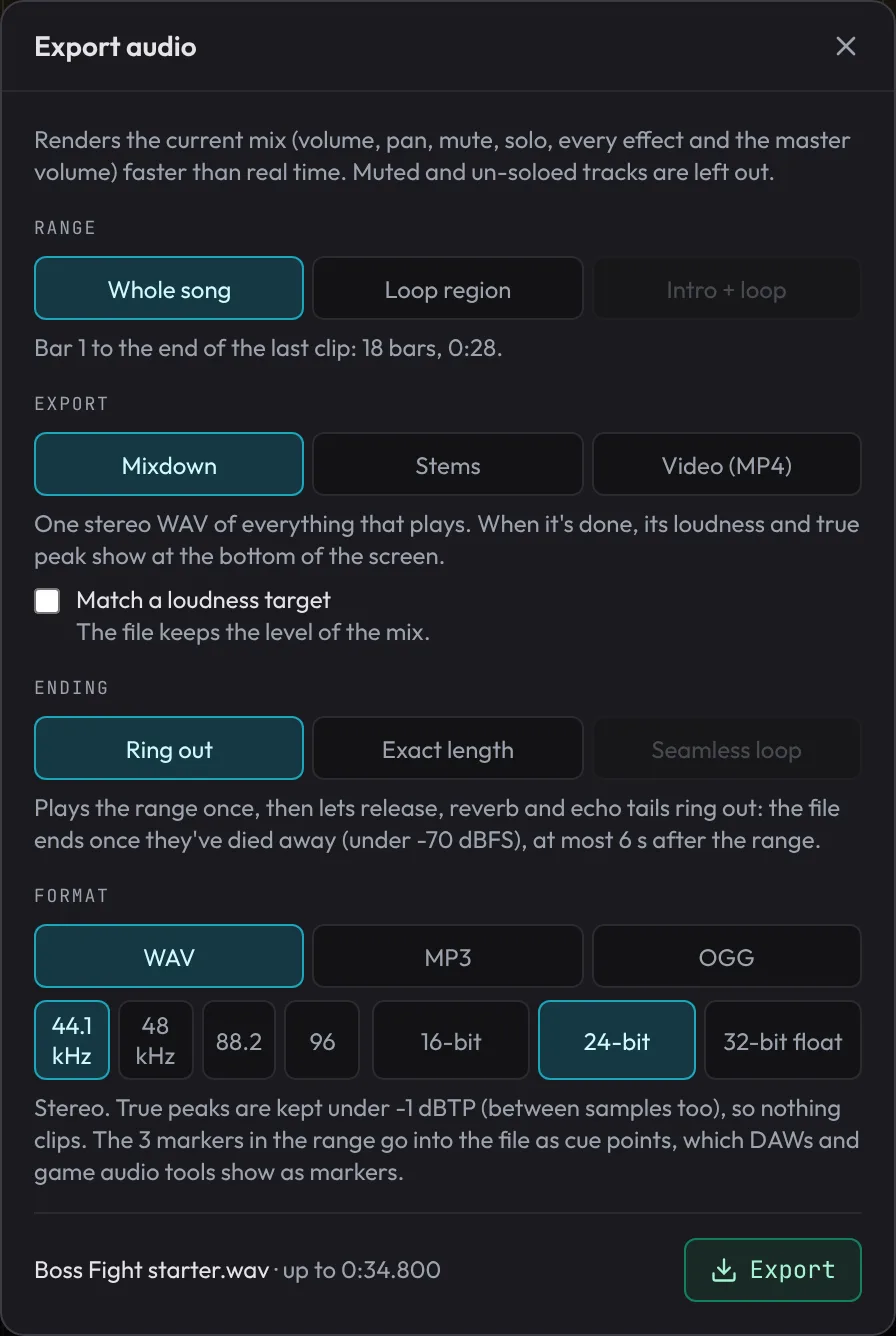
- Range: Whole song (bar 1 to the end of the last clip that plays), Loop region (In to Out, whether or not the loop is on), or Intro + loop (for games, below). For the loop, the dialog shows where it starts as a timecode at your frame rate.
- Export: Mixdown (one stereo file of everything that plays), Stems (called Layers with Intro + loop, below) or Video (MP4) (below). For a mixdown, Match a loudness target turns the whole file up or down to where it's going: Streaming (-14 LUFS: Spotify, YouTube, Apple Music, SoundCloud), Loud: EDM and future bass (-9 LUFS; streaming services turn it down to -14), Club: bass music and hardcore (-6 LUFS, for DJs and club systems), Games (-16 LUFS, room for sound effects and voices), Podcast and video voice-over (-16 LUFS) or TV and broadcast (-23 LUFS, the European standard). If a quiet mix would need its peaks pushed past -1 dBTP to get there, a look-ahead limiter holds them down (up to 8 dB of it: more only distorts, since a limiter can't take a sub-heavy drop past about -10 LUFS without bending every cycle of the bass); beyond that the file stops short and the message says by how much. With the master's Loud master on, the target starts on its own and the Loud master gets there instead: it pushes the mix into its clipper and limiter, measuring until it's on target (and keeps that push, so playback matches the file); the message says how hard it pushed. A game's intro and loop are only turned up or down together, never limited, so the loop's seam stays seamless. When a mixdown finishes, its loudness and peak show at the bottom of the screen. What you hear in the app is level-matched (about -15 LUFS, see Playback) but a file plays at its own level, so once the song has played a few seconds the dialog says how much quieter or louder the file will sound than you heard it here; when it would be quieter, Match Streaming (-14 LUFS) turns the target on in one click. A mixdown can come with other versions too, all in one .zip: Underscore version too leaves out the lead melody (and any voices), so the music sits under someone talking in a video or podcast; No-drums version too leaves out the drums, for a calmer moment. The lead is the track named "Lead" if there is one, else the loudest part playing one line at a time (an arpeggio, a pad, chords or stabs never count, so a song without a tune has no underscore); the dialog names what each version leaves out. Stems (one WAV per track that plays and has clips in the range, in one .zip). Stems all start at the range start and have the same length, so they line up in another program, and each includes the track's effects, sends and the shared reverb and echo. Bypass master compressor & limiter (on by default) makes the stems add up to the mix as it is before the master compressor and limiter.
- Ending:
- Ring out: the range, then the release, reverb and echo tails ring out: the file ends once everything has died away (under -70 dBFS, at the file's level after any loudness match), after a second at least and at most as long as the longest tail can ring: the reverb, a track's own Delay or Reverb, or the master delay's echoes (the dialog says how long that can be).
- Exact length: exactly the range, to the sample, with a 5 ms fade at the very end so it doesn't click.
- Seamless loop (Loop region only): exactly one loop long, with the tails of the pass before already ringing at its start, so it repeats in a game engine or looping player without a gap or click. It stays exactly on the beat at any tempo, fractional ones included. As a WAV (the mixdown and every stem) it also carries loop points (a standard
smplchunk covering the whole file), which Godot, GameMaker, samplers and many Web Audio loaders read, so you don't have to set the loop by hand. - Format: the file type: WAV (uncompressed and exact, the only one that holds markers and loop points), MP3 (320 kb/s, plays everywhere) or OGG (Ogg Vorbis, about 256 kb/s, the best compressed format for games: Godot and Unity loop it without a gap). Then 44.1 kHz or 48 kHz (the recorded instruments are prepared again at the rate you choose, so either is as clean as the other, whatever rate your sound card runs at); a WAV can also be 88.2 or 96 kHz, for mastering or video work at high rates (a bigger file and a slower export; an MP3 or OGG picked after is made at 44.1 or 48). For WAV, 16-bit, 24-bit (the default) or 32-bit float. A 16-bit file is dithered (a faint, steady hiss far below the music, instead of the grainy distortion rounding to 16 bits otherwise leaves on fades and reverb tails); digital silence stays silent. Always stereo. MP3 and OGG files play back to the exact sample: nothing is added at the start or the end, so an intro runs into its loop and a loop repeats without a gap (an MP3 carries the encoder's delay and padding in its first frame, the way LAME writes it, and players and game engines leave them out). One exception: a web browser's own audio decoding (Chromium's) leaves about 10 ms of an OGG's end padding on, so for a seamless loop in a web game use the MP3 or a WAV. Compressing a file nudges its peaks up a little (up to about 2 dB on a dense, clipped master; a few tenths on most songs), so an MP3 or OGG, and a video's sound, is limited exactly as the WAV is, under -1 dBTP, then played back once it's made and turned down by anything over -1, encoded again and checked again until it decodes under it (usually nothing; the message says when, and gives the file's own peak). Stems and layers are all turned down together, by one amount, so they still add up to the mix, and a mixdown's underscore and no-drums versions keep their levels to the full mix the same way. Cancel stops it at once, encoding included.
A mixdown renders on several of your computer's processor cores at once where the browser allows it (Chrome and Edge do), so a big song exports up to two or three times faster. It sounds exactly the same: tracks whose sound only meets at the master are rendered side by side and added up before the master section. Tracks that play through a group bus or return with a Compressor, Distortion, Lo-fi, multiband compressor or a plugin on it are rendered together, and so are tracks with plugins. Stems render several at a time the same way, each on a core of its own. Exporting the same song again on the same computer gives the same file, sample for sample, whatever plays in it: drums, risers and noisy synths vary from hit to hit, but the same way every time.
The footer shows the file name and its exact length. Exports include the whole mix: volumes, pans, mutes and solos, every effect, sends, the master reverb and delay, the master OTT, Stereo Width, Mono below 120 Hz, Level, Loud master and Clipper, and swing. They never include the listening volume or the level matching: what you hear is only turned up or down. The first beat is as loud as the rest, so a kick right at the start keeps its attack. If the mix would clip, the file is turned down to just under full scale (stems all by the same amount, so their levels still match).
Markers in the range go into the file as cue points with their names, which DAWs, audio editors and game audio tools show as markers. Their positions count from the start of the file (the range start, or IN for a loop), in the mixdown and in every stem. A Ring out file also includes a marker sitting exactly at the end of the range. When there are any, the Format section says how many go in (or that the one marker does). The loop's IN and OUT aren't written as markers.
Exporting renders faster than real time and shows its progress. It pauses playback. Cancel stops it and nothing is saved (the dialog stays open to try again); Esc or the X stops it and closes the dialog.
Music for games: intro + loop, and layers
Game music usually plays an intro once and then loops the rest for as long as the player stays. Set the loop region to the part that should repeat (everything before its In is the intro) and choose Range: Intro + loop. The export is a .zip with:
<name> intro.<ext>: bar 1 up to the loop's In, exactly, ending without a fade so it runs straight into the loop.<name> loop.<ext>: the loop region as a seamless loop (see Seamless loop above): exactly as long as the loop, and it repeats without a gap or click.- For WAV, also
<name> intro+loop (loop points).wav(untick Also one file with loop points to leave it out): both in one file, with the loop marked inside it. Godot (set the import's loop mode to detect from the WAV) and most samplers play the intro once and loop the rest on their own.
In your game, play the intro, then start the loop the moment the intro ends, set to repeat. Intro and loop share one level and one reverb, so the change can't be heard. Match a loudness target measures the loop and moves both together.
Choose Export: Layers instead of Mixdown for adaptive music: an intro and a loop for every track that plays, all exactly the same lengths, so the game can play them together and fade layers in and out (drums when a fight starts, strings when the player finds something). They share one level, so turned all the way up they make the mix.
Channel kit
File › Channel kit (streams, videos)… (or search channel kit) makes music for the start, the breaks and the end of your streams and videos from one song, as one .zip, so everything sounds like it belongs together. The dialog lists each file and the bars it comes from:
- Intro (about 6 seconds of the main part, fading out) and Outro (the song's ending, about 10 seconds, from a phrase line).
- Three seamless loops for a stream's screens: Starting soon (the main part: the busiest, most important section, up to 32 bars), Be right back (the main part without its lead melody, or without its drums) and Ending (a calmer section of at least 4 bars, or the main part without drums). In OBS, add one as a Media Source with Loop on: it repeats with no gap.
- Three short alerts for a follow, a subscribe and a big moment, in the song's key and tempo: your song's own upbeat stingers first (Victory, Level up, Item found, Checkpoint), made ones for the rest.
- A transition whoosh, for a stinger transition between scenes.
- A README saying what each file is for.
Every file is a WAV at 48 kHz, 24-bit (what streaming software and video run at). Loudness sets the level: the music is turned up or down by one amount for every piece (worked out on Starting soon), so a calmer piece stays calmer and you set the volume once; nothing is limited, so the loops stay seamless.
Beat store package
File › Beat store package… makes everything you need to sell a beat, as one .zip, every file named with the title, tempo and key (for example "Night Drive - 140 BPM - A minor"):
- Tagged MP3 preview: the beat with your producer tag laid over it, for the store page and socials, so nobody can use it without buying it. Tag sound is the tag you recorded in Arrange a beat › Producer tag, or Load another short recording of your tag (it's kept in this browser for next time, never in a project); play it At the start and/or Then every so many seconds, at the Tag level you choose. The beat dips 4 dB under each tag so it's heard. Without a tag sound the preview is the plain beat.
- Untagged WAV: 24-bit, 44.1 kHz, the full-quality beat for buyers.
- Stems (track-outs): one 24-bit WAV per track, all starting at bar 1, before the master compressor and limiter, so they add up to the mix in any studio.
- Cover image (optional, JPEG, PNG or WebP), and a short info file with the tempo, key and loudness.
The Key comes from the notes (you can pick another, or leave it out of the names). Loudness keeps the mix's level or matches a loudness target, as in the Export dialog.
Video (MP4)
Choose Export: Video (MP4) to turn the song (or the loop region) into a video for YouTube, TikTok, socials or a game's trailer, with the mix as its sound. Pick its Frame rate: Smooth 60 fps (the notes and playhead glide; the default) or 30 fps (a smaller file, made faster). It's made at a high quality, so it still looks sharp after TikTok or YouTube compress it again. Under Title and marks, type the video's Title (blank: the project's name) and the line Under it (blank: the tempo), or untick either to leave it out, and choose whether to show the Section names (from your markers), the Time and the Waveform. Whatever you leave out gives its room to the picture. A small made with fledgetone.com mark always stays at the bottom (except on your own video: see below). Pick its Shape: Widescreen 16:9 (1920×1080, for YouTube, a trailer or a website) or Portrait 9:16 (1080×1920, for TikTok, YouTube Shorts and Instagram Reels). By default a video shows the title and the line under it, the whole song's waveform with a playhead, the section you're in (from your markers) and the time. It's usually made faster than real time (30 fps is quicker than 60).
Picture chooses what fills the middle:
- Showcase: the notes playing (File › Showcase video… opens Export set to it, or search showcase): every note of the song on a piano roll that scrolls past a red playhead. Each note lights up as the playhead reaches it, glows while it's held and dims once it's played, in its track's colour. Only what you hear is shown: muted tracks (and tracks a solo leaves out) are left out, and notes hidden by a trimmed clip edge aren't drawn. Portrait shows less of the song at once (about 4½ seconds across, widescreen about 8), so the notes stay big on a phone. Two more choices under Picture:
- Tracks: One roll puts every track's notes on one piano roll, the drums in a band of their own underneath and the track names above it; when two tracks play the same note at once (a doubled part), each gets half of its row, so they don't merge into one. A lane per track gives each track a band of its own with its name at the left, fitted to that track's notes, so a big arrangement stays readable. Auto (the default) uses lanes from 7 tracks.
- Hits: what a note does as the playhead reaches it: Sparkles (a small star and a few dots), Rings, or Just the glow. The busier the song, the smaller the glow and the hits, so they don't cover the notes.
- Spectrum in any of the Mixer's spectrum styles (LED bars, Neon city, Grid terrain, Radar HUD, Data rain, Holo pigeons), moving with the music.
Match a loudness target turns it up or down to a target (YouTube plays at -14 LUFS). With a reference video loaded, Put the music on your video uses your video as the picture instead (see Scoring to a video); in Portrait it's fitted into the tall frame. Then the picture is only your video, with no title or marks. Tick Keep the video's own sound too to mix its sound effects or dialogue under the music.
Videos need Chrome or Edge (or another browser with WebCodecs) on a site served over https. On Windows and Mac they're H.264 with AAC sound, which plays everywhere; where the browser doesn't have those, they're VP9 or AV1 with Opus sound, which browsers, VLC, YouTube and Discord play but some older players don't.